Loading video…
All breakouts
 Claude Codeseen in 193 videos →
3.0Text-Heavy
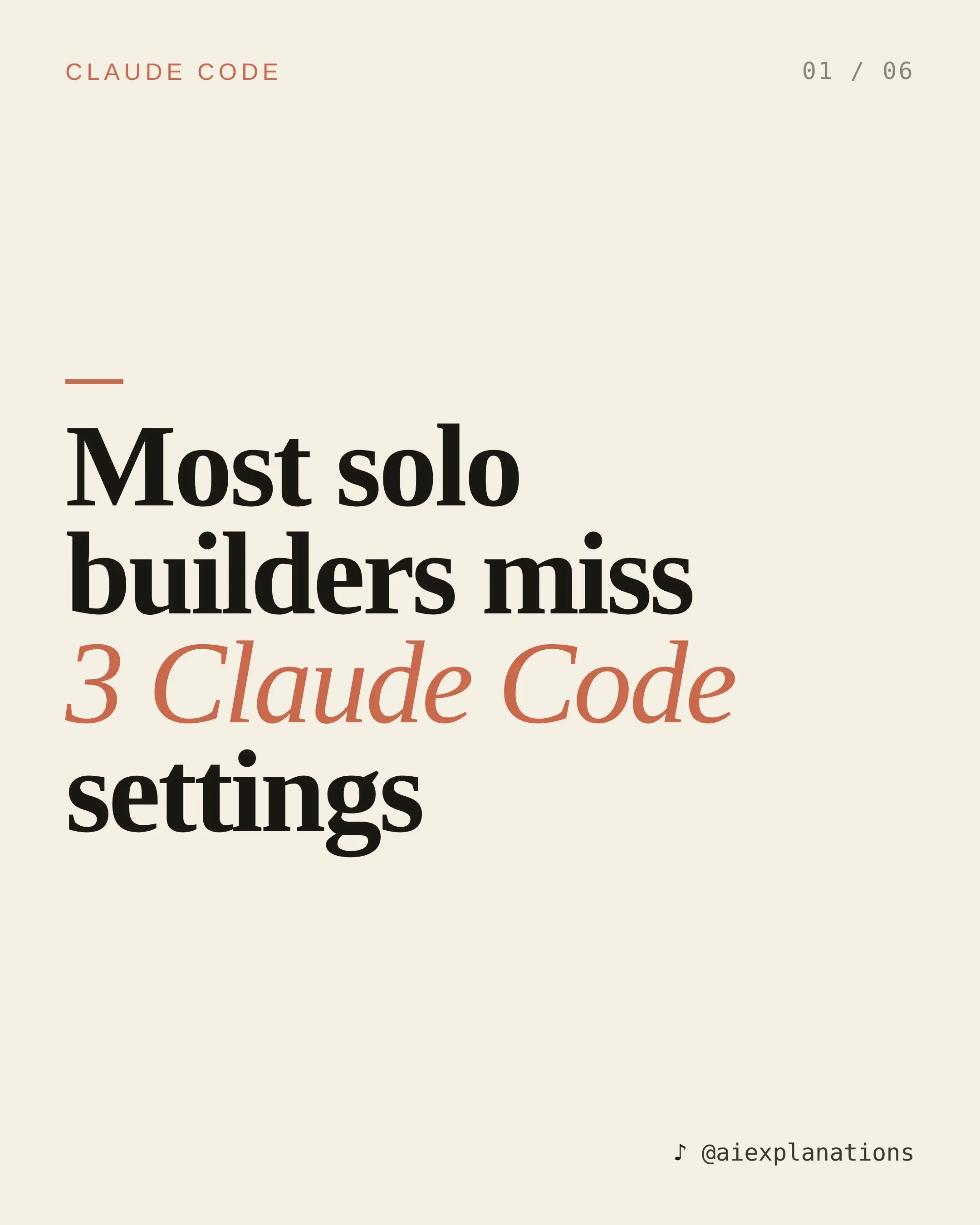
Hook
CLAUDE CODE 01 / 06
@agentexplanations
1.1K followers · usually 2.4K views a post
Views
7.0K
Likes
163
Comments
1
Shares
22
Selling · SaaS › AI Tool
Why it worked
The video provides actionable, specific tips for a popular AI tool, presented in a concise and visually appealing format. It addresses common pain points for solo builders, such as repetitive context-setting and permission interruptions, offering clear solutions.
Summary
This slideshow explains three key settings for Claude Code, an AI coding assistant, to improve solo builder productivity. It details how to use a CLAUDE.md file for context, a 'cc' alias to bypass permission prompts, and Ctrl+B to plan the next prompt while Claude works in the background.
Structure
- 1Introduction to Claude Code settings
- 2Setting 1: CLAUDE.md for context
- 3Setting 2: 'cc' alias for zero interruptions
- 4Comparison: With and without the alias
- 5Setting 3: Ctrl+B for background planning
- 6Call to action: Save and follow
Product placement
Claude Code ACTS: it is an AI coding assistant that helps builders by generating code, answering questions, and performing tasks. Its interface is operated by the user. Removing it would fundamentally change what happens in the video. Claude.md ACTS: it is a file that Claude reads to understand project context, rules, and goals, which it uses to inform its responses. Removing it would change how Claude understands the project. The 'cc' alias ACTS: it is a command-line shortcut that streamlines the use of Claude, specifically by skipping permission prompts. Removing it would change the user's interaction with Claude. The shell (zshrc, bashrc) APPEARS: it is the environment where the alias is added. Removing it would not change what Claude does, but it would remove the method of setting up the alias. aiexplanations APPEARS: it is the creator's handle, a watermark on the content. Removing it would not change what Claude does.
Original caption
Most solo builders use Claude Code like a smarter autocomplete. the real jump happens when you set up 3 things most people never touch. Here's what's missing from your setup: 1 CLAUDE.md — a file Claude reads automatically every session. drop your stack, rules, and current goal in it. stop re-explaining context every time you open a new session. 2 the cc alias. one line in your zshrc: alias cc='claude --dangerously-skip-permissions'. saves 30+ permission interruptions per session. the flow break is costing you more than you think. 3 Ctrl+B for parallel work. Claude is running a task — press Ctrl+B to background it and start typing your next prompt. actual parallel productivity, not just watching a spinner. Setup time: under 10 minutes. every slide has the exact line to paste. Which one are you setting up first? Drop it below 👇 Follow @aiexplanations for solo builder setups that actually ship. #claudecode #aitools #devtools #indiehacker #buildinpublic
More from @agentexplanations
Their other posts in the index, biggest breakout first.