Loading video…
All breakouts
 CapCutseen in 576 videos →
5.5Talking HeadHow-To hook
Hook
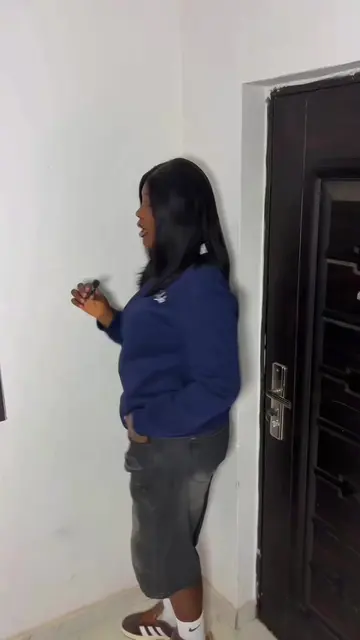
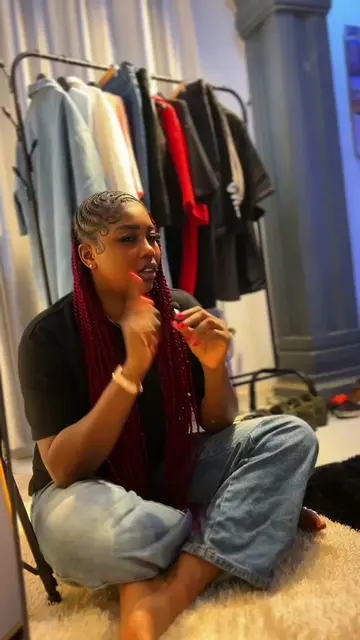
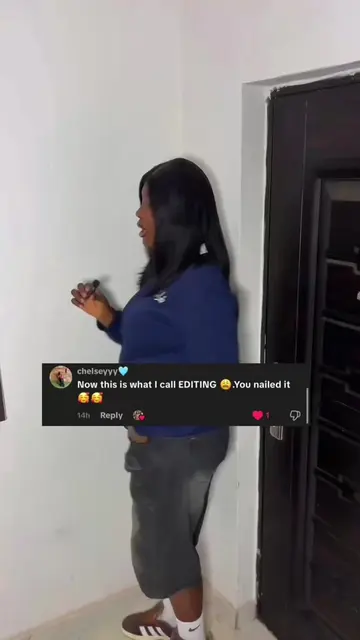
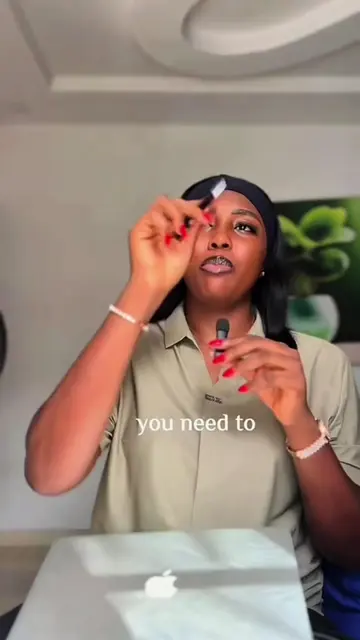
In my last video I promise you guys that I was going to teach you how to create this particular text hack
@_osegodwin02
28.5K followers · usually 3.5K views a post
Views
19.3K
Likes
2.5K
Comments
209
Shares
232
Selling · SaaS › Other SaaS
Why it worked
The video provides a clear, step-by-step tutorial for a visually engaging text animation effect that is popular on social media. The creator's demonstration of the technique, combined with the use of a widely accessible editing app like CapCut, makes it easily replicable for other content creators.
Summary
This video demonstrates a text animation hack using CapCut, focusing on synchronizing text movements with hand gestures. The creator explains how to position and animate text to match hand movements for a dynamic effect.
Structure
- 1Introduction and promise of a text hack
- 2Demonstrating the hand movement for text creation
- 3Editing in CapCut: adding and positioning text
- 4Applying 'wipe left' animation to the first text
- 5Adjusting animation speed and timing for synchronization
- 6Applying 'wipe out' animation to the second text with staggered timing
Product placement
Original caption
Viral text hack tutorial for your next video | Video editing tutorial for content #videoediting #creatorhacks #textedit #capcuttutorial #contenttips Video editing hacks
video editing hashtags for viral videos
video editing hashtags
video editing hacks for viral videos
video editing hacks for creators
hangout content video editing
video editing hausa
video editing hacks capcut
video editing hacks on iphone
video editing hairsresser
Video editing hacks
video hacks for editing on tiktok
video editing hacks on iphone
video editing hacks for creators
video editing hacks capcut
video editing hacks for viral videos
video editing hack canva
tiktok hacks editing video
video editing hacks on your phone
video editing lifehacks
video editing tricks from tiktok
tiktok video editing tricks
video editing tips for tiktok
tiktok tricks for video editing
editing tricks video on tiktok
tiktok editing hacks using tiktok
tiktok hacks editing video
hacks for editing on tiktok
video editing hack
edit hacks on tiktok
Video editing text
video editing text effects
video editing text capcut
text editing tutorial capcut
video editing text for capcut
video editing text tutorial
video editing text ideas
video editing text animation
video editing text overlays
video editing text ideas inpiration
video editing text ideas
text editing tutorial capcut
video editing text ideas inpiration
text video editing tutorial
video editing text idea for advert
video editing text ideas da vinci
video editing text video
editing text tutorial
video editing text
viral text editing video
More from @_osegodwin02
Their other posts in the index, biggest breakout first.