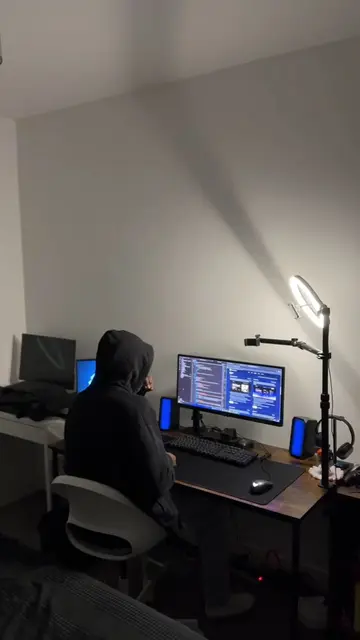
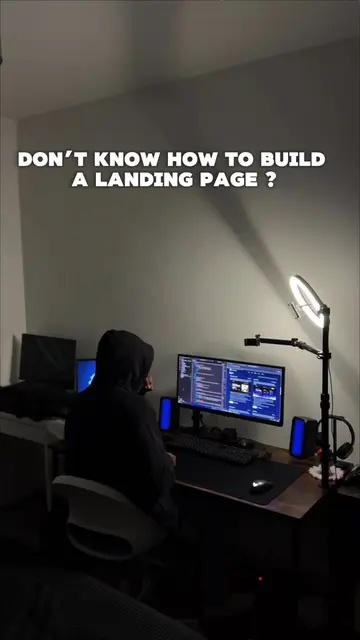
Loading video…
All breakouts
 2 videos
8.8App DemoHow-To hookEducation
Hook
Teaching you how to code Part 5
@denis.webstudio
3.4K followers · usually 5.7K views a post
Views
48.8K
Likes
4.2K
Comments
38
Shares
201
Promoted product
Denis WebStudiodeniswebstudio.com
London developer building real apps and teaching web dev from zero. UGC creator for dev tools and SaaS.
Why it worked
The video provides a clear, step-by-step tutorial on a practical web development skill (creating a glass navbar), which appeals to beginners and those looking to enhance their portfolio. The use of 'Part 5' suggests a series, encouraging viewers to follow for more content. The content is directly related to the creator's expertise and website, making it a natural soft sell for their services or courses.
Summary
This video is part 5 of a coding tutorial series, demonstrating how to build the basic HTML structure for a modern glass navigation bar. It covers creating folders, setting up index.html and style.css files, adding a logo, navigation links, a placeholder for a hamburger menu icon, and basic content. The video concludes by showing the unstyled result and previewing the next steps involving CSS styling.
Structure
- 1Set up project structure (folders and files)
- 2Create basic HTML boilerplate and link CSS
Original caption
Teaching you how to code part 5: Building a glass navbar #webdevelopment #Learntocode #coding #codingbeginner #webdeveloper
More from @denis.webstudio
More breakout videos from this creator.