Loading video…
All breakouts
15.4App DemoOther hookEducation
Hook
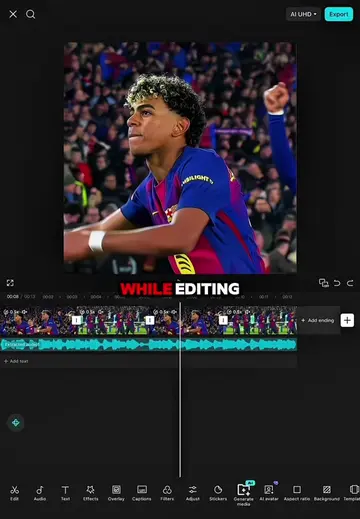
WHILE EDITING
@ds_template
377.9K followers · usually 33.7K views a post
Views
568.4K
Likes
44.7K
Comments
627
Shares
1.9K
Why it worked
The video likely performed well due to its clear, step-by-step tutorial format, demonstrating advanced editing techniques that are popular on platforms like TikTok. The use of trending effects and a visually appealing subject (a sports car) would also contribute to its reach.
Summary
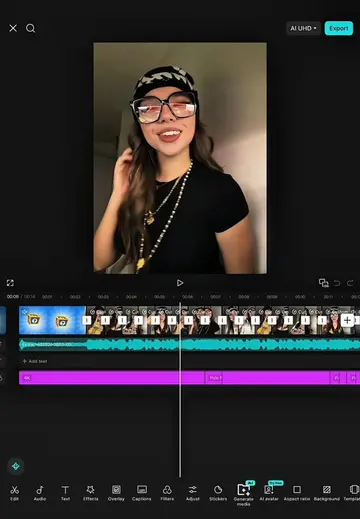
The video demonstrates a complex editing process using CapCut to create a split-screen effect with multiple overlays and animations. The creator walks through freezing clips, adjusting durations, applying masks, and adding various transitions and effects to achieve a dynamic visual. The tutorial covers several layering and manipulation techniques to achieve the final look.
Structure
- 1Introduction to editing process
- 2Applying freeze frame and overlay
- 3Adjusting duration and masking
- 4Adding transitions and animations
- 5Copying and layering effects
- 6Finalizing the visual with multiple overlays
On-screen text
WHILE EDITING
I REALIZED
HOW BORING
AND FLAT
THIS EDIT LOOKED
NO LIE
EYES
OVER
ME
DON'T BE SHY TAKE CONTROL OF ME GET THE VIBE IT'S GONNA BE LIT TONIGHT
GOOD THING
MY GRANDMA
TAUGHT ME
THESE TRICKS
OKAY THE
FIRST STEP
IN THIS
SECOND CLIP
IS TO FREEZE IT
AND THE
FROZEN RESULT
I MOVE
TO OVERLAY
AND I
ADJUST THE DURATION
TO 1.5
THEN IN
THE OVERLAY
I REMOVE
THE BG
AND I
GIVE THE
FRONT AND
FRONT SMALLER
A SPLIT
ENTRY ANIMATION
AND FLOW
GRAPH 2
IN THIS
SECOND CLIP
I ADDED
A SWOOSH BLUR
TRANSITION AND
ANIMATION OF
ENTERING
TURBULENCE 2
THEN UNDER
THIS OVERLAY
I GAVE
A HALF TONE
BLING EFFECT
AND ADJUST
THE DURATION
TO THIS
YELLOW POINT
AFTER THAT
UNDER THIS
OVERLAY
I GAVE
A JALEETA
BEAT EFFECT
AND I GAVE AN
OBJECT TO
THE FIRST
OVERLAY
I COPIED
THE EFFECT
AND PUT
IT UNDER THE
SECOND OVERLAY
THEN IN
THIS SECOND OVERLAY
I ADJUSTED
THE DURATION
TO THIS
YELLOW POINT
AFTER THAT
UNDER THIS
OVERLAY
I GAVE
A JALEETA
BEAT EFFECT
AND I GAVE AN
OBJECT TO
THE FIRST
OVERLAY
I COPIED
THE EFFECT
AND PUT
IT UNDER THE
SECOND OVERLAY
THEN IN
THIS FOURTH CLIP
I FROZE
IT AND THE
FROZEN RESULT
I MOVED
TO OVERLAY
AND I
ADJUSTED THE
DURATION
TO 0.3
AND I
LAYER I
PUT IT
IN FRONT
THEN I
REMOVE THE BG
AND UNDER
THE OVERLAY
I GIVE
A WHITE
FLASH EFFECT
THEN I
GIVE THE OBJECT
TO OVERLAY
IN THE NINTH CLIP
I GAVE
A BLUE
SWOOSH TRANSITION
AND AN ANIMATION
ENTERING
TURBULENCE 2
RIGHT BELOW
THIS YELLOW DOT
I INSERTED
A VIDEO OVERLAY
AND ADJUSTED
THE DURATION
TO 0.9
AND I GIVE COVER
I CHOOSE HORIZONTAL AND
ADJUST THE SIZE 90
THEN I
COPY THIS
OVERLAY AND
I PUT IT
BELOW
AND I
ADJUST THE COVER
AND I
INVERT IT
AFTER THAT
THESE FOUR
OVERLAYS A WHITE
FLASH EFFECT
AND I GAVE OBJECTS TO
EACH OVERLAY
THEN IN
CLIP 9
I FROZE IT
AND I MOVE
TO OVERLAY
AND I
ADJUST THE
DURATION
TO 0.3
AND I
COVER IT
AND I
ADJUST IT
COVER IT
AND I
INVERT IT
AFTER THAT
THESE FOUR
OVERLAYS A WHITE
FLASH EFFECT
AND I GAVE OBJECTS TO
EACH OVERLAY
IN CLIP 9
I FROZE IT
AND I MOVE
TO OVERLAY
AND I
ADJUST THE
DURATION
TO 0.3
AND I
COVER IT
AND I
ADJUST IT
COVER IT
AND I
INVERT IT
AND THIS
IS THE
RESULT THANK
YOU FOR
WATCHING
Original caption
#CapCut 📚 Follow this tutorial step by step and create amazing edits in just a few minutes! ✨ Don’t forget to like, share, and repost this video to support my content. Your support motivates me to keep making more helpful tutorials for everyone. 🚀 #dsldr #capcutpioneer #tutorial
More from @ds_template
More breakout videos from this creator.