Loading video…
All breakouts
8.9Talking HeadHow-To hookConsumer Apps
Hook
BEST VIDEO SETTINGS
@capturewithaxel
4.9K followers · usually 5.0K views a post
Views
39.5K
Likes
1.4K
Comments
354
Shares
223
Why it worked
The video provides clear, actionable steps for optimizing a popular camera's settings, directly addressing a common user need. The "comment Luna for settings" CTA encourages engagement and data collection, while the "beginner guide" framing makes it accessible.
Summary
This video provides a beginner's guide to optimizing settings on the Insta360 Luna Ultra camera for better video quality. It covers adjustments for video bitrate, audio modes, resolution, frame rates, exposure, white balance, saturation, sharpness, contrast, face priority, breathing compensation, filters, color grading, and gimbal follow/joystick speeds.
Structure
- 1Introduction and hook
- 2Video bitrate settings
- 3Audio settings
Original caption
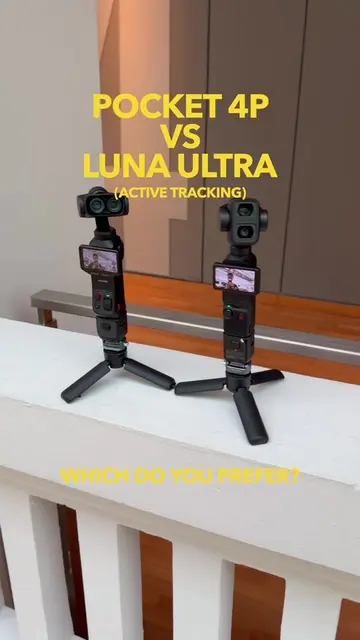
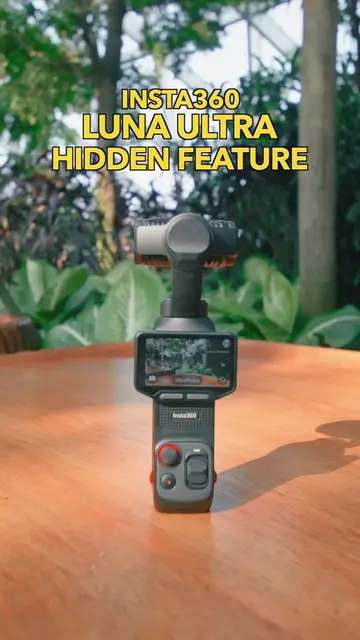
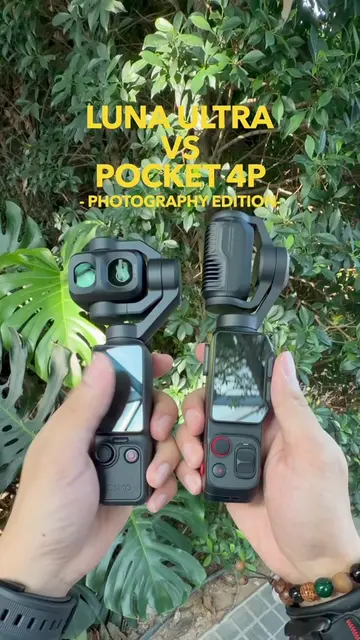
Replying to @Andrew Kevorkian BEST VIDEO SETTINGS FOR THE INSTA360 LUNA ULTRA! (BEGINNERS) Just got your Insta360 Luna Ultra? Dial in these settings and you are good to go! Comment down below “Luna” And I will send you the summarise settings to you! #insta360 #insta360lunaultra #cinematic #settings #lunaultra
More from @capturewithaxel
More breakout videos from this creator.