Loading video…
All breakouts
 CapCutseen in 576 videos →
15.7App DemoHow-To hookCreator Economy
Hook
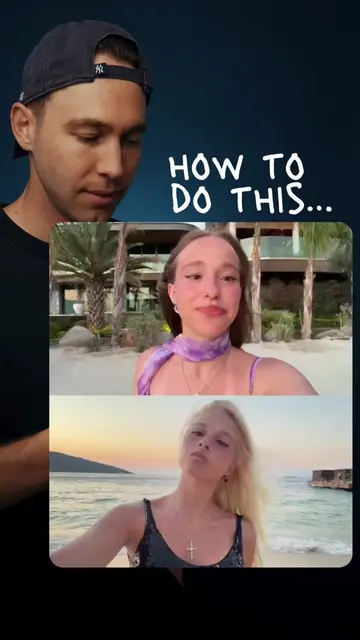
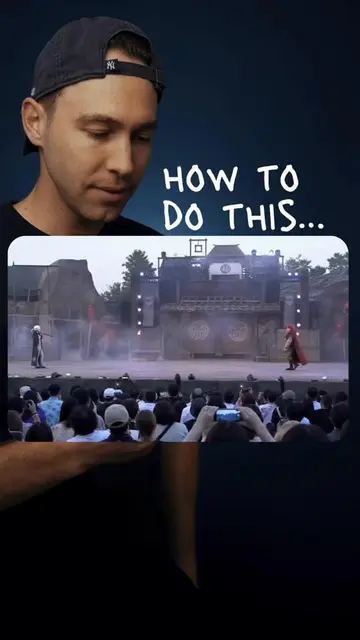
HOW TO DO THIS...
@stevenwommack
2.5M followers · usually 148.5K views a post
Views
2.2M
Likes
76.3K
Comments
237
Shares
3.5K
Selling · SaaS › Other SaaS
Why it worked
The video provides a clear, step-by-step tutorial for a popular video editing effect using a widely accessible app (CapCut), making it highly shareable and useful for content creators.
Summary
This video demonstrates how to use CapCut's camera tracking feature to create a dynamic video effect. It shows how to film yourself, import the clip into CapCut, select custom tracking, and then adjust the canvas to remove unwanted borders.
Structure
- 1Film yourself performing an action while staying in frame
- 2Import the clip into CapCut
- 3Select custom camera tracking and track the subject's head
- 4Adjust the canvas to fit the video
- 5Export the final video
Product placement
CapCut is shown being used to edit a video, specifically demonstrating the camera tracking feature.
Call to action
Export
On-screen text
HOW TO DO THIS...
00:00:00
00:00:04
00:00:28
00:00:29
00:00:30
00:00:31
00:00:32
00:00:33
00:00:34
AI UHD
Export
Selected subject not found. Try another one.
Camera tracking
Face
Body
Hands
Custom
Track
Tracking... 23%
Adjust
Fit canvas
Lock object size
Blurr corners
00:00:06
00:00:12
00:00:04
15f
00:00:05
15f
00:00:06
15f
00:00:07
15f
00:00:10
15f
00:00:11
15f
00:00:11
00:00:12
00:00:10
15f
00:00:11
Add ending
Edit
Audio
Text
Effects
Overlay
Captions
Filters
Adjust
Retrack
Remove
AI movement
Camera
tracking
Exporting in 1080p...
Please don't close CapCut or lock your screen.
80.7%
Original caption
CapCut Tracking video edit tutorial #CapCut #capcutpioneer
More from @stevenwommack
Their other posts in the index, biggest breakout first.