Loading video…
All breakouts
36.6Text-HeavyWarning hookAI Tools
Hook
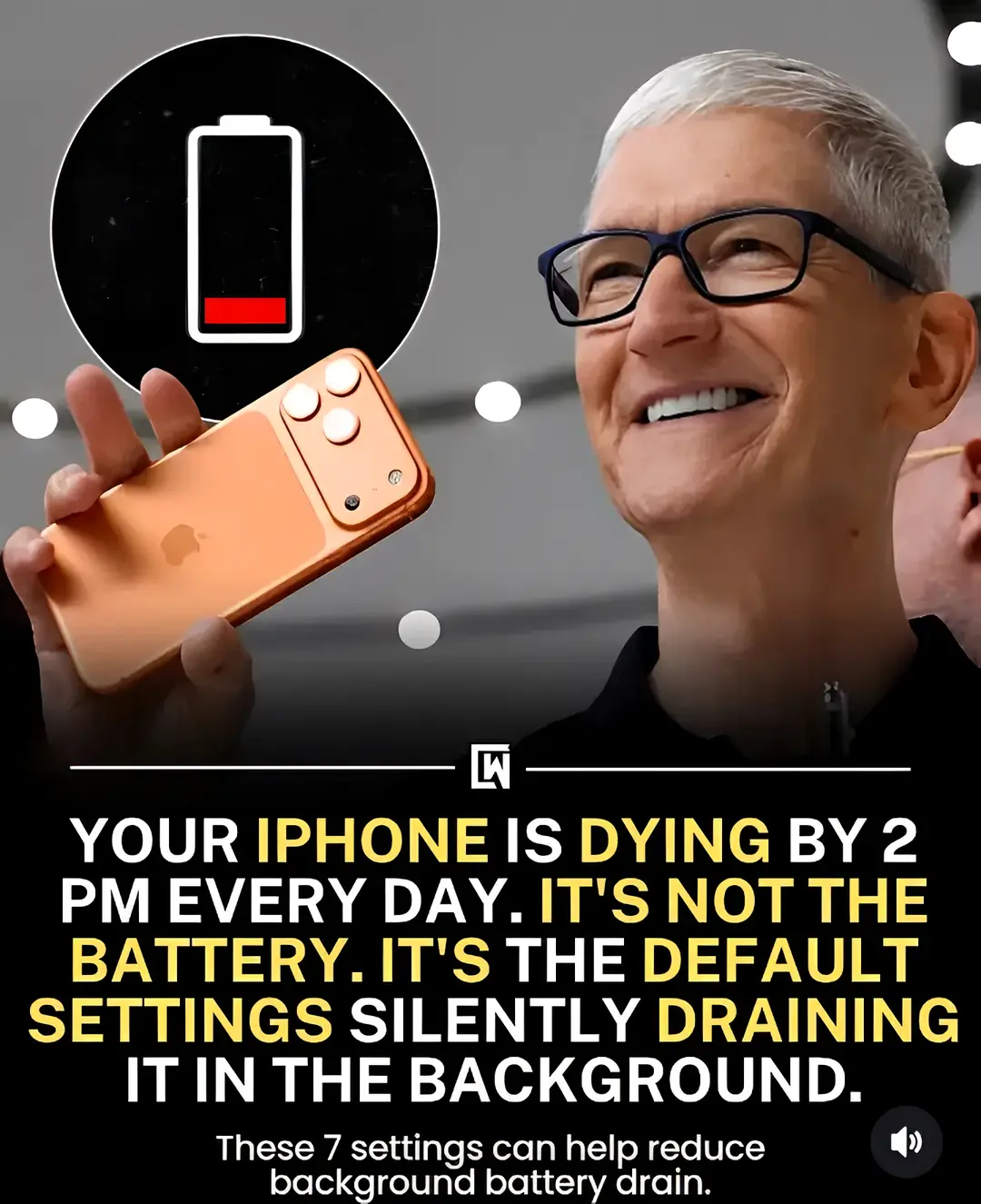
YOUR IPHONE IS DYING BY 2 PM EVERY DAY. IT'S NOT THE BATTERY. IT'S THE DEFAULT SETTINGS SILENTLY DRAINING IT IN THE BACKGROUND.
@ai_prompt_and_technology
13.1K followers · usually 1.8K views a post
Views
28.6K
Likes
238
Comments
2
Shares
31
Why it worked
The video addresses a common and frustrating pain point for iPhone users (battery drain) with actionable, easy-to-follow advice. The clear, step-by-step instructions presented in a text-heavy format make it highly shareable and useful for a broad audience.
Summary
This video explains that a common cause of iPhone battery drain is not the battery itself, but rather default settings that consume power in the background. It provides seven specific settings adjustments users can make to improve their iPhone's battery life.
Structure
- 1Hook: iPhone battery dying by 2 PM
- 2Problem: Default settings draining battery
- 3Solution: 7 settings to reduce drain
- 4Specific settings explained (Background App Refresh, Location Services, Always-On Display, Mail Fetch, Analytics, 5G Auto, Lock Screen Widgets)
- 5Benefit: Extended battery life
Product placement
iPhone: ACTS - it is the device whose settings are being adjusted to improve battery life. Removing it would change what happens in the video. Apple: APPEARS - it is the manufacturer of the iPhone. Removing it would not change what happens in the video.
On-screen text
YOUR IPHONE IS DYING BY 2 PM EVERY DAY. IT'S NOT THE BATTERY. IT'S THE DEFAULT SETTINGS SILENTLY DRAINING IT IN THE BACKGROUND.
These 7 settings can help reduce background battery drain.
1. KILL BACKGROUND APP REFRESH
Settings, Privacy and Security, Location Services, go through every app. Change Always to While Using. Then scroll to System Services at the bottom and turn off iPhone Analytics, Routing and Traffic, Improve Maps, and Significant Locations. These ping your GPS all day for Apple's benefit.
2. FIX LOCATION SERVICES
Settings, General, Background App Refresh, set to Wi-Fi or Off. Every app you've ever downloaded is checking for updates in the background. This alone saves 15 to 25 percent daily drain.
3. TURN OFF ALWAYS-ON DISPLAY
Settings, Display and Brightness, Always On Display, Off. Your screen stays partially lit every second of every day. Single biggest battery win on newer iPhones.
4. SWITCH MAIL TO FETCH
Settings, Mail, Accounts, Fetch New Data, turn Push off. Set Fetch to Every 30 Minutes or Manually. Push keeps a live connection to your email server 24 hours a day. Fetch checks on a schedule and stops the constant drain.
5. TURN OFF ANALYTICS
Settings, Mail, Accounts, Fetch New Data, turn Push off. Set Fetch to Every 30 Minutes or Manually. Push keeps a live connection to your email server 24 hours a day. Fetch checks on a schedule and stops the constant drain.
6. SWITCH TO 5G AUTO
Settings, Mail, Accounts, Fetch New Data, turn Push off. Set Fetch to Every 30 Minutes or Manually. Push keeps a live connection to your email server 24 hours a day. Fetch checks on a schedule and stops the constant drain.
7. REMOVE LOCK SCREEN WIDGETS
Settings, Cellular, Cellular Data Options, Voice and Data, select 5G Auto. 5G uses significantly more power than LTE. 5G Auto switches to LTE when full speed isn't needed, which is 90 percent of the time.
Original caption
🔋 Your iPhone battery dying too fast? It might not be the battery. Hidden default settings can quietly drain your battery all day. 📱⚡ Learn the 7 simple changes that can help extend battery life, reduce background activity, and keep your iPhone running longer. 💡 Small settings = Big battery savings. #iPhone #Apple #iOS #BatteryLife #iPhoneTips
More from @ai_prompt_and_technology
More breakout videos from this creator.