Loading video…
All breakouts
545App DemoDirect Question hookCreator Economy
Hook
Tu as un Mac ? Tu as un iPad ?
@pleaseglowup_
12.0K followers · usually 1.3K views a post
Views
677.4K
Likes
33.2K
Comments
201
Shares
9.0K
Why it worked
The video solves a common, expensive pain point (needing a second monitor) by demonstrating a free, built-in feature that many users are unaware of.
Summary
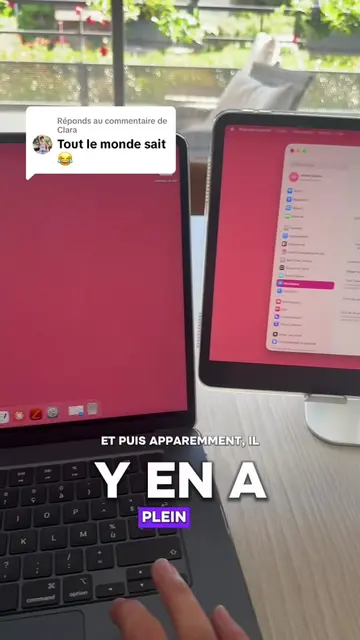
The creator demonstrates how to use the Sidecar feature to turn an iPad into a secondary display for a MacBook. The video provides a step-by-step tutorial on connecting the two devices via Bluetooth and system settings.
Structure
- 1Hook posing a question about owning Apple devices
- 2Instruction to enable Bluetooth on the iPad
- 3Navigation through Mac system settings
- 4Selection of the iPad as a monitor
- 5Final result showing the extended display
Product placement
Apple MacBook (a) ACTS: interface is operated to demonstrate the Sidecar feature. Apple iPad (a) ACTS: interface is operated to demonstrate the Sidecar feature. Apple macOS (a) ACTS: system settings are navigated to enable the display extension. Apple iPadOS (a) ACTS: system settings are navigated to enable the display extension.
On-screen text
Tu as un Mac ? Tu as un iPad ?
Je suis sûre que tu ne savais pas ça !
Tu mets les deux à côté, tu actives le Bluetooth
tu vas sur ton Mac dans les réglages, puis moniteur
tu viens cliquer ici sur le +
et tu sélectionnes ton iPad
Plus besoin d'acheter un double écran
ton iPad fait le travail !
Original caption
Plus d’explications ici 👇🏼 Ça fait des mois que j’ai un MacBook et un iPad et que je cherche en même temps un double écran pour pouvoir travailler… jusqu’à que je me rende compte qu’en fait je l’avais déjà 🙈 Je met mon iPad en mode paysage et je le connecte à mon MacBook, c’est hyper simple et ça me change la vie ! Je suis la seule qui savait pas ou toi t’étais déjà au courant ? 🥲🥲🥲 #ipad #macbook #tips #astuce #digital
More from @pleaseglowup_
More breakout videos from this creator.