Loading video…
All breakouts
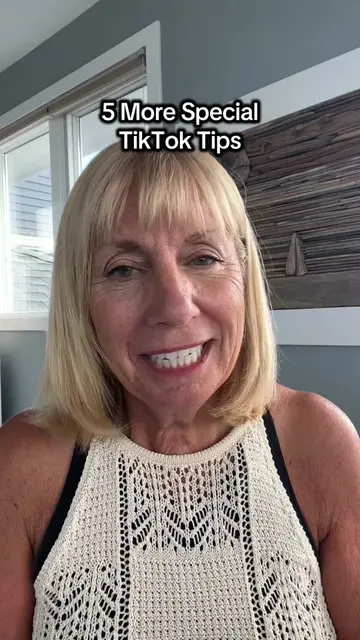
13.9Talking HeadListicle hookCreator Economy
Hook
HERE ARE FIVE
@themuthership
1.2M followers · usually 5.4K views a post
Views
73.5K
Likes
5.7K
Comments
765
Shares
729
Why it worked
The video offers practical, actionable tips for TikTok users, covering common editing and content management features. The clear, step-by-step demonstrations make it easy for viewers to follow along and implement the advice, increasing its value and shareability.
Summary
The video provides five tips for using TikTok more effectively. It covers how to customize video thumbnails, sort content by popularity, duplicate video clips for creative effects, improve video quality with editing tools like noise reduction and brightness adjustment, and download videos for offline viewing.
Structure
- 1Tip 1: Customize video thumbnails
- 2Tip 2: Sort videos by popularity
- 3Tip 3: Duplicate video clips
- 4Tip 4: Enhance video quality
- 5Tip 5: Download videos for offline viewing
On-screen text
5 Special TikTok Tips
Transcript
HERE ARE FIVE random things you do in TikTok. THE FIRST ONE, create your thumbnail, you can actually adjust the size. LET'S PRESS EDIT and this is where you select which part of your video you wanna use as the thumbnail. So let's say I wanted to use this piece, you can go right here. You can go up and down, but you can also increase the size of it. So if I wanted to have my thumbnail look like that, I can make it nice and big. You can also choose a photo from your phone. Wanna make a nice combo or pretty photo you can actually pick something from your phone as well. And then this is where you add text. You can just pick one of these text blocks and put what your video is about. Type it in there and then move it around. NUMBER TWO, you can actually sort your videos by the most popular. If you're on your profile and you wanna see your most popular videos, you can just tap this icon and then tap popular. And then it's gonna put some of your most highly viewed videos right at the top. NO. 3, you can easily duplicate a scene in TikTok even without a duplicate button. I'm gonna pick a video in my drafts. To the editing screen and I'm gonna just choose a part that I might wanna duplicate. So let's say I wanna have that twice. All I have to do is make a cut by tapping split and then just add the beginning back on. And so then the first shot does it twice. I can do that anywhere. I wanna do. End too. Let's say I wanna get the wave and I wanna do it twice. So I bring it up and I wave once. I tap split. And then I add the beginning back on. So then my hand will come up twice. Watch 12. It three times. Tap again split. Add back on. And then you can duplicate it as many times as you want. NO. 4, if your videos have bad lighting or bad audio, there's something that could possibly fix it. So if you're working on a video and has a lot of background noise, you can tap the edit button. Gonna make a little edit for this shot right here because there's a lot of noise in the background of this shot. So I'm gonna split it. And then I can just scroll along the bottom and look for adjust. This auto adjust and that brightens it up and you can even brighten it up even more. Play with the dial here. The brightness here and you can add some brightness because when you brighten up one area, it might brighten the background way too much. And NO. 5, GEM. Going somewhere where you're not gonna have good service, but you still wanna be able to scroll on TikTok. I'm gonna show you a little tip and it's pretty cool. Up here and you tap on offline videos. Download videos to watch offline. They'll be refreshed with new content when you're next connected to Wi-Fi. You can choose how many videos you want it to store. The least one. So we're gonna download 60 videos. Once you tap this download button, it does the thing and it you'll start to see the videos appearing here. See what happens. But when you tap on this, it's gonna show you the progress. So then once it downloads the videos and you close this and you go back to the settings here, you go back later when you have no service on your offline videos. You can just scroll through that have already been downloaded for you. You can go back to the settings here and then you can clear them. But right now there's 60 videos hanging out for me. So that's just a fun feature if you're on a flight and you don't have Wi-Fi and you wanna do some scrolling. And then when you're done, you can tap on the settings and then you can clear them and it will clear them.
Original caption
How many did you know? #tiktoktips #tiktokhelp #tiktokbeginner #themuthership
More from @themuthership
More breakout videos from this creator.