Loading video…
All breakouts
90.4Talking HeadOther hookAI Tools
Hook
phone
@fromsagexoxo
5.1K followers · usually 925 views a post
Views
80.1K
Likes
9.3K
Comments
255
Shares
403
Promoted product
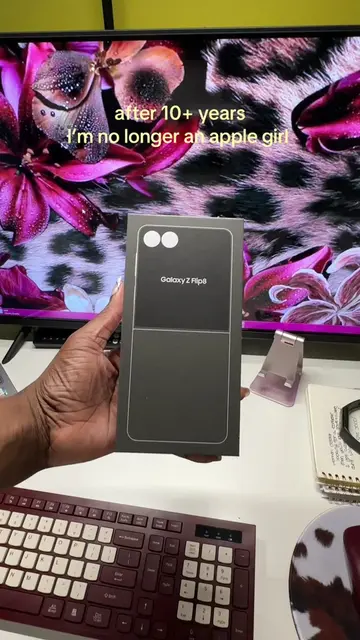
Galaxy Flip 8
Why it worked
The video provides practical, step-by-step advice for a common user transition (iPhone to Android), addressing potential pain points like message transfer and customization, which resonates with a broad audience looking for helpful tech tips.
Summary
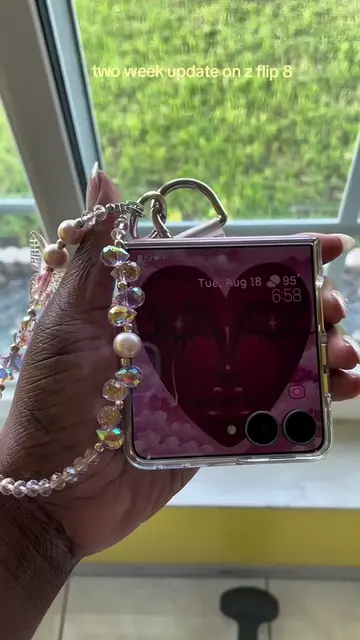
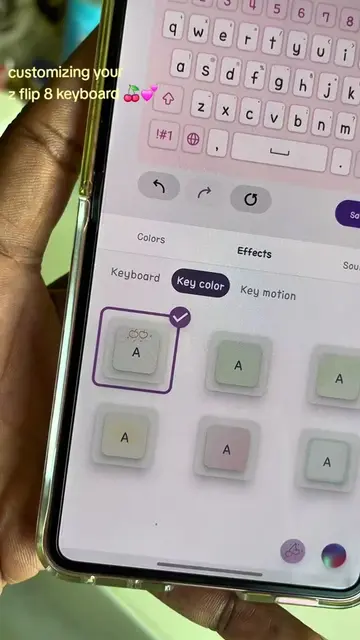
The creator demonstrates how to transfer from an iPhone to a Samsung Galaxy Flip 8, highlighting customization options for icons and keyboard, and addressing issues with message transfer and color balance. They express overall satisfaction with the phone's features and camera quality despite some initial transfer challenges.
Structure
- 1Introduction and phone display
- 2Customization options (icons, keyboard, color)
- 3Transferring messages and disabling iMessage/FaceTime
- 4Addressing color balance and gestures
- 5
Original caption
Full list of what I did to transfer from iPhone to Samsung below : My biggest tip: hold on to your iPhone until everything is fully transferred over. 1. Turn off FaceTime on your iPhone. 2. Turn off iMessage on your iPhone. Then double-check it’s actually off here: https://selfsolve.apple.com/deregister-imessage/ 3. Turn off two-factor authentication on iCloud. Since I was trading in my iPhone, I didn’t want two-factor codes still going to a phone I no longer had. 4. Fix the color balance on the Samsung Galaxy Flip. Out of the box, everything had a blue tint. I adjusted the color settings so it matched what I was used to seeing on my iPhone. 5. Switch navigation from buttons to gestures in the Samsung settings. 6. Save your passwords from iPhone to Samsung — this works, but heads up: if you have two-factor enabled, signing into your accounts on the new Samsung will trigger a bunch of verification alerts to your iPhone @Samsung US #galaxyzfold8 #samsunggalaxy #zfold8
More from @fromsagexoxo
More breakout videos from this creator.