Loading video…
All breakouts
141App DemoHow-To hookConsumer Apps
Hook
How To Access your Favourite apps Easily
@ui.noir
33.5K followers · usually 2.5K views a post
Views
348.3K
Likes
9.3K
Comments
70
Shares
775
Why it worked
The video provides a direct, high-utility solution to a common user pain point (accessing apps quickly) using a native, free tool, which encourages viewers to try the customization themselves.
Summary
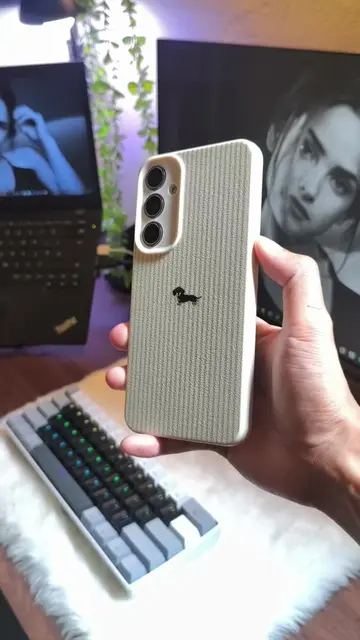
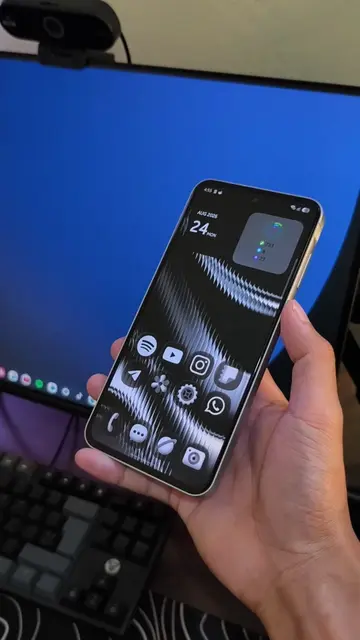
The video demonstrates how to use the Good Lock app on a Samsung device to customize the lock screen and add quick-access app shortcuts. It shows the user navigating through the app's interface to configure the LockStar feature.
Structure
- 1Demonstration of lock screen shortcut access
- 2Opening the Good Lock app
- 3Navigating to the LockStar plugin
- 4
Original caption
How To Access your Favourite apps Easily #techaesthetic #oneui85 #samsunga55 #samsung
More from @ui.noir
More breakout videos from this creator.