Loading video…
All breakouts
50.8Text-HeavyHow-To hookEducation
Hook
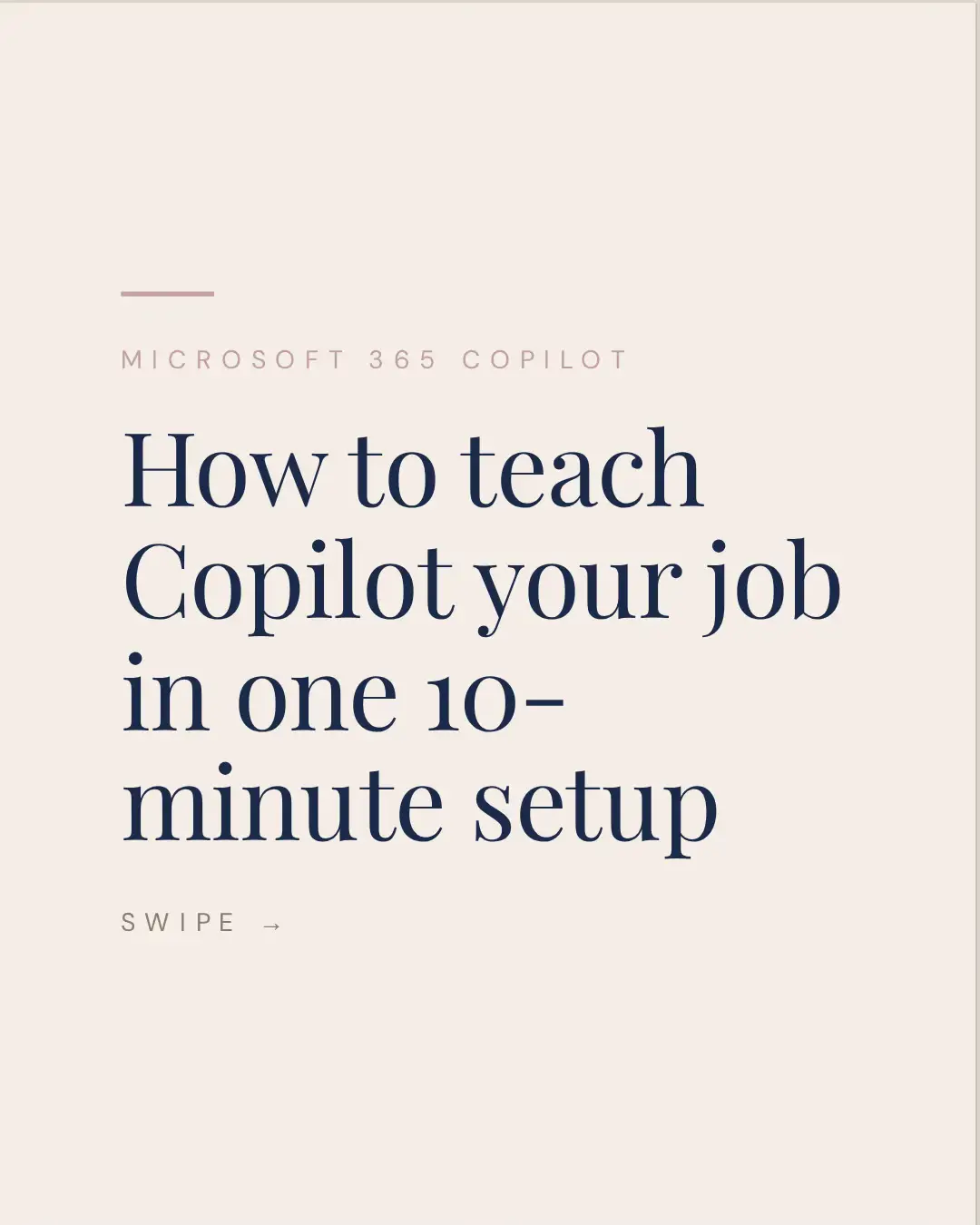
MICROSOFT 365 COPILOT How to teach Copilot your job in one 10- minute setup
@melgreeneconsulting
2.6K followers · usually 632 views a post
Views
29.7K
Likes
670
Comments
7
Shares
201
Why it worked
The content directly addresses a common pain point for users of AI assistants like Copilot – generic outputs – and offers a clear, actionable solution. The "challenge" format creates urgency and a sense of community, driving enrollment.
Summary
This slideshow explains how to personalize Microsoft 365 Copilot to better suit your specific job role and preferences, moving beyond generic outputs. It details a setup process involving Copilot Memory and Custom Instructions, and introduces "The Actually Use Copilot Challenge" for further engagement.
Structure
- 1Introduction to the problem of generic Copilot output
- 2Explaining the solution: teaching Copilot who you are
- 3Step 1: Reviewing Copilot Memory
- 4Step 2: Telling Copilot four key things (role, people, formats, no-gos)
Original caption
Copilot writes like it’s never met you and you can fix that in the settings. 🔗Link in bio to join The Actually Use Copilot Challenge. Right now Copilot doesn’t know your role, your team, or the way your manager wants things laid out, so it writes for the average person instead of for you specifically. That’s why every draft comes back needing a rewrite. Here’s the setup to fix it. It takes about ten minutes and you do it once: 1️⃣ Open Copilot Chat, go to Settings and more, then Chat settings, then Personalization. Copilot Memory has already been saving details from your conversations. Read what’s in there first, because some of it will be wrong. 2️⃣ Find the Custom instructions tile and hit Edit instructions. Tell it these four things: what your role is, who you write to and how formal they are, the formats you want things written in, and the words and sentence structures you never use. 3️⃣ For anything you don’t want Copilot storing in its memory, use a temporary chat. It skips memory completely and doesn’t show up in your chat history. Examples might be, “I have this big idea that I don’t want to share with anyone yet and I want your feedback.” Keeping custom instructions updated is the highest-value ten minutes you’ll spend in Copilot because every output it gives you starts from the information in those instructions. Share this with your colleague that’s always complaining about Copilot. And if you want more time saving workflows, that’s what we’ll build in the Actually Use Copilot Challenge. 🔗 The link to get in is in my bio. Heads up: this needs the paid Microsoft 365 Copilot license, and Memory is on by default for most tenants but your admin can switch it off. #microsoftcopilot #copilot #microsoft365 #actuallyusecopilot #learnai How to personalize Copilot, Copilot custom instructions, Copilot memory, How to use Copilot, Copilot tips, Copilot course, Microsoft 365 tips
More from @melgreeneconsulting
More breakout videos from this creator.