Loading video…
All breakouts
12.7Talking HeadOther hookAI Tools
Hook
Hey, it's Friday 60th January and I know what you're thinking.
@vaibhavv.ai
115.5K followers · usually 1.4K views a post
Views
18.4K
Likes
73
Comments
1
Shares
58
Why it worked
The video uses a high-impact visual transformation (motion transfer) to immediately demonstrate the AI's capability, making the tutorial feel like a valuable discovery rather than a standard ad.
Summary
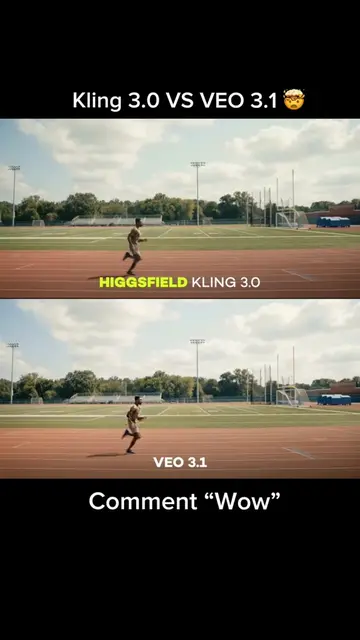
The creator demonstrates an AI tool called Higgsfield that allows users to transfer motion from one video to a character image. The video shows a side-by-side comparison of the original motion and the AI-generated result.
Structure
- 1Greeting and hook about AI
- 2Transition to the AI capability
- 3Visual demonstration of motion transfer
Original caption
Kling AI new Motion control is wild! You can swap any motion into any character with accuracy🤯 How to use Kling Motion Control on Higgsfield: 1. Open Higgsfield Al and navigate to the Video tab. 2. Select Kling Motion Control. 3. Upload your Reference Video (the movement you want to copy). 4. Upload your Character Image (the person/creature you want to move). 5. Enter your prompt and hit Generate. #aivideo #klingai #aianimation #aivideos #higgsfieldai
More from @vaibhavv.ai
More breakout videos from this creator.