The video provides a highly actionable, step-by-step technical tutorial that solves a specific creative problem, making the product feel like an essential part of a professional workflow rather than an ad.
Summary
The creator demonstrates a workflow using ChatGPT to generate a storyboard from a reference image, which is then animated using the Seedance 2.0 AI tool. He provides a step-by-step guide on how to prompt the AI to create the grid and animate the sequence without showing the grid itself.
Structure
1Introduce the AI video workflow
2Generate a storyboard grid in ChatGPT
3Refine the storyboard using the brush tool
4Animate the storyboard in Seedance 2.0
5Final result and call to action
Product placement
Seedance 2.0 is the primary AI tool being demonstrated for video creation.
Call to action
Give this workflow a try and let me know what you create with it.
On-screen text
Original caption
This is one of the most useful AI video workflows I’ve tested recently. You start with one reference image, build a full storyboard, then animate the whole sequence in Seedance 2.0. Perfect for testing ads, short film ideas, or comic-style animations. #chatgptimages2 #seedance2 #ai
More from @aisavvy
Their other posts in the index, biggest breakout first.
Image
Storyboard
Video
How can I help, Victor?
Create an image
Write or edit
Look something up
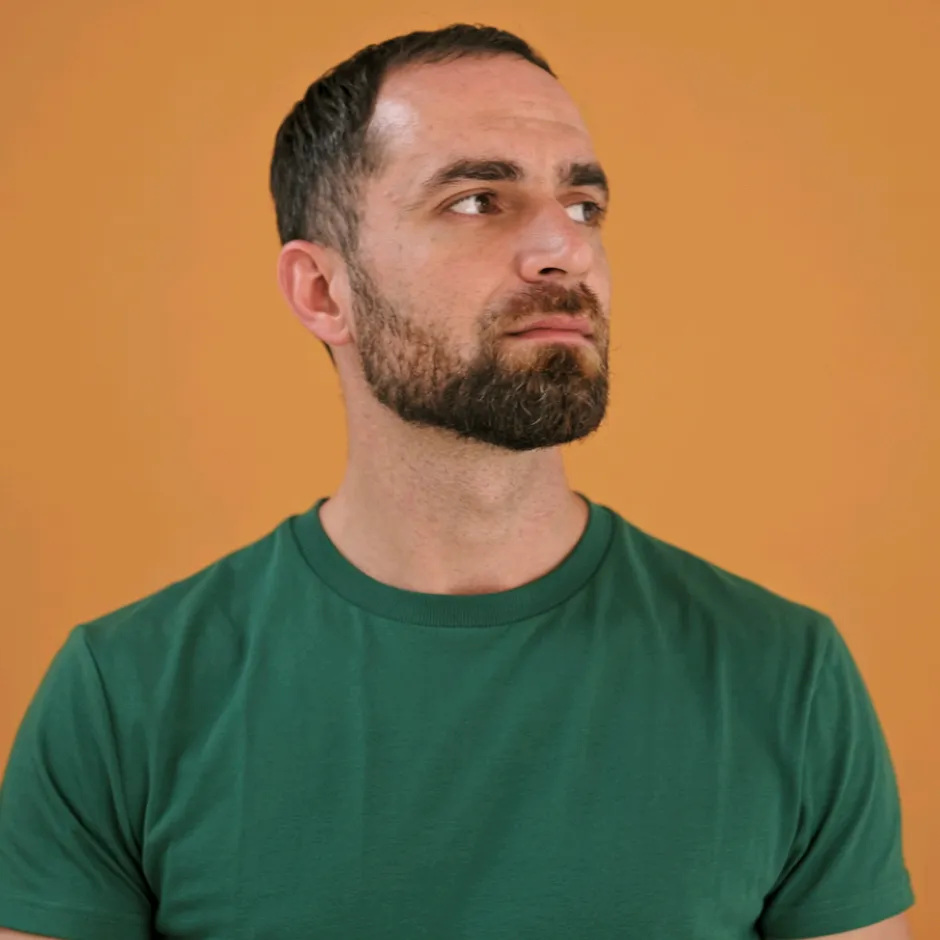
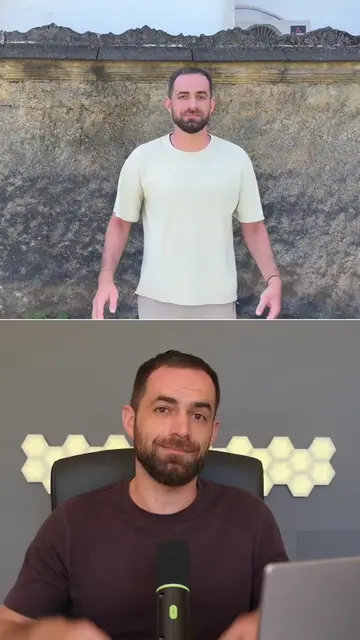
Use the uploaded reference image as the identity reference. Keep the same man, same face, same hairstyle, same beard, same skin tone, and same overall look. Create a clean 4x3 storyboard grid with 12 panels, clearly separated and numbered 1 to 12. Style: premium lifestyle commercial photography, realistic, cinematic, warm, clean, modern, consistent character across all panels. Wardrobe: black fitted t-shirt, dark pants, clean white sneakers. Keep the outfit consistent. Product: Marshall Middleton portable Bluetooth speaker. accurate design, black finish, visible Marshall logo, premium retro speaker look. Concept: One speaker changes the whole mood of the space. The story starts in a quiet, dull room, then the Marshall Middleton turns on and the room becomes warmer, more alive, and full of creative energy. Panels: 1. Medium-side shot of the man sitting in a quiet, dull room or studio, neutral mood. 2. Close-up product shot of the Marshall Middleton on a table. 3. Medium shot of the man noticing the speaker on the table. 4. Close-up of his hand reaching toward the speaker. 6. Close-up of his finger pressing the power or play control on the speaker. 6. The speaker turns on, with a subtle warm light shift in the room. 7. Medium shot of the man picking up or repositioning the speaker on the desk. 8. The room starts to feel warmer and more alive, with richer lighting and a subtle creative studio mood. 9. Medium shot of the man relaxing and enjoying the music, calm confident expression. 10. Wider lifestyle shot of the man moving through the room while the speaker stays visible nearby. 11. Premium close-up detail shot of the Marshall Middleton grille, knobs, texture, and logo. 12. Final hero frame with the man and the Marshall Middleton in the same shot, clean ad composition, minimal text, "MARSHALL MIDDLETON" and "BRING THE ROOM TO LIFE." Keep the layout clean, visually balanced, and easy to read as one storyboard.
aisavvy.bcns.link/storyboard
Start Creating with AI Video
Dreamina
dreamina.capcut.com
Transcript
This is one of the most useful AI video workflows I’ve tested recently. You start with one reference image, build a full storyboard, then animate the whole sequence in Seedance 2.0. Perfect for testing ads, short film ideas, or comic-style animations. So first thing, open ChatGPT and click on create an image. Upload the character or product that you want to use as the reference. And if you don't have one yet, generate that first. Then ask ChatGPT to create a clean 4x3 grid with 12 panels, clearly separated and numbered 1 to 12. If you want fewer panels, just change that number. After that, describe what should happen in each panel and generate the grid. I will leave my prompts here for the reference, but each use case will need slightly different instructions, so don't rely too heavily on them. If you need to change anything in the panels, just select the area with the brush tool and describe your edit. Now open Seedance 2.0 on your platform of choice. I'm using it inside Dreamina CapCut. Upload your grid, then write an animation prompt for each panel. And this part is very important: tell it to not show the full grid. It should start directly inside panel one as the first shot, then move through the panels in order. Then hit generate, and in a few minutes your video is ready. Give this workflow a try and let me know what you create with it.