Loading video…
All breakouts

29.2App DemoHow-To hook
Hook
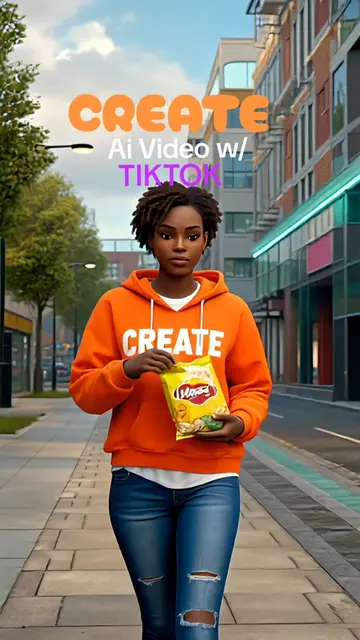
I'm going to show you how I created this AI video step by step and how you can get started completely for free.
@jo.thecreative
34.3K followers · usually 606 views a post
Views
17.7K
Likes
1.4K
Comments
30
Shares
591
Why it worked
The video provides high-value, actionable utility by showing a step-by-step workflow for a trending technology, making the promotional aspect feel like a helpful tutorial.
Summary
The creator demonstrates how to use Google Flow to generate AI videos from text prompts. They walk through the interface settings, including aspect ratio, duration, and model selection, before showing the final output.
Structure
- 1Introduction to AI video creation
- 2Navigating to Google Flow
- 3Configuring video settings and model selection
- 4Entering a detailed prompt
- 5Generating and reviewing the video
- 6Final CTA for more AI tips
Product placement
Google Flow is the primary tool demonstrated throughout the video.
Call to action
Be sure to check out Google Flow and if you want to learn more creative ways to use AI as well as how to create AI video be sure to give me a like and a follow and be sure to check out the Viral Video University that has recently launched online.
Original caption
#googleai #aivideos
More from @jo.thecreative
Their other posts in the index, biggest breakout first.