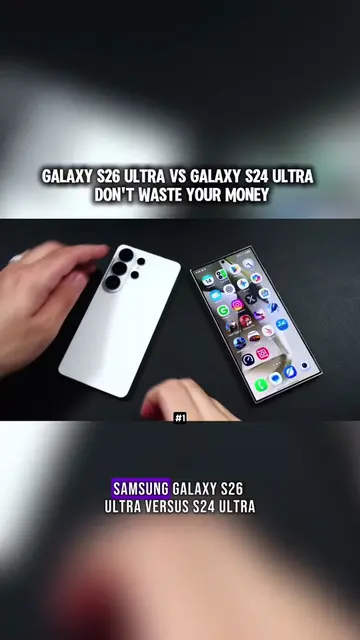
The video effectively showcases a high-end smartphone's ability to replace a traditional desktop computer, appealing to users interested in productivity and cutting-edge technology. The demonstration of features like Samsung Dex and the use of customization apps like Good Lock provide practical value and highlight the device's versatility.
Summary
The video demonstrates how the Samsung Galaxy S26 Ultra can function as a powerful desktop PC using Samsung Dex. It highlights the phone's specifications, including the Snapdragon 8 Elite Gen 5 processor, and showcases the ability to connect to external displays, run multiple applications simultaneously, and customize the interface using the Good Lock app.
Structure
1Introduction to the Samsung Galaxy S26 Ultra as a desktop PC
2Overview of the phone's specifications
3
Original caption
THE GALAXY S26 ULTRA IS ACTUALLY A POWERFUL DESKTOP PC.... #fyp #samsung #samsung26ultra #desktop #smartphone
More from @post.potion67
More breakout videos from this creator.
Demonstration of Samsung Dex setup and interface
4Explanation of customization options with Good Lock and MultiStar
5Showcasing multi-window support and display resolution settings
6Conclusion on the phone's desktop capabilities
Product placement
Samsung Galaxy S26 Ultra: ACTS - it is used as a desktop PC, demonstrating its capabilities. Removing it would fundamentally change the video's content. Samsung Dex: ACTS - it is the software interface that allows the phone to function as a desktop. Removing it would prevent the demonstration of the phone's desktop capabilities. Good Lock: ACTS - it is an application used to customize the Samsung device's interface, specifically for multitasking and display settings. Removing it would alter the customization options shown. Qualcomm Snapdragon 8 Elite Gen 5: APPEARS - it is listed as a specification of the phone. Removing it would not change what happens in the video, as it's a background detail. Adreno 840 GPU: APPEARS - it is listed as a specification of the phone. Removing it would not change what happens in the video, as it's a background detail.
On-screen text
THE GALAXY S26 ULTRA IS ACTUALLY A POWERFUL DESKTOP PC
#fyp #samsung #samsung26ultra #desktop #smartphone
Transcript
The all new Samsung Galaxy S26 Ultra isn't just a phone. This is packing enough power to be a full-fledged desktop PC. In this video we're gonna be taking a look at exactly what this thing can do. From work to native Android gaming, emulation and even Steam game emulation inside of Dex on the Galaxy S26 Ultra. If you're not familiar with Samsung Dex, uh most of the S devices do contain this feature. And basically what you can do is plug this into a USB Type C to HDMI or even use it wirelessly to a Windows PC. And with this we can also use the phone screen as a touchpad in case you don't have a keyboard and mouse. But with this setup here I've got a Bluetooth a Bluetooth keyboard, a Bluetooth mouse and even a controller because I will be doing some gaming on this for sure. And before we jump into the testing, I did want to give you a quick rundown on the specs here because a lot has changed from the Galaxy S25 or the 25 Ultra. For the CPU, they opted to use the new Qualcomm Snapdragon 8 Elite Gen 5. Octa-core ARM SOC, 2x Orion V3 Phoenix Large cores at 4.74 GHz, 6x Orion V3 Phoenix Medium cores at 3.62 GHz, Adreno 840 GPU at 1200 MHz, 12GB RAM, 256GB Storage. I've been testing this chip out for about a month and a half in the Red Magic 11 Pro, but this does have a bit of a higher clock. It's an octa-core ARM SOC and we've got two Orion V3 Phoenix large cores up to 4.74 GHz, which is crazy for a mobile device. We've also got six three Phoenix medium cores at 3.62 GHz. It's got the Adreno 840 GPU and this will clock up to 1200 MHz. I've got the 12 gigabyte version of this with 256 gigabytes of internal storage or even go up to the version with 1 terabyte and that'll give you 16 gigs of RAM. But I didn't want to spend that much. I got the lowest in version and it works just fine for me. And of course, there's a lot more that goes into this device like the screen, cameras and everything like that. I will have a full video checking it out just like it is, but I wanted to go into Dex mode here and turn this into a full-fledged PC. So let's go ahead and move over there now. And once we have Dex enabled, it's gonna look something like this. And yes, you can use the built-in touchscreen on the phone's display if you want to, but a mouse and keyboard is just gonna make it a lot easier. And as you can see, it's a full blown desktop operating system. If you've used anything from Mac to Windows or Linux, you should be able to navigate this really easily. And right down here in the lower left hand corner, we've basically got our Android controls. So we've got our back button, we've also got our home and we've but this will also kind of act as a desktop. So if you want to add another desktop, you can definitely do that. Right here we'll go over to desktop one. I've got desktop two up and running and you can go from there if you wanted an extra. And down here in the lower left hand corner, we've got basically our control center. So we've got our quick settings right here. This is gonna give us access to our volume, sleep, Bluetooth, Wi-Fi. We can lock it. We can up the volume from here. And right here media output. This will either allow us to use the phone or the speakers on the display we have it connected to. Now I'll tell you with this, we can actually go up to a 4K resolution. What I like to do is use a third party application known as Good Lock. You can get this from the Galaxy Store. This gives us a bunch of different plugins for our Samsung devices and multi star really helps out with multitasking. And right down here, high resolution for external display. I believe we can only do up to 1440p without this enabled. But once you check this off, restart Dex, you can go up to a 4K resolution. And I'll show you right now if we go to our settings, we've got dedicated Dex settings here. So go to Samsung Dex, connected display. On screen keyboard, mouse and trackpad. We can change the sensitivity directly from here. S Pen command arrows to move the windows. So you can actually set up a couple different keyboard shortcuts with Dex now. And play sound on connected display. So this will automatically swap over to the connected display speakers if it has them. Our connected display, we're in extended mode, which is Dex mode. You can also mirror the screen on the S26 Ultra. And right here, display resolution. So right now I'm connected to a 1440p display. So I can do up to 1440 at 16 by 9 at a 16 by 10 resolution. I'm up to 1920 by 1200 and at 21.9 widescreen 2560 by 1080. But I'm gonna connect to a 4K display real quick to show you the other options we have here. And this comes into play because I did enable multi star inside of Good Lock. So 3840 by 2160 and it even gives us an option down here at a 21 by 9 aspect ratio. So we can do 3440 by 1440. And of course in Dex mode, we also have multi window support. So I'll go with Chrome, we'll do play. Let's run a calculator also. And each one of these windows is resizable. So if we want to set this somewhere specific, we definitely can. Plus it's got a snap feature. Left hand side, take a Chrome over right over here. And you can go between these. Maximize. We've also got our full screen mode. So if we just gonna pull it out, we can totally go full screen with basically any app now, which is really awesome. Hovering over the very top is gonna bring that menu back up. And we can bring it back down. But being able to resize all of these windows for work is really nice. So we can have a bunch of different apps up and running at one time. You can set them up however you want. And it just makes it really easy to utilize the space and Dex.