Loading video…
Sound

original sound - jb.demz
Jhunlord Demol · Original audio
0:00–:––
Playing this video’s own audio, so you’ll hear the creator over the sound.
The video provides a practical and easily replicable video editing tip that solves a common problem for content creators, making talking head videos more visually engaging. The clear, step-by-step demonstration using a popular and accessible app like CapCut makes it highly shareable and useful.
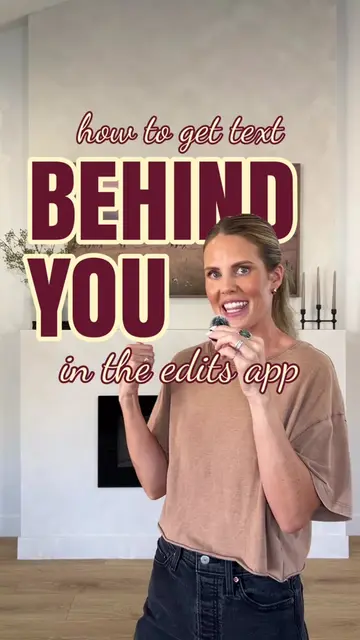
This video demonstrates a CapCut editing trick to place subtitles behind the speaker in a talking head video. It shows how to use the auto-caption feature, duplicate the clip, use the overlay function, and then bring the original clip forward to place the subtitles behind the speaker.
Here’s a simple CapCut trick you need to try! 👀 Learn how to put your subtitles behind you while talking perfect for making your talking head videos more interesting. #CapCutTutorial #VideoEditing #CapCutTips #VideoEditingTutorial #ContentCreator
TEXT BEHIND YOU
Introduce the CapCut trick for subtitles
Generate auto-captions
Position subtitles on the speaker's head
Duplicate clip and use overlay
Remove background from the overlay clip
Arrange layers to place subtitles behind the speaker
Customize text style and export video
CapCut: Video editing app that allows users to add text, effects, and other editing features to their videos. It is used to create subtitles that appear behind the speaker. This is a core function of the app and is demonstrated in the video. Removing it would change the video's purpose. CapCut logo appears as a watermark on the tutorial video, which does not change the video's content.
Playing this video’s own audio, so you’ll hear the creator over the sound.
Promotes 1 product. Create free account to see more.
Outliers and viral hits: their videos on Overshot, all time.
Video editing app for creators making social media videos
Views and creators: posted in the last 30 days (English videos). Videos: all time.