Loading video…
All breakouts
263App DemoBefore / After hookConsumer Apps
Hook
Ab aapka phone aapko padhkar sunayega.
@cyber.security.expert_
10.9K followers · usually 1.1K views a post
Views
94.7K
Likes
1.9K
Comments
22
Shares
241
Why it worked
The video provides a highly practical, easy-to-follow tutorial for a hidden accessibility feature that solves a genuine pain point for a specific demographic.
Summary
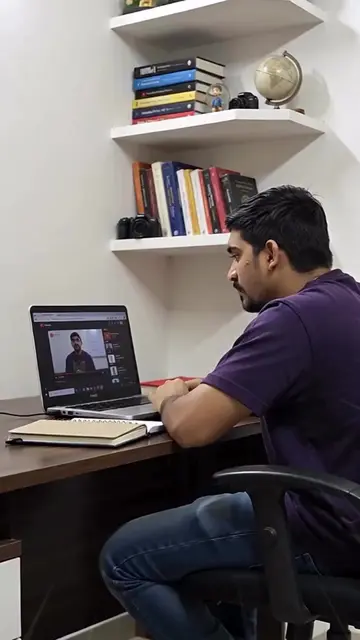
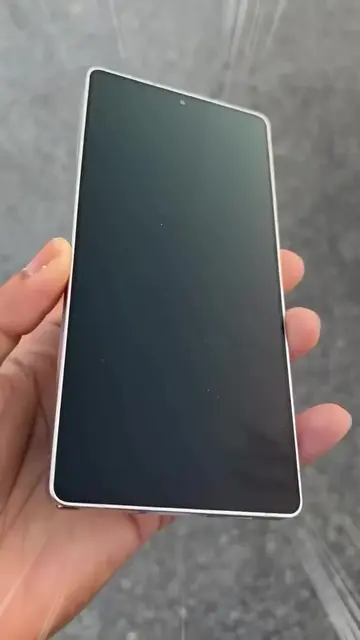
The creator demonstrates how to enable the 'Select to Speak' accessibility feature on an Android phone to help people who cannot read or senior citizens. The video provides a step-by-step tutorial on navigating the settings menu to activate the feature.
Structure
- 1Introduction to the accessibility feature
- 2Identifying the target audience
- 3Step-by-step tutorial in settings
- 4Demonstration of the feature in action
Product placement
Android (a) ACTS: the operating system interface is operated to enable the 'Select to Speak' accessibility feature. Removing it would change the video as it is the platform being demonstrated. Airtel (b) APPEARS: a network provider name in the settings menu. Removing it would not change the video.
On-screen text
PEOPLE WHO CAN'T READ
OR SENIOR CITIZENS
Settings
Search settings
About phone
System apps updater
Security status
Wi-Fi
Airtel_RK_AG
ENCIES_5G
Bluetooth
Off
Mobile networks
Interconnectivity
Portable hotspot
More connectivity
options
Lock screen
select to speak
Select to Speak
Additional settings/
Accessibility/Vision/Screen
reader/Select to Speak
Select log level
System update
Couldn't find what you need? Tap to
report.
Options
Select to Speak shortcut
Off
Settings
About Select to Speak
How to use Select to Speak
Start Select to Speak, then you can:
Tap a specific item, like text or an image
Drag your finger across the screen to select
multiple items
Tap Play to hear everything on screen
The service will perform
these actions:
Full control is appropriate
for apps that help you with
accessibility needs, but not for
most apps.
View and control screen
It can read all content on the
screen and display content over
other apps.
View and perform actions
It can track your interactions
with an app or a hardware
sensor, and interact with apps
on your behalf.
Deny
Allow
Select to Speak shortcut
Accessibility button
Settings
Use Accessibility button to
8:21 pm
Original caption
Now Your Can Read Text 🔥🔥 Follow for more #android #androidphone #secret #setting #phone
More from @cyber.security.expert_
More breakout videos from this creator.