Hook

Their other posts in the index, biggest breakout first.
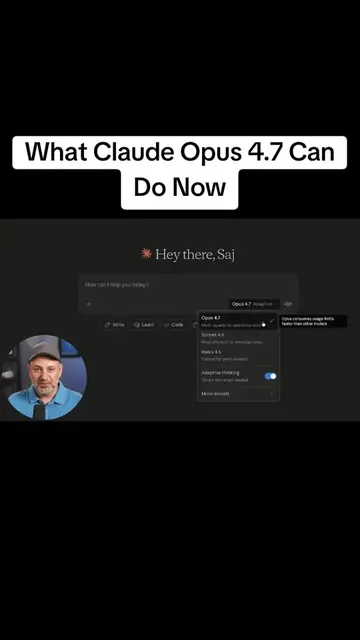
Claude code is probably the most powerful AI tool available today and most people are not using it because it has the word code in it so people think they have to be super technical or they have to be a developer to use it and if you open it for the first time it could be really overwhelming most people really can't figure out how to get started with it and I looked up some tutorials online on Claude code most of them actually required coding skills they required the computer's terminal even to install it and again it's going to be really intimidating if you're not technical or not a developer so I wanted to make this video to show you exactly how to get started with Claude code as a beginner and exactly how to think about it the right way for your use cases because Claude code is way different than AI chatbots like Claude or ChatGPT it can actually create and edit files on your computer and with that you could create websites you could create apps you could create tools of all kind you could also do all kinds of automation so what exactly is Claude code I think the simplest way to think about this is think of Claude code as an AI builder that could actually create things for you and it does that by creating and editing files software files and you do that by just giving it prompts in plain English so if you need a website or a landing page this could do that if you need a simple internal tool this could do that if you need a dashboard to visualize data for example this could do that and then on top of it all it also connects to your data so you could connect it to your Google Drive you could connect it to your Slack and it could have a lot of context already with the files you already have on other platforms now if you've heard of the concept vibe coding which is when you type in a prompt and different apps could create things for you well Claude code has that built in but a lot of those other software are actually using Claude in the background so this is kind of like going to the source which is the vibe coding app directly from Claude and it could do again a lot more than just vibe code things it could do automation and a lot that I want to cover in this video okay so how exactly do you use Claude code so on this website this is the claude.com website and I just went over here to the Claude code page here and you could install Claude code lots of different ways lot of tutorials online will show you how to do this with something called VS code we'll actually get to this in a little bit later you could install it using your computer terminal again technical for most people and they recently also rolled out a version of it where you could just use it on the web just like the claude.ai chatbot website you could also do it here but my favorite option is actually using it with this desktop app that is available for Mac and it's available for Windows here and as part of this you also get Claude cowork and the regular Claude chatbot too on your desktop so you get all three in kind of one app and it's really easy to navigate that way and we also talk about pricing but to get access to Claude code and also Claude cowork you do need this pro plan that starts at $17 a month so once you install the app you'll see three different tabs on top so the chat right here this is claude.ai this is the same website the competitor to ChatGPT and you basically get to use it on your computer you could choose different models you could upload files to it you could chat with it then you have cowork now cowork is sort of like an AI agent that could do things for you and I love this this might be my favorite AI tool so far right next to Claude code and I've made a very detailed video on how to use Claude cowork that I'll link below in the description of this video worth watching and this tab is Claude code this is where I could actually create all kinds of different things again having Claude code write the code for us in the background I just have to type in a plain English prompt here for it to get started okay let me start with a simple example then I'll show you more complex examples we're also going to look at what are called Claude skills we're going to look at MCPs we're going to look at creating agents and all kinds of different things as we go through this beginner's video but if I type in a prompt like this build me a landing page for a marketing agency in the hospitality niche focused on high end resorts and hotels worldwide now you have a few options here the first one is you could click this right here this dropdown and this will change how this works in the background so first it could always ask you for permission before making changes it could auto accept edits this is for the most part what I recommend you have it on but if you are doing a prompt like this you could also set up plan mode this creates a plan before making any changes and I'm going to show you this as an example coming up right now I'm going to leave it to accept changes now you could always press the plus sign and add files and photos one of the best ways when it comes to creating landing pages or websites is taking a screenshot of a website you already like and then upload that and then Claude will have a reference right when I work with developers and designers I kind of do the same thing I show them what I already like so they have some understanding of where to go and this could follow things like color brand fonts all kinds of things when it's creating things the next thing you need to do is you need to set up a folder now this works on your desktop so it will create those files sitting on your desktop so if I press select folder I've created a folder here called Claude code tutorial so you just create a folder on your computer and it should be based on each project so every time you create a new project for Claude code create a new folder so that files in that folder are only related to that project now you could also choose a model here so I recommend using Opus 4.6 usually for the very first one or if you're going to use the planning mode to plan it this will do the best job now new models come out all the time so if you watch this later usually Opus is going to be the best model but it's going to be the most expensive model usually and it's going to take the most credits Sonnet is going to be good for regular things like doing any kind of revisions I sometimes switch it to Sonnet after the first prompt and Haiku I almost hardly use I'll only use that maybe inside of chat right now I'll leave it to Opus and I'll go ahead and send this out now it's going to ask you to trust the workspace because again it's going to write and read files on your computer but again it's only having access to that one folder right now now depending on how you set up your permissions sometimes you do have to allow it here to actually do things okay so in just a few minutes it created this really nice looking website for us with different sections that I could navigate to and let me just kind of scroll through because if you've tried to vibe code any website you know most websites don't really come out as nice as what this did I mean this looks really great and then I could build out other pages right now the links are not working because again I asked for just one landing page and I'll have to do some follow up prompts to build out this full website with a contact form and things like that which I can build now if you look at the URL here if you've done vibe coding with other apps like let's say you use lovable for example well those will give you a link that is on the web already that is the one easy benefit the vibe coding apps have that create these type of websites and apps well this is sitting on my desktop that's why it looks like this now if I show you the file this folder right here is where that file is it's a HTML file sitting on that folder now here's the website here I'm looking at it on Chrome but again it's just sitting on my desktop right now it's not published on the web if I decide to publish it I'll have to do some other steps here that I'll show you towards the end of the video so hopefully you could already see what Claude code is capable of and I have ton of more examples here and I want to cover more advanced techniques including how to publish things that you create on your desktop on the web too but I also wanted to share a free resource to help you get a lot more out of Claude code HubSpot created a guide called Claude code for marketing which includes four real marketing workflows and 12 prompts designed to help marketers actually build things with Claude code you'll find ready to use prompts that you could run inside of Claude code to create things like landing pages like my example lead magnets competitor research and full marketing campaigns and it's definitely not just a prompt list these are entire workflows to show you how to combine prompts with Claude code so you could go from your idea to a working marketing asset much faster my favorite section is workflow number two for creating lead magnets it gives you the exact prompt for researching competitor lead magnets and then building your own lead magnet and landing page copy using Claude code you could grab your free copy using the link in the description below and thanks for HubSpot for sponsoring this video and for creating this Claude resource if it's perfectly for what we're covering in this video now before I show you the next prompt I also want to show you how to revise something you've already created because usually the very first prompt is not going to give you a perfectly working website or app or automation so right here I'm going to ask it to make a change right now maybe the background could actually be a little bit blurry so the text pops a little bit more I'm going to ask it to blur the top background here in the hero section and a lot of times when I'm doing revisions here I'll use a lower model here to keep the credits down and this is a really easy one so Claude Sonnet should be able to handle it I don't have to use Opus I typically use Opus when it's more challenging or when it's the very first prompt and it's helping me plan or create the first version okay and just like that it's blurred the background yeah this looks a lot nicer the other thing you have that you could do is couple things on top you could check this in different devices and see how it looks so the desktop version is what it creates by default and you could also select elements so for example if I wanted to make changes to any specific part of this I could select it so for example I'll select it and you could see it's brought in just that section here and I'm going to ask it to rewrite it and get the point across in half the length and I'm going to ask it to remove the scroll text here that's interfering with this button right here and it should be able to remove that yep it removed that and now I got a pretty good looking website so this is the first concept I really wanted to get across when you're using Claude code or really any other vibe coding app you're not trying to get everything perfect in the very first prompt it usually requires a little bit of iteration so it's building through iteration you ask for a revision you look at the output here you make any changes with a follow up prompt or selecting a section here and you keep refining it till you get what you want and that's really one of the best ways to get started with vibe coding is especially with Claude code so creating a landing page or a website is how I usually like to tell people as their very first prompt just to get comfortable with using Claude code if they're completely new to it okay now for the second example let me actually show you how to build little mini apps I have ton of apps that I use internally for my team couple of made public too but I'm going to go to the chat mode here and I'm going to ask Claude to give me the prompt for Claude code create a prompt for Claude code is for a dashboard where I could compare the top 20 AI tools obviously the more context you give it here the better I just want to show you even without a lot of context Claude is going to give you a very comprehensive prompt here and I'm just using the Sonnet model here now here's the prompt I got it's got a little bit of technical details here it has some design details and I'm going to go ahead and copy this I'll come back to Claude code now we want to create a new project so on this new account I'll create a new project here and we'll go ahead and paste this and remember we want to change the folder so we want to choose a different folder and create a new one and this time I'm going to show you the plan mode here just to show you what that looks like here now when you use the planning mode here Claude will actually create a super detailed plan it'll have things about colors it'll have things about animations the dashboard architecture everything that it's going to do some of it is going to be technical but some of it is worth looking at just to kind of get an idea of what it's going to do sometimes you could pick up on things that you may not want maybe the colors you don't want and you could follow that up with a revision but right now I'm just going to say I approve this plan and start coding but that is one benefit of using the planning mode it will lay out the entire plan both in plain English and also the technical aspects of it okay we got ourselves a working dashboard over here and let me go ahead and stretch this out and it has different categories here and the reason why Claude code actually may take longer than other vibe coding apps if you ever use the other ones is because it tests its own work here so it takes a screenshot it does some testing it actually was testing the different search options the filtering options down here so it has three different things that it selected I could go ahead and compare them it has a side by side comparison so pretty good for our first prompt to get our top 20 AI tools all in one place in this dashboard now let me show you the files it created in the folder so the first example was just an index.html it was a simple landing page this one is a full app so it has a ton more files here that is created again I've not looked at any code so far this is just what it created for us without us doing any type of coding right we just typed in the prompt and it created that it tested that now we have a version that's ready to go let's see if it's mobile optimized yeah it looks pretty good on mobile too now for the next example I want to show you how to create a real working app for my internal team here and I want to introduce you to something called Claude.md now this is going to be a file that is going to give a lot of context for our business here to Claude one tip that has helped me get a lot of work done with any type of AI tool is to create a document that has everything related to my business and two ways to do it if you already use ChatGPT or Gemini or Claude the chatbots I recommend you ask those to create a document for you like a PDF with everything that it knows about your business now it will already do that from its memory if you've been using it a long time the other option you have is you could just jump into Claude here and you just simply ask it to interview you about your business and turn that into a document this is a great way to create this document if you don't have it already then you just tell it to create a Claude.md file now .md stands for markdown and it's similar to let's say like a PDF or a .html file except it's designed this markdown files are designed to work very well with applications like Claude code and then this Claude code document this Claude.md file will sit at the project level or at the account level of any project you create where it needs business context about your business okay so once you get that Claude.md file again from the interview or from other chatbots like ChatGPT I actually got mine from ChatGPT move that document downloaded from the chatbot and move it into a new folder for the new app that you're going to create each app will have Claude.md with the context that you want about that app in this case it's general content about my business and they basically this .md file is a text file but it has these markdowns these little hashtags to talk about the different sections the core positioning so this is going to tell it all about our team here and about our company in general and everything that will be covered there and then again I went to Claude chat here and I asked it to create a prompt for what I was trying to create which is fetch the latest AI news practical AI news and turn that into content ideas content pillars for our business and use the context from Claude.md this is our business context that I created so this is going to be what I'm going to copy and paste into Claude code again make sure you change the folder here to the new folder here I'll press auto accept edits and we'll go ahead and send this out this time and while that's going to work I want to just talk about prompting for beginners when it comes to prompting Claude code specifically your prompt doesn't actually have to be super detailed and doesn't need to be technical at all what I did was every time I got my prompt directly from chat by just having a back and forth or you could use the planning mode you could do it in Claude code too I just preferred to do it with Claude chat but these are the few things that you got to keep in mind if you want to create something that actually looks good in the first time and it just has really five parts to it what do you want to build who is it for what it should do what it should look like and what you want to change next which comes usually in the iteration in the follow up prompt and that's it that's typically the structure of any prompt you give to Claude code okay here is the app that has created for us here so it's pulled in the latest AI news here from different sources that it picked automatically for us I didn't tell it what sources to use but it looks like it's used things like TechCrunch over here and it's giving us ideas here for what a YouTube title could look like what a social post could look like even things for our newsletter and it also has those in different categories if I want to specifically look at them through there just off one prompt is created something that I could share with my team and I'll show you how to publish this here at the end of the video too now let me show you Claude skills and how to customize your Claude here so if you click on customize on the left panel there are a few different things you could do here you could connect this to your tools you could give it new skills and you could also use what are called plugins now connecting to tools is pretty straightforward you just connect it to other apps so if you want Claude to work with Slack for example to Figma things like this you could just use these connectors and again I'm going to cover this in more advanced in-depth videos this is a general broad overview of what Claude code is but skills I want to show you exactly how this works now skills are actually different .md files that tell Claude code how to do something they're almost like custom instructions for different things that are very specific this skill is actually created by Anthropic and this is what it tells it to do the descriptions on top and you'll see some off the shelf skills here that they already have by default but you could actually give it different skills if you press the plus sign here you could create with Claude you could create your own skills I have a video coming up in exactly how to create skills from scratch you could write it in a set of instructions or you could upload it but if you use Claude code you could actually just take it from what are marketplaces that are all designed to give you different skills that you could just copy and paste so here's a website for example that I'll link in the description below this video this one has hundreds of different skills here for all kinds of different categories and some are for development some are for marketing for writing so you could see if any of these skills make sense so let's say this brainstorming one I could click on it here and this is basically the markdown file so I could copy this create a markdown file or I could just copy it from here and then tell Claude code to install that skill for me and it will install it now it will install it usually at the local level so if you're creating a project it will install it to that project but you could also ask it to install it at your account level if it's something you use all the time I usually do this per project because most of my projects don't need a skill unless it's one that Claude already has that needs it at the account level so you install these again per project so as you're having a chat as you're building a project just say add this skill again I have an entirely new video coming up all about skills and installing skills and using skills and creating skills so I'll save that for later but skills will unlock new capabilities for Claude and Claude code and even Claude cowork then you also have plugins so plugins actually work similar to skills but they're ready to use workflows here and you could customize these too so these are the ones by Anthropic for example and you could install these too on top of installing skills and they kind go hand in hand so frontend design is actually a good one this is already created by Anthropic but you could install it so this is helpful if you want to create different landing pages different dashboards things like that this has UI and UX skills here to make your designs even better so I recommend looking at these connectors looking at these skills looking at these plugins and install a few here especially if you want to connect things and do automations that's going to help you automate things in Gmail or your Google Calendar your Google Drive you could bring things into it and those are connectors here that I recommend you connect and GitHub is more for developers but if you want to take your code from Claude code and put it on the web that will give you version control and it makes it really easy almost every developer puts their code on GitHub here using this connector now I had also mentioned VS code so let me show you what VS code is let me go to their website so VS code is a code editor so this is what it ends up looking like but it's another way to use Claude code lot of people that are more advanced prefer to use it this way because you could easily see the actual code but you could also see the folder structure all the different files jump between them this is again much more advanced than for a beginner but I wanted to show you what this ends looking like once you do install the app you get this little icon down here open in VS code so if I click on this it looks like this but you could see I could see the folder structure that's the same folder I have on my desktop I showed you that already but it shows you the files this way so you could quickly jump between the different files it's created for you this way you could view things a little bit easier but again it's much more advanced but to install it here all you have to do is go to this tab right over here and then you look for Claude code it's an extension and then you just go ahead and install that and then it will appear on your Claude code as that little icon I showed you which is this little icon to open in VS code and you could do the same thing there you just use Claude code in VS code so back in VS code you'll see this little icon if you open that you get Claude code like this so you'll chat with it same way as before but again you'll see your folder structure you'll see the code as you get more advanced you may want to look at what it's doing under the hood and that is another way most professional end up using Claude code is through VS code now I want to show you how to actually publish something you created with Claude code it's a great automation and internal tool so you could use this without publishing anything but it's sitting on your computer so it's hard to share with my team the one example I showed you is what I created for my team well if you come to the customize section here you need to first connect it to something called GitHub which was one of the options here I've already connected it if you don't have a GitHub account this is just a website where your code then gets published to the web you could save it privately too so it doesn't have to be public information and then the GitHub code then could be deployed with a link with another tool so it's going to take a couple tools now other vibe coding apps really do this by default but this will take you a couple steps here with this version okay then I go back to any Claude code project I wanted to publish online and I'm going to ask it to post this to GitHub this is going to just push the code here from what's sitting on my computer to the GitHub that I connected it with which was the first step so connected to your GitHub or create a new one once it has that connection you could just ask Claude code to push that code out on the web here then it's going to ask you to kind of authenticate that so it's able to do it and then it's going to give you a link here and if you click this link it's already uploaded that project which only had a couple different files so it was a pretty quick upload and now all I have to do is take the link here so it's created a GitHub link for us and then I'll use another app this is called Vercel at vercel.com this is probably the easiest way to deploy anything that you create with Claude code but it still has to sit on GitHub and then this will help you deploy it so press start deploying it asks you to create an account here it's going to bring you to this page and I just have to paste that URL over here and press deploy and then it's going to take that code from GitHub which came from Claude cowork and then put it on the web for us and I could press continue to dashboard and then it's going to bring us to this link here which is a web link now this is not something sitting on my desktop but it did take couple of different steps to get it there but now I could give this link to my team for this information or customize it from there so hopefully you have a much better idea at this point of what Claude code is how to actually use it if you're a beginner hopefully I give you a step-by-step guide here and not made it too complicated but always start small maybe with a simple tool or a simple website use the plan mode here use Claude chat to get information and prompts give it a lot of context create that Claude.md so it has information about your business that you could create different projects with make sure you preview everything iterate and then publish if you want to share it publicly or with your teammates or just keep it private for your own automation and internal tools I'm also working on a very comprehensive Claude course for our platform our platform is called SkillLeap there we have all kinds of different courses on the top AI tools Claude is one we haven't made a course about but now with Claude cowork one of my favorites with Claude code one of the best AI tools of all time we're working on a really comprehensive course you'll get access to that when it gets released but if you subscribe right now you also get access to everything and all our new courses that come all the time and it has a free 7-day trial so you'll get access to over 20 courses right now you'll have access to our community our resources our discounted deals with different AI tool makers all that for one low subscription price that you could pay monthly and cancel anytime I'll put a link in the description to that trial along with everything else I mentioned in the video and I'll have more videos on Claude code on Claude cowork on Claude skills coming up on YouTube as well thanks for watching I'll see you next time