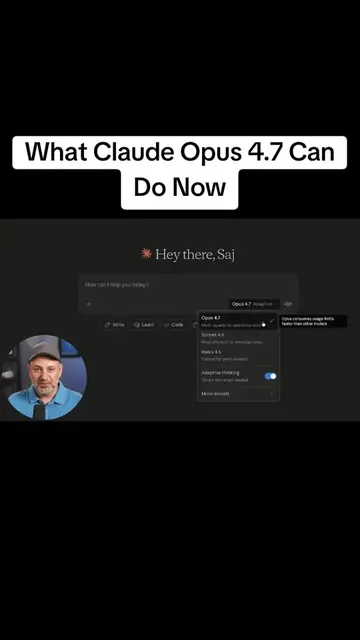
The video provides high-value, actionable tutorials on a trending tool, positioning the creator as an expert while subtly promoting their own comprehensive guide.
Summary
The creator demonstrates 12 advanced features and workflows for using Claude AI, including using the desktop app, Claude Cowork, and Claude Code. He also highlights how to use Claude Skills, Projects, Connectors, and Dispatch to automate tasks and maintain a consistent brand voice.
Structure
1Introduction to Claude's advanced features
2Demonstrating Claude Cowork for project management
3Using Claude Code for building tools without coding
4Creating and sharing interactive apps with Artifacts
5Designing landing pages and systems with Claude Design
6Automating spreadsheet tasks and integrating with Office apps
7
Original caption
“What if you're using Claude at only a fraction of its true potential? 🤖⚡” Get 10X More Out of Claude AI tools become far more powerful when you know how to ask the right questions. From better prompts and structured instructions to advanced workflows, research techniques, and automation ideas, learning how to communicate with AI can dramatically improve the quality of your results. The biggest upgrade isn't the tool—it's knowing how to use it. #ai #claudeai #artificialintelligence #productivity #chatgpt
More from @htdtips
More breakout videos from this creator.
Creating professional presentations with Claude
8Teaching Claude your brand voice with Skills
9Using Projects and Connectors for better context
10Analyzing documents for errors
11Using the browser agent for web tasks
12Managing tasks remotely with Dispatch
Product placement
The video is a tutorial on using various features of the Claude AI platform (Claude Cowork, Claude Code, Artifacts, Claude Design, Claude Skills, Projects, Connectors, Dispatch).
Call to action
Check out the free resource in the description for more Claude prompts and tips.
On-screen text
Get 10X More Out of Claude
12 really useful and practical ways to use Claude like a pro
SKILL LEAP AI
Back at it, Saj
01 Cowork
02 Claude Code
03 Build An App
04 Claude Design
05 Use Claude in Excel
06 Creating Presentations
07 Claude Skills
08 Projects and Connectors
09 Catch Mistakes
10 Let Claude handle Your Chrome Tasks
11 Write in Your Own Voice
12 Dispatch
Transcript
Claude has actually turned into the ultimate AI super app, but most people are still just using Claude chat. But you have Claude Cowork, you have Claude Code, Dispatch, Artifacts, Projects. There is a whole lot to Claude that most people are not using, and it is now under one app. So in this one video, I want to show you 12 really useful and practical ways to use Claude like a pro. And for this entire video, I am going to use the Claude desktop app. If you go to claude.com/download, you could download it for Mac or Windows or Linux. I am going to start with one of my favorite all-time Claude updates. This is called Claude Cowork. This one will actually do the work for you, and it is multi-step work. It is not just giving it a prompt and getting some kind of output. This will do entire real projects for you. I use this one more than anything else inside of Claude. Now, with Claude Cowork and this desktop app, it has access to files on your computer. You have to give it permission, but you could just point it right here and pick a folder or a project in your computer. So I am going to choose a folder here. And my folder has set of customer interviews that I have in text format. And with my prompt, I am going to ask it to go through all my customer interviews in this folder, pull out the top themes and complaints, and write a summary report, and turn the key findings into a short slide deck I could share with my team here. And you also have this option right here. This is an approval process. So you can manually approve, you could automatically approve, or you could just let it do its work and skip all the approval process. If you are new, this is probably a safer option, but I have used it quite a bit here, and I limited just to that folder right now. So I am going to use this option. So it went through all these text interviews here, and it created this doc right inside of the same folder, and it is everything I asked for in my prompt. And he also created this PowerPoint presentation right over here. So this is a multi-slide presentation that I could share with my team, and you could use what are called Claude skills to actually get the exact type of layout you want to get out of these slideshows, but I will explain that in a follow-up tip. Okay, the next one I want to show you sounds like it is made for developers and programmers, but it is actually not. This is called Claude Code, and with this one, you could create websites, you could create apps, you could create tools for your business, and you don't have to write any code at all. This will write the code for you, and you just have to start with a simple prompt. So for this one, I asked it to build me a simple web tool where I could paste in a list of leads, and it sorts them by priority and flags the hot ones, and make it clean and easy to use. And in a few minutes, it created this little mini app for me that I could use for this very specific purpose that I had, right? I am not going to go find a tool on the web that does exactly this, and I could with a follow-up really keep tweaking this one. But right here, I could just upload a CSV file, and just like that, everything is uploaded. It gave me a lead score, it told me what is hot, what is cold, and I could see all the details right here in just one click. Now for this next one, I just need to use the Claude app. You could build apps inside of Claude chat that you could share with anyone in one click, and it is just a regular chat here. It does it through something called Artifacts. So if I go over here, there is a whole section for Artifacts where you could create new Artifacts. And you could just create them with chat, and there are some you could create with Cowork. And they have a lot of different examples. But if I just create it with chat here, it is going to ask me what kind I want to build, or I could say start from scratch here, and then just type in a simple prompt here to build mine. And I use a really simple prompt. Build me an interactive tool where my customer types in their goal, and it gives them a personalized plan back. And use AI so the answer is custom. So this is going to be an AI-powered app right inside of Claude chat, and I will show you exactly how to share it. Okay, here is our little mini app that we made right inside of Claude, and anyone can type in a prompt here, they could give it the time frame, and then press build my plan. And just like that, it is created a step-by-step plan here with timelines for each section. It is created a checklist, you could copy the plan, create another one, and what is nice about this is you could publish these. So if you just publish these, it creates a link like this, and then anyone that gets that link could come to this website and use this little mini app that you made. So you could use it for internal tools, you could share it this way, and what is nice about it is they could press customize, and it creates a copy in their own account, and they could build on this app. So it is just a baseline and they could customize it as much as they want to. And I have nine more tips for you, plus I have a resource that I put together with my team if you really want to take Claude to the next level. This is really the complete guide to AI, especially if you use Claude for work. And it has entire sections here that are a lot more details than what I am covering in this video. So it has a whole section on Claude Projects, probably one of my favorite things to use inside of Claude, and each sections come with complete prompts that you could copy and paste that are very detailed and fully tested. The Artifact option that I just showed you, for example, has an entire section dedicated to it. And it has all kinds of different things you could actually build with Claude Artifacts like interactive dashboards and things like that. And again, it is completely free to access. I will put a link in the description to it. Let's jump into tip number four. With tip number four, you could actually design entire pages with something called Claude Design, and you will see that right down here. If you click on it, it actually takes you technically to another place called Claude Design, but it is going to use Claude behind the scenes here. And for this one, I am going to actually design a landing page for my website with some messy notes I have here. And the nice thing is with Claude Design, you could create your own design system too. So we have created one that has our brand guidelines here, our colors, our fonts, and it could also create all kinds of different things. In this case, I am going to build a website or a landing page, but you could create slides, all my presentations are actually made with this now, you could create animations, even video animations, prototypes, but in this example, I will show you this. I do have an entirely dedicated Claude Design video on this channel, too. And in just about one minute, it created this nice looking landing page for us here, and it has all the different sections from just my messy notes that I gave it, and it brought in our brand colors, it also brought in our logo with a follow-up I could ask it to double the size of the logo, and you could also edit manually by selecting different parts of it like this, and this is easily integrated with Claude Code. So if you then want to turn this into a website, you can, but it is really nice to be able to have a dedicated design space to get things exactly like you want, and then take it to the next step with Claude Code. Next, I want to show you how to run your spreadsheets with Claude with Excel. So this actually has a really good way to interact with spreadsheets and Excel documents, and I am going to ask it to clean up this sheet, to fix any broken formulas, build me a summary tab that shows my monthly revenue and my top customers. And just like that, we got the Excel sheet, it gave that summary page with what I asked for, everything that it did here, it also gave me a recap. And then on top of that, you can also use Excel, PowerPoint, Word, and Outlook with Claude directly in those apps. You just have to install them, and just like that, you get this little Claude icon inside of here, and you could use Claude just like this with the same prompt without ever leaving Excel. Now, what about making presentations? Well, you could do that inside of Claude chat, you could do that inside of Cowork, and you could do that inside of Claude Design. In this case, I will just show you the version in Claude chat here. In this case, I want to turn an outline into a client pitch here, and I want to keep the text really tight, I want one idea per slide, and I want to make it very professional. And just like that, we got ourselves a really nice looking PowerPoint presentation here, and you could export it as a PDF here, you could also go ahead and publish this as an Artifact too, and share it as a web link as well. And if you want, you could just ask it to give it to you as a PowerPoint if you prefer to open this up in PowerPoint, too. But the only thing is, this doesn't actually look on brand. What if I want to create PowerPoints, but every time I create them, I want it to look exactly the same way? Well, you could do that with something called Skills. I will show you that with our next tip. Tip number seven is Claude Skills, and you are going to teach Claude your brand once and then use it every single time with Skills. Now, Skills come into play with the slash command on your keyboard, and it will be able to pull in any of these skills you have built before. And I have one here called On Brand, and this will create on brand presentations here. And if you go to the customize tab, this is actually how you could build these Skills. So you could click add, you could create with Claude, it will just ask you bunch of questions to create them, you could write your own Skills here, and you could upload them if you find them elsewhere. And I have a dedicated video all about building these Skills from scratch on this channel as well. Okay, the same exact prompt, but now we got a different slideshow with all our branding, our logo, our colors, our style, and everything was done because it read that Skill first, and then it created it. So this way you could get consistent slideshows, consistent presentations every single time that follows your brand guidelines. Okay, the next one gives Claude a lot of context about what is going on in your work and your world, okay? So with Projects, we are going to give Claude a dedicated space, so that way all your files and instructions are in one place. And then we are going to add what are called Connectors. With Connectors, it can plug into your Google Drive and Gmail and Slack and pull everything in your world into one place. Now, Projects work both in chat and they also work in your Cowork, too. So with Cowork, they could actually become a folder on your computer and also become your project, so you could create new projects like that. I always recommend you do that when you are using Cowork. With chat, you could just go to the left panel here, and you could start a new project from here and name that project, and then it keeps things nice and organized within a project. So I am going to name this one Client Monthly Updates, I will create the projects. Projects have a lot of different pieces to them. They have their own instructions, so you could actually get a project to behave a certain way, they have their own contacts and their own memory, you could even schedule things. But for this one, I will just do a chat here, and I am going to paste a prompt to use the files in this project and my Drive to draft a monthly update. Now, this project still doesn't have those files, so I have to give it that inside of the contacts. If I press the plus sign, uploading it is one way, so I will upload a few files. Another way you could do it is with Google Drive, which you see down here, and I added it that through a connector. To access that actually, while this is working, I will go to the customize tab here, and your Connectors are going to show up here on the left panel right under Skills here. So if I go to the connector section, you could add any connector, and there are a ton of different connectors. So a lot of the different apps you already use, you could see Google Drive is the most popular, Gmail is number two, Canva is number four. So any of them that you use already, you probably will have an option to connect to. Just go to the permissions, and it will be able to pull contacts into the chat for you. And you could see when it is going to work here, it is going to have the context in that project, which are the files I gave it, but it is also searching Google Drive on top of that in this case because that is what I gave it access to. And here is the updates that I asked for, it drafted two different options for me, I could open up in mail directly from here, but remember, it has my context, that is the most important part. So you have Projects, you keep everything nice and organized, every new chat about this goes into that project, and then on top of that, you have Connectors for better context. Now for this next one, I want to show you how to catch mistakes hidden inside of long documents. A lot of times I analyze things with Claude, and those typically are giant documents with lots of different pages, sometimes it could be a 100-page report, but this prompt actually has saved me a ton of different times from making a mistake. The prompt basically says to read the report and find any contradictions here, and check the numbers if they don't add up, and where a claim changes between the different sections. So I am going to upload a document here, and this is the type of output you get with that prompt. In this case, it decided to create this entire dashboard, analyze this annual business review here, and it gave me all these different things that I should pay attention to. And I could filter them, it is very, very useful, especially if you use Claude to analyze any type of documents. Okay, this one actually goes and does stuff on the web for you. It will click around Chrome, and it is a browser agent. So let me show you exactly how this works. This will also be able to go to different forms and fill them out for you, and pull in the information, and you could watch it or you could just let it go in the background. Now, in order to use this one, you just have to get the Chrome extension, which looks like this here, and then you could paste your prompt over here, and then you could change your permission. So act without asking or act with asking here, and now I am hands off, and this is literally doing the tasks for me. I could ask it to notify me when it is done, but I could also watch it and see what it is doing. You could see it is putting things into the search bar. It is really interesting. It is a little bit slow right now, but this is definitely the future of AI, where it could actually do tasks on your computer, in this case, find me different things and fill out forms on Chrome. With this next one, I want to show you how to teach Claude your actual writing style and your actual voice with a simple prompt, but then you could save it as a skill. So the prompt basically says, here are three things I have written, learn my tone, and from now on write everything in that tone. Okay, you could do this as a prompt, but you could also save it as a skill so it knows your voice, and just give it three different writing samples. Now, I just made a kind of a lazy writing sample prompt, but typically, I would give it an entire long transcript or multiple different emails, so it has a lot of context. But if you send this out, and then at the end of it, say save this as my brand voice skill, every time you write from this point forward, Claude is going to sound a whole lot more like you. I am going to show you something that ties all of this together because this could do work on your computer while you are away, and you could direct it from your phone. This is called Dispatch. If you go to this tab right here, make sure you keep it awake, so I have it on all the time, and it also has computer use turned in, and then you could change your permission when it needs code. Now, I am going to show you how to direct this from your phone because this is where you get the most out of it. You want to download the Claude app on your phone first, and then Dispatch will work from that and you could direct your computer to do things for you. Now, on your phone, you have this Dispatch over here, this brings you to Dispatch, and then this is where you could direct the Claude on the computer to go do things for you. And this ties back to our connector, so it has all the context that it needs, but I am going to ask it to check my unread emails, you could ask it to check your Slack, and your Google Calendar for meetings if you have all those connectors turned on, and send me a briefing on exactly what I need to do first. And if I go back to the Claude desktop, you could see it is actually running that from the direction I gave it from my phone. So if you are on the train for example, you let this go, it will do all the things that your Claude app has access to. It will have access to your desktop app on the Claude website. In this case, I have to allow this session, I didn't have that permission turned on, and it will give me a complete briefing. And in a couple minutes, I got my answer right here directly from my email. Again, you could set this to be a recurring task, and you could do this with much longer tasks that could run on your computer for hours while you are away. And that free resource I mentioned earlier, that has a lot more stuff about Claude, including prompts you could copy and paste, so I recommend you definitely check out that resource as well. And Claude Skills, one of the things I mentioned in this video, is one of the best ways to get the most out of Claude, and I covered that in a complete video right over here.