Loading video…
Sound

original sound - pkojpe474
xingbake · Original audio
0:00–:––
Playing this video’s own audio, so you’ll hear the creator over the sound.
The video leverages a trending effect and provides a clear, step-by-step tutorial using a free AI tool, making it highly accessible and shareable for users looking to replicate popular aesthetics.
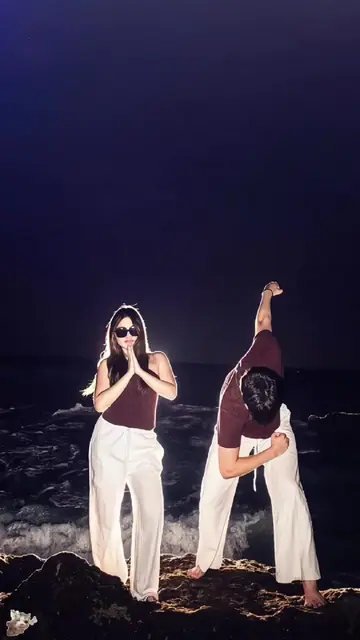
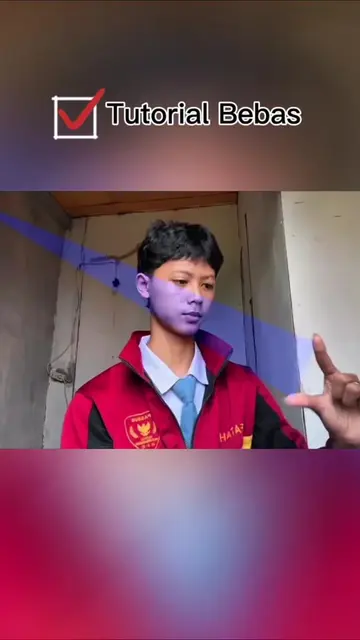
This video demonstrates how to use the Hypic AI photo editor to create a viral glowing effect on a photo. It guides viewers through copying a prompt from the comments, pasting it into the AI editor, and then applying filters and adjusting the photo's size and ratio.
Tutorial trend foto flash filter viral ✨ Cara membuat efek cahaya dibelakang yang sedang viral di TikTok. Tutorial edit foto glow aesthetic dengan AI gratis. Bagaimana membuat trend lirik dang puji ta pe lupah dan dang puji tapi ludah menggunakan foto sendiri? Tutorial membuat foto viral dengan efek flash light. Trend foto cahaya belakang terbaru. Tutorial efek glow belakang badan. Cara mengikuti trend ohmnanon tanpa ribet. Tutorial edit foto odamayek eksklusif. Efek cahaya viral TikTok. Tutorial membuat foto estetik dengan AI. Cara membuat foto viral hanya dengan satu foto. Template foto AI gratis. Editor foto AI gratis. Tutorial edit foto viral dengan AI Editor. Efek flash aesthetic. Filter cahaya viral. Filter glow photo. Efek lampu belakang foto. Edit foto kekinian. Trend TikTok Indonesia. Trend foto viral 2025. Tutorial AI photo editing. Viral flash filter tutorial. Backlight glow effect. Aesthetic photo editing. AI photo editor. Free AI photo template. Viral TikTok photo trend. Glow light effect. Flash photo filter. Backlight photo effect. AI creative editor. AI image editing. Viral photo filter. Trending photo effect. TikTok viral editing. Portrait AI photo. Creative AI photo editor. Glow background photo. Flash light photo trend. AI generated portrait. Viral aesthetic filter. #hypic #hypiccreator
MAU COBA EFEK
Introduce the viral effect and its ease of creation
Instruct to copy a link and prompt from a TikTok video
Navigate to Hypic AI editor and select a photo
Paste the prompt and generate the effect
Apply filters and adjust photo settings
Hypic (ACTS - AI photo editor, used to create a glowing effect on a photo. Removing it would change the video's outcome.)
Click the share button, then copy the link. Go to your profile, then open this video again. Open the comment section, then copy the prompt that I shared. Click the button in the bottom left, select 'Use Template', then go to 'AI Editor'. Select one photo. Paste the prompt that you copied from the comments. Click send, then wait a few seconds. After finishing, you can add a filter to make the photo brighter and more aesthetic. Lastly, adjust the photo size and ratio. Done.
Playing this video’s own audio, so you’ll hear the creator over the sound.
AI photo-editing app for people creating retouched and stylized images
Views and creators: posted in the last 30 days (all languages). Videos: all time.
Promotes 2 products. Create free account to see more.
Outliers and viral hits: their videos on Overshot, all time.