Loading video…
All breakouts

9.4App DemoOther hookEducation
Hook
Editing in CapCut is really easy
@wanzenn
863.7K followers · usually 16.7K views a post
Views
154.7K
Likes
7.4K
Comments
121
Shares
602
Why it worked
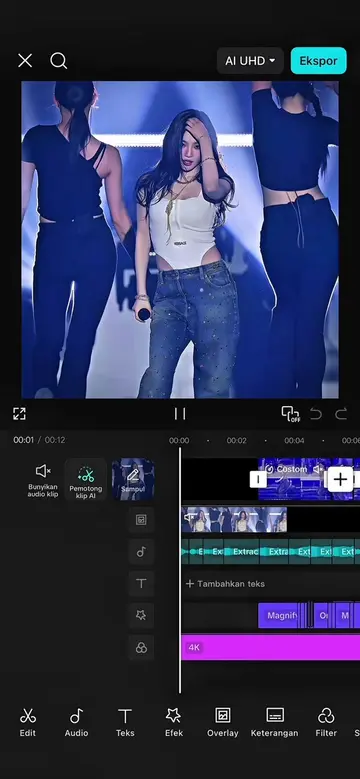
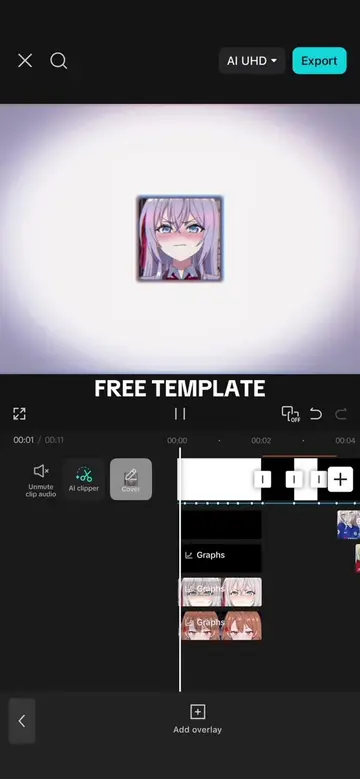
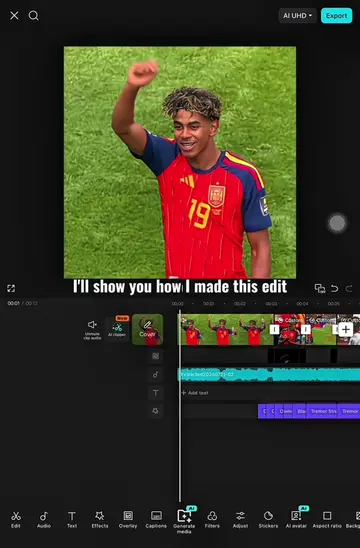
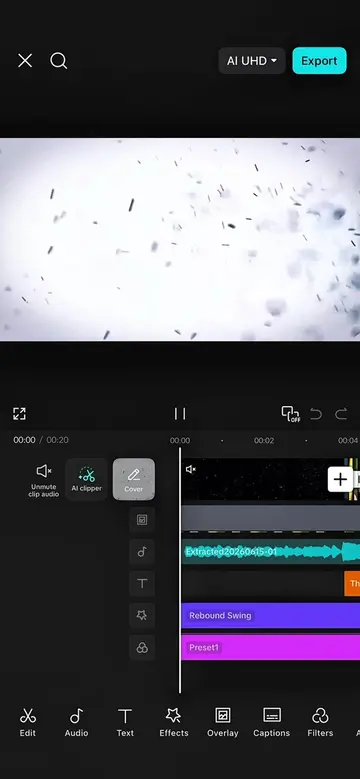
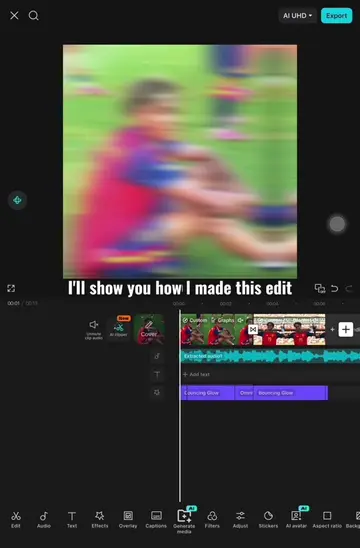
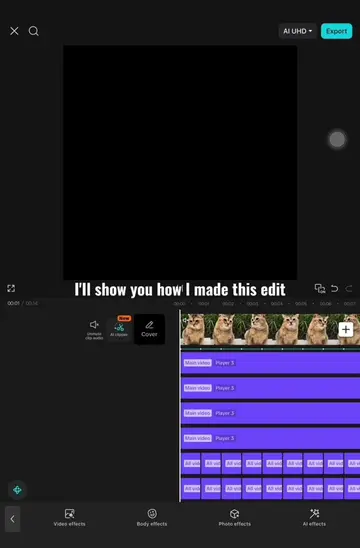
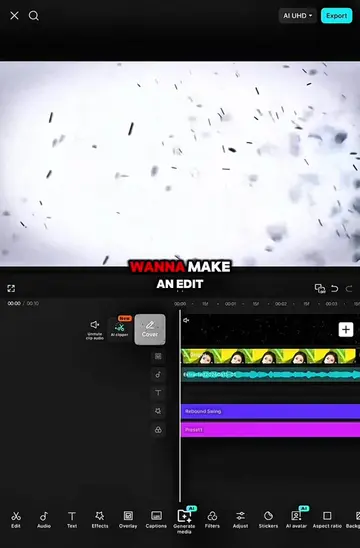
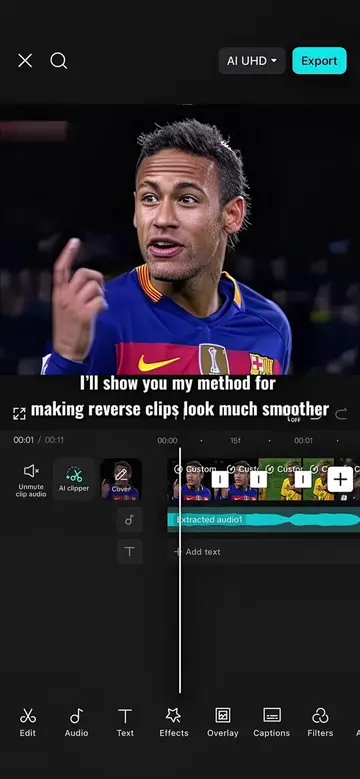
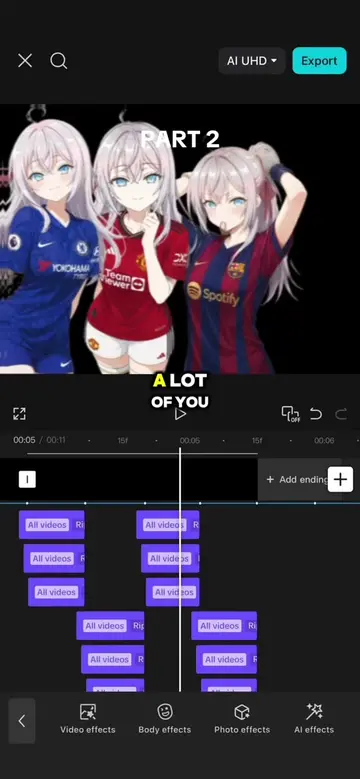
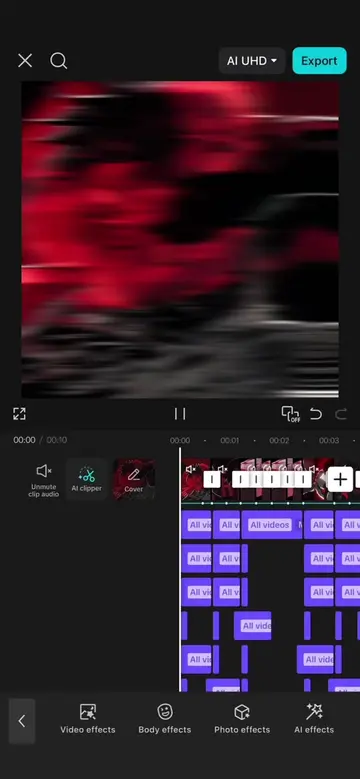
The video provides a clear, step-by-step tutorial for a popular video editing trend, making it highly shareable and valuable for users looking to replicate the effect. The use of on-screen text and visual cues makes it easy to follow, even without audio.
Summary
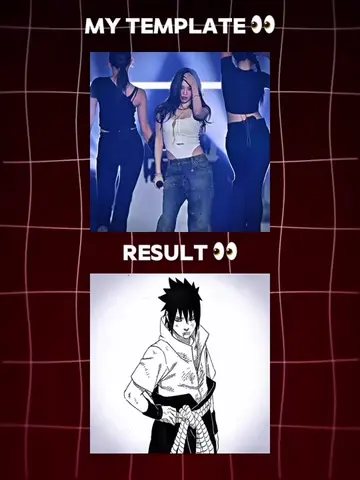
This video demonstrates how to create a trending edit effect using CapCut. It involves layering multiple clips, applying masks, adjusting keyframes for animation, and adding shake effects with specific graph settings to achieve a dynamic visual outcome.
Structure
- 1Prepare and trim clips
- 2Mask and position first four clips
- 3Layer and align clips
- 4Apply horizontal mask and rotation to fifth clip
- 5Duplicate and position clips with inverted masks
- 6
Original caption
Tutorial on this trend edit #CapCut #capcutpioneer #tutorial #capcut_edit #capcuttutorial
More from @wanzenn
Their other posts in the index, biggest breakout first.