Hook

Their other posts in the index, biggest breakout first.
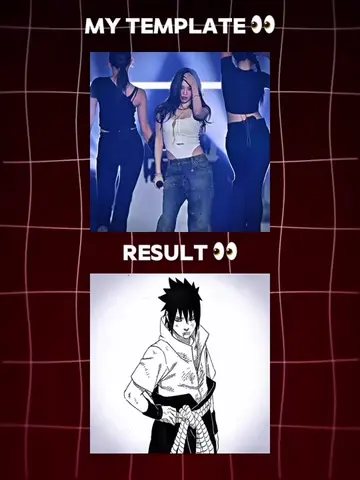
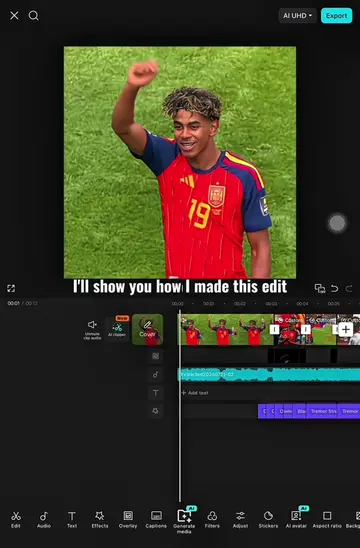
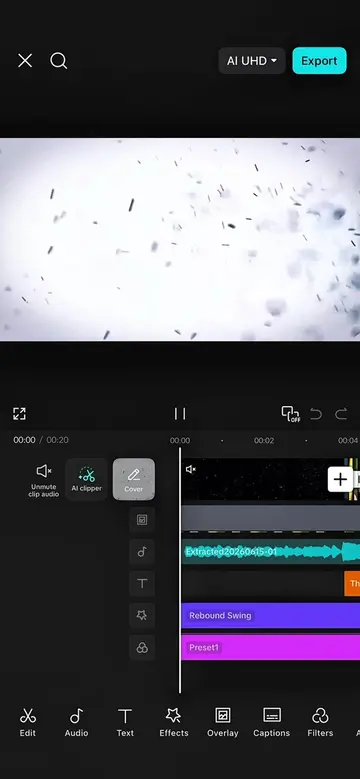
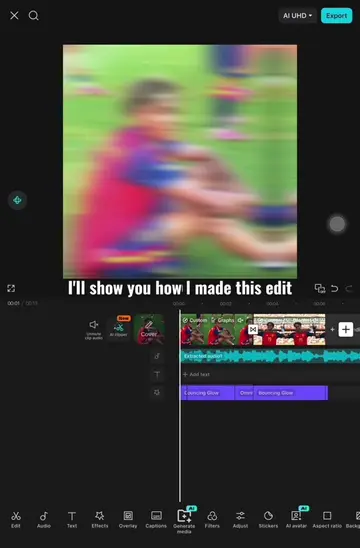
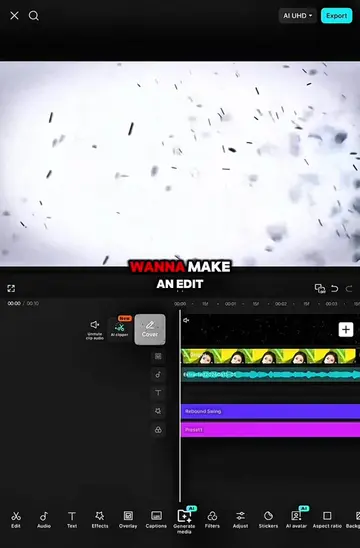
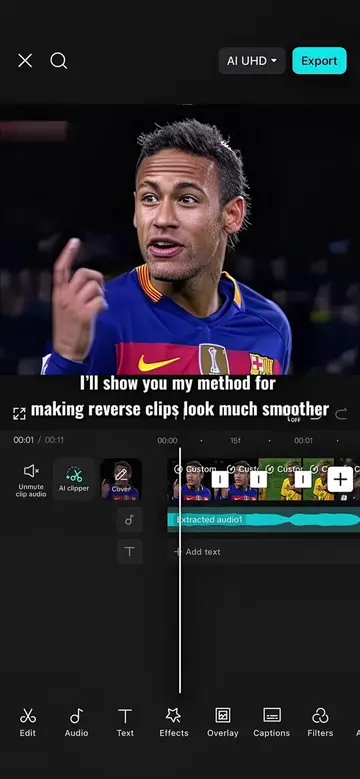
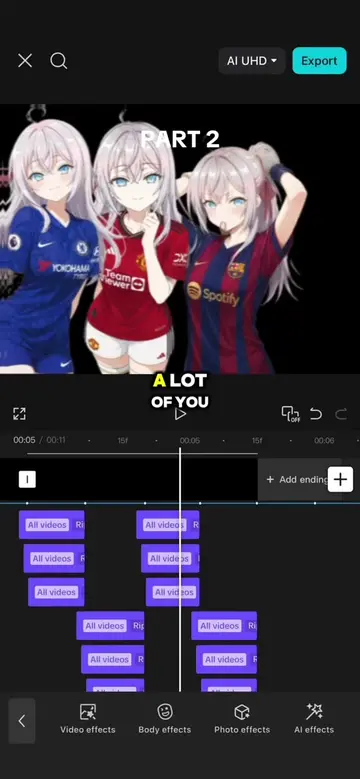
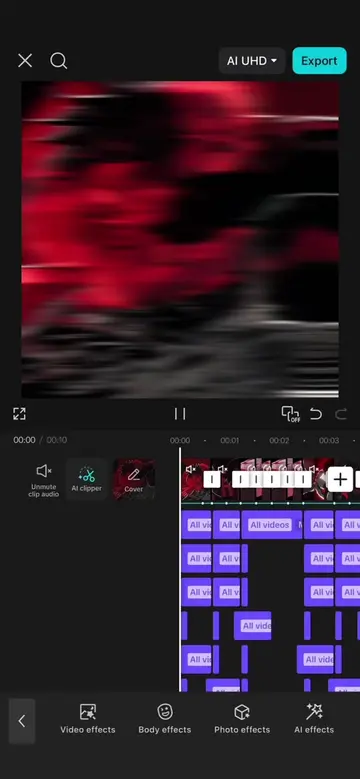
I'll show you how I made this edit First get your clips ready Then click on sound click On sound click on auto generate Set the beat density to the middle After that add the player 3 effect Set speed to 100 Glow to 0 and texture to 0 Duplicate this effect three times Then extend all four effects until the end of the clip Go back to the beginning of the timeline And add a keyframe before the second beat Move it to between the next beat Add another keyframe and set size to 0 Click on effect below it Add a keyframe Move it to between the next beat Add another keyframe and set size to 10 Move it to between the next beat Add another keyframe and set size to 0 Click on effects below it Add a keyframe Move it to between the next beat Add another keyframe and set size to 10 Move it to between the next beat Add another keyframe and set size to 0 Click on effects below it Add a keyframe Move it to between the next beat Add another keyframe and set size to 10 Move it to between the next beat Add another keyframe and set size to 22 Click on effect above it Add a keyframe Move it to between the next beat Add another keyframe set size to 10 Move it to between the next beat Add another keyframe and set size to 22 Click on effect above it Add a keyframe Move it to between the next beat Add another keyframe set size to 10 Move it to between the next beat Add another keyframe and set size to 22 Click on effect above it Add a keyframe Move it to between the next beat Add another keyframe set size to 10 Move it to between the next beat Add another keyframe and set size to 22 Go back to the beginning of the timeline And duplicate all the ripple effects five times and place it on every following beat marker Add a keyframe at the beginning and set sharpen blur and size to 0 Set speed to 55 and intensity to 40 and twist to 100 Add another keyframe at the end and set twist back to 0 Then duplicate this effect and place it on every following beat marker Add a keyframe and set twist back to 0 Now let's see the result I'll show you how I made this edit First get your clips ready Then click on sound click On sound click on auto generate Set the beat density to the middle After that add the player 3 effect Set speed to 100 Glow to 0 and texture to 0 Duplicate this effect three times Then extend all four effects until the end of the clip Go back to the beginning of the timeline And add a keyframe before the second beat Move it to between the next beat Add another keyframe and set size to 0 Click on effect below it Add a keyframe Move it to between the next beat Add another keyframe and set size to 10 Move it to between the next beat Add another keyframe and set size to 0 Click on effects below it Add a keyframe Move it to between the next beat Add another keyframe and set size to 10 Move it to between the next beat Add another keyframe and set size to 0 Click on effects below it Add a keyframe Move it to between the next beat Add another keyframe and set size to 10 Move it to between the next beat Add another keyframe and set size to 22 Click on effect above it Add a keyframe Move it to between the next beat Add another keyframe set size to 10 Move it to between the next beat Add another keyframe and set size to 22 Click on effect above it Add a keyframe Move it to between the next beat Add another keyframe set size to 10 Move it to between the next beat Add another keyframe and set size to 22 Click on effect above it Add a keyframe Move it to between the next beat Add another keyframe set size to 10 Move it to between the next beat Add another keyframe and set size to 22 Click on effect above it Add a keyframe Move it to between the next beat Add another keyframe set size to 10 Move it to between the next beat Add another keyframe and set size to 22 Go back to the beginning of the timeline And duplicate all the ripple effects five times and place it on every following beat marker Add a keyframe at the beginning and set sharpen blur and size to 0 Set speed to 55 and intensity to 40 and twist to 100 Add another keyframe at the end and set twist back to 0 Then duplicate this effect and place it on every following beat marker Add a keyframe and set twist back to 0 Now let's see the result