Loading video…
All breakouts

10.5App DemoListicle hookCreator Economy
Hook
Most common ways to use OVERLAY
@edie.edit
212.2K followers · usually 140.3K views a post
Views
1.5M
Likes
19.4K
Comments
113
Shares
922
Why it worked
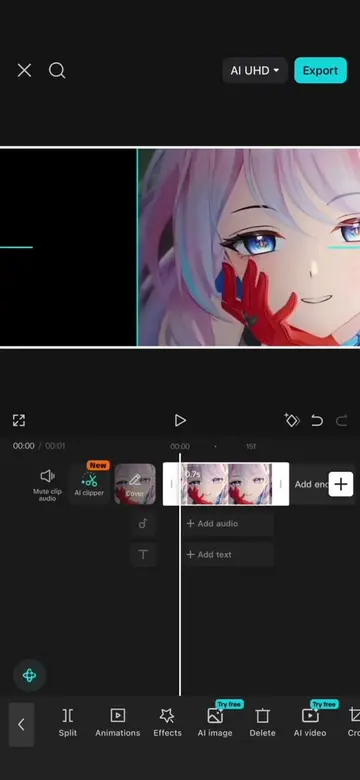
The video provides a clear, step-by-step tutorial on a specific video editing technique (using overlays) within a popular app (CapCut). It breaks down the process into distinct methods and visually demonstrates each step, making it easy for users to follow and replicate.
Summary
This video demonstrates three methods for using the overlay feature in CapCut. It covers adding an overlay by importing a clip directly, using the plus button to add a second clip, and applying effects like opacity fades and mask transitions.
Structure
- 1Introduction to overlay feature
- 2Method 1: Direct import and opacity fade
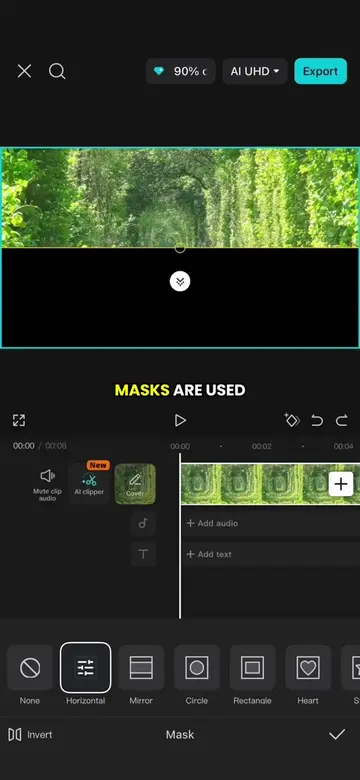
- 3Method 2: Masking with horizontal transition
- 4Method 3: Masking with circle transition
Product placement
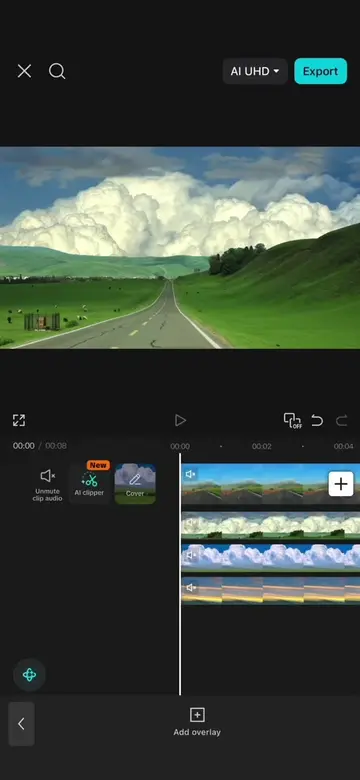
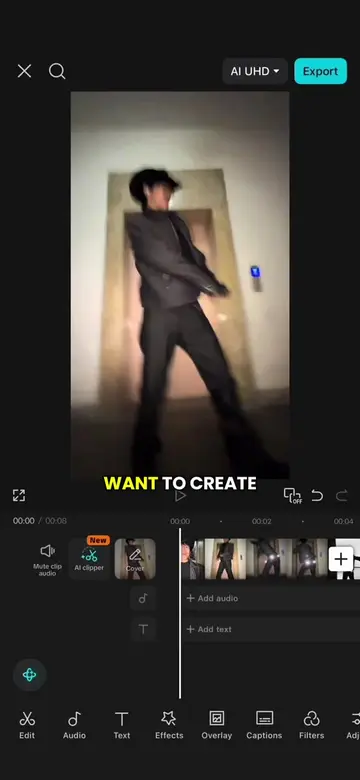
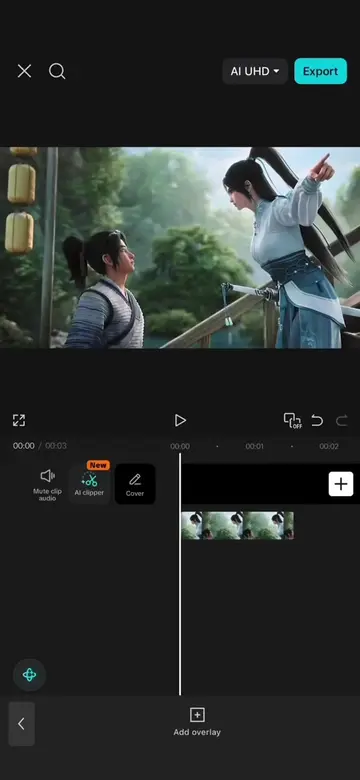
The video demonstrates how to use the overlay feature within the CapCut video editing application. It shows the interface and specific tools like 'Overlay', 'Mask', 'Opacity', and keyframe settings.
On-screen text
Most common ways to use OVERLAY
OVERLAY
TWO WAYS TO
ADD AN OVERLAY.
Two ways to add a OVERLAY.
THE FIRST METHOD
A CLIP ONTO
THE MAIN TRACK,
THEN TAP OVERLAY
ON THE BOTTOM TOOLBAR AND SELECT
ADD OVERLAY.
The new clip will be placed
ON THE ORIGINAL CLIP,
HENCE THE NAME
OVERLAY.
THE SECOND METHOD
IS TO TAP
BUTTON AND IMPORT
ANOTHER CLIP.
SELECT THE NEW
CLIP, THEN TAP
OVERLAY ON THE
BOTTOM TOOL BAR.
PRESS AND HOLD
THE OVERLAY CLIP,
DRAG IT TO
THE BEGINNING AND
ALIGN IT WITH
THE MAIN TRACK.
IT WILL ALSO
BE PLACED
ON TOP OF THE
ORIGINAL FOOTAGE.
OVER THREE POPULAR
OVERLAY EFFECTS.
Three ways to use an OVERLAY
OVERLAY EFFECTS.
First Method
FIRST EFFECT, SELECT
THE OVERLAY CLIP
AND TAP OPACITY.
SET THE OPACITY
TO 0% AND
ADD A KEYFRAME AT THE
BEGINNING.
MOVE FORWARD A
SHORT DISTANCE,
THEN INCREASE THE
OPACITY BACK TO
100%.
A NEW KEYFRAME WILL BE
CREATED AUTOMATICALLY,
GIVING YOU A
SEAMLESS TRANSITION.
Second Method
SECOND EFFECT, SELECT
THE OVERLAY CLIP,
TAP MASK AND
CHOOSE HORIZONTAL.
ROTATE THE MASK
YOU WANT,
THEN INCREASE THE
FEATHER SLIGHTLY.
POSITION THE MASK
IN THE TOP
LEFT CORNER AND
ADD A KEYFRAME AT THE
BEGINNING.
MOVE FORWARD A
FEW SECONDS,
DRAG THE MASK
TO THE BOTTOM
RIGHT CORNER.
FRAME WILL BE
CREATED AUTOMATICALLY.
THIS CREATES ANOTHER
SMOOTH, SEAMLESS TRANSITION.
Third Method
THIRD EFFECT, SELECT
THE OVERLAY CLIP,
TAP MASK AND
CHOOSE CIRCLE.
ADJUST THE SIZE
THE MASK
AND POSITION OF
THE MASK,
THEN INCREASE THE
FEATHER SLIGHTLY,
EXIT THE MASK
SETTINGS
THE OVERLAY CLIP
INTO THE POSITION
YOU WANT.
THIS CREATES
SMOOTH SCREEN BLENDING
EFFECT.
Original caption
Episode 98: Three Ways To Use Overlay in CapCut #CapCut #capcutpioneer #tiktoktips #videoedit #tutorial
More from @edie.edit
Their other posts in the index, biggest breakout first.