The video provides high-utility, actionable advice on a specific, trending AI tool, making the product demo feel like a valuable tutorial rather than an advertisement.
Summary
The creator demonstrates how to use the 'Cowork' feature in the Claude desktop app to automate daily tasks like summarizing emails, calendar events, and industry news. He explains how to set up scheduled tasks and suggests using a dedicated machine to keep the app running for continuous automation.
Structure
1Introduction to Claude Cowork and its file interaction capabilities.
2Demonstration of a daily briefing report generated by Claude.
3Explanation of how Claude pulls data from emails, calendar, and news.
4Step-by-step guide on setting up scheduled tasks within the app.
5Pro-tips on customizing task frequency and keeping the app running.
Product placement
The video is a tutorial on the 'Claude' desktop app, specifically its 'Cowork' feature.
Original caption
5 Mind Blowing Claude Cowork Uses Cases! Part 1 #claudeai#aiproductivity#workflowtips#taskautomation#productivitytools
More from @usviralbuzz
Their other posts in the index, biggest breakout first.
On-screen text
5 Mind Blowing Claude Cowork Uses Cases
files
folders
Part 1
Let's knock something off your list
Claude
Cowork
Code
Save to memory
Initialize workspace
Remove memory entries
Paul's Daily AI Brief
OpenAI Shuts Down Sora — Eliminates $10 Disney Deal
Claude Can Now Control Your Mac — Consumer Preview Live
NotebookLM Gets PPTX Export, Cinematic Videos & 10 New Infographic Styles
Fresh signals worth monitoring
AI Content Creation Tools Are Hitting a Maturity Wall
ChatGPT Closing the Gap on Persistent Context
YouTube Performance Report — 2025-12-22 to 2026-03-22
Scheduled tasks
New task
Create scheduled task
Keep awake
Transcript
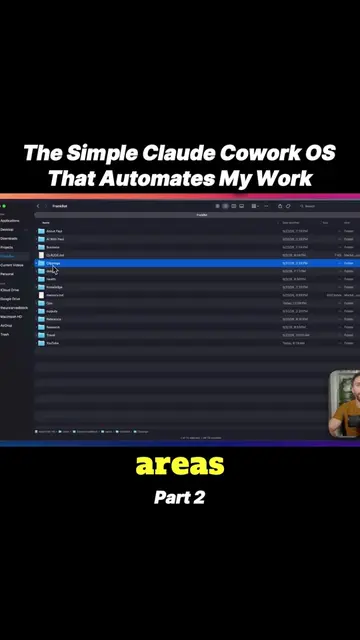
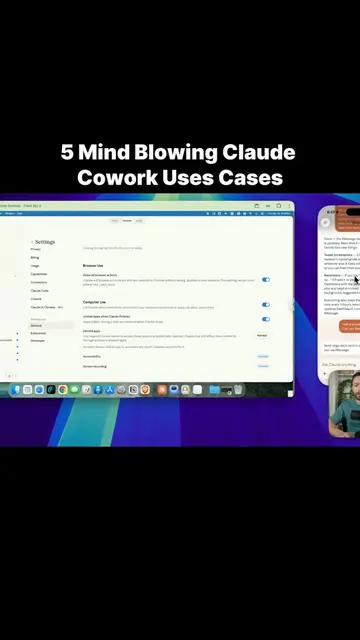
And sure, that's great, but we can do so much more with it. So what I have for you today are some really cool use cases that are actually helpful, and I think some of these are going to blow your mind. Let's start by opening the Claude desktop app. This is currently the only place where you can access Claude Cowork. Well, it's not entirely true, we'll talk about that later, but you do have to start here. So come into the app and you'll notice here at the top there are three different tabs. We're inside Cowork. And if you didn't know this already, what makes this different from regular chat is that with Cowork, you can actually interact with files that are on your computer. So right here, I have an entire folder that has all these subfolders and all these files in it, and this is what I've given Cowork access to. So for instance, I have one here for bookkeeping, one for presentations, one for different tasks. We'll talk more about some of these later. But for right now, I just want to show you my first use case, which is this one right here. Every single day, Claude makes for me this daily brief. You can see up here at the top, it flags important emails in my inbox. These ones aren't real, these are just demo ones because I didn't want to expose my real emails, but my actual morning report looks just like this. Down here, it also shows me my calendar events for the day. And then it goes out and does research for me, and it surfaces for me the top stories that I should be concentrating on. Now, since I make videos about AI, it's looking at the latest AI news and trying to prioritize stories that it thinks I would be able to make a good YouTube video about. So right here, it looked and saw that OpenAI is shutting down its video creation tool, Sora, and that's a really big deal, really high engagement on that, meaning that a lot of people are talking about it, it's getting a lot of buzz. So it correctly identified that that would be a great video topic. Here is another one, Claude can now control your Mac. We're definitely going to talk about that one today, and some other ones for NotebookLM. And then down here, we even have some secondary news that maybe isn't as important, but still worth noting. And then finally down here are my metrics. So it actually is able to pull information from my YouTube videos and give me an update every single day on how my channel is performing. Now, obviously, you're not a YouTuber, but you can set this up the same way. Like it will pull in your emails, it will pull in your calendar, it will search for news in your industry, and then if you have any sort of analytics, like maybe you use Google Analytics or you have Facebook ads, it can pull information from those in as well and give it all to you in this morning report. And this shows up on my desktop every single morning, so I don't have to search for it. It's right there on my desktop. I open it up, and with a quick glance, I can see what I have for that day and what I should be concentrating on. Now back inside Cowork, let me show you how to set this up. I've actually made it very easy for you. So this takes advantage of scheduled tasks. You can find those over here on the left by clicking on Scheduled, and then you can start a new one by clicking on the top right where it says New Task. Here you can give it a name and a description, but the prompt is really what matters. That's going to tell Cowork what you want it to do. And then you can set the schedule down here. On this drop-down, you can choose between hourly, daily, weekdays, or weekly. So for this one, you would select daily and choose what time, like maybe 5:00 a.m., and there's some other options here as well, like what model you want to use and what folder you want it to actually put the report into. Now, a couple of tips about this, most people don't know this. This frequency, you're not limited to just these ones. If you come over to Cowork and start a new task, you can tell it every two hours, create for me a research report on what's trending, and it will actually set it up every two hours. Or you can be a lot more specific. You can say at 1:00 p.m. and then at 5:00 p.m. and then at midnight, I want you to put together a research report for me, and it will do it and set up a scheduled tasks for those hours, even though that wasn't an option on the drop-down. The other thing you have to be aware of when it comes to scheduled tasks is that in order for them to run, the computer, your computer needs to be on and Cowork needs to be open. Now, Claude made that very easy because there is a toggle right here that if you leave this on, it will prevent your computer from going to sleep, and obviously leave Claude open in order for that to work. Now, I know this isn't an option for everyone because you can't leave your computer on all the time. Maybe you have to close your laptop and bring it to work with you. So personally, what I did was I bought a Mac Mini and actually have it set up running tasks for me 24/7 because this has become such a valuable feature for me. But if having this open 24/7 or having a computer on 24/7 isn't going to work for you, that's okay, because you can still set up one of these scheduled tasks.