Loading video…
All breakouts

10.9App DemoHow-To hookEducation
Hook
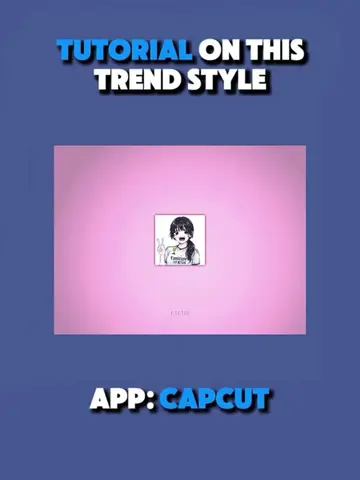
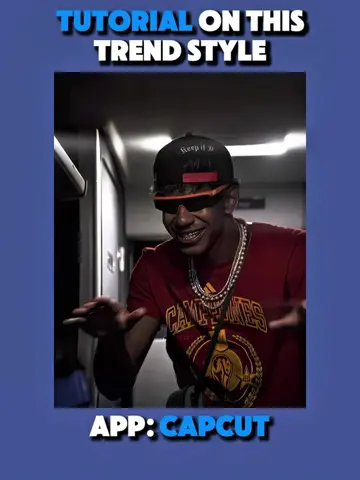
TUTORIAL ON THIS BONE STYLE
@ketikajazan
1.9M followers · usually 12.8K views a post
Views
131.2K
Likes
5.5K
Comments
133
Shares
335
Why it worked
The video provides a clear, step-by-step tutorial for a visually interesting and trending editing style ('X-ray edit style'). It leverages popular anime characters and demonstrates advanced editing techniques within a widely used app (CapCut), making it highly shareable and engaging for users interested in video editing and anime aesthetics.
Summary
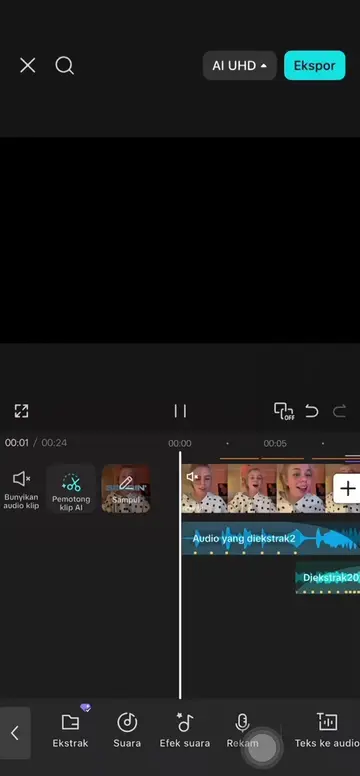
This video provides a tutorial on creating an "X-ray edit style" using the CapCut app. It demonstrates how to use AI editing features, adjust image properties, and apply custom removals to achieve the desired effect.
Structure
- 1Introduction to the bone style tutorial
- 2Using CapCut's AI edit and Seedream 5.0 Pro with a specific prompt
- 3Applying AI remove and saving the skeleton image
- 4Importing the image, creating music beats, and setting overlay duration
- 5Adjusting the skeleton's appearance using graphs
- 6
Original caption
Tutorial on this viral anime x bone stlye "Askim Cok Pardon" @🦋~♡丂卄|几ㄖ乃ㄩ♡~🦋 ll What other trends would you like a tutorial? #CapCut #capcutpioneer #capcutphoto #seedream5pro #edittutorial
More from @ketikajazan
Their other posts in the index, biggest breakout first.