Loading video…
All breakouts
274App DemoHow-To hookEducation
Hook
Computer shutdown In one click
@vxcarmodification
34.1K followers · usually 19.9K views a post
Views
5.4M
Likes
187.7K
Comments
5.3K
Shares
16.1K
Why it worked
The video provides a useful and quick tech tip that is easily shareable and applicable to a wide audience. The clear, step-by-step demonstration makes it easy to follow and replicate, driving engagement and shares.
Summary
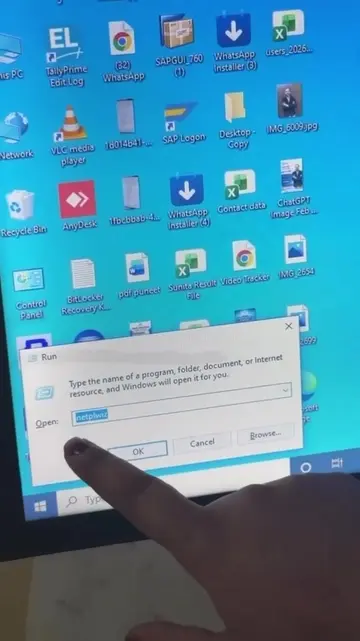
The video demonstrates how to create a one-click shutdown shortcut for a Windows computer. It shows the steps of right-clicking, creating a new shortcut, entering the shutdown command, and then double-clicking the created shortcut to shut down the computer.
Structure
- 1Introduction to the one-click shutdown trick
- 2Creating a new shortcut
- 3Entering the shutdown command
- 4Finishing the shortcut creation
- 5Demonstrating the one-click shutdown
On-screen text
Computer shutdown
In one click
Transcript
Do you know? How to Shutdown Windows Computer in Just 1 Click? 😱💻 | Windows Hidden Trick #WindowsTips #ComputerTricks #ShutdownShortcut #WindowsShortcut #computertips #tiktokgrowthchallenge Beta, you can shut down the computer in one click. Can you do it, ma'am? Yes, ma'am, you can definitely do it. Show me then. For this, ma'am, we will right-click on the mouse. Go to New. Click on Shortcut. Then we will give a shortcut command. shutdown /s /t 0. Then press Enter. Then we will click Finish. Then our shortcut folder will be created. Double-click on it and the computer will shut down.
Original caption
🔥 Do you know? How to Shutdown Windows Computer in Just 1 Click? 😱💻 | Windows Hidden Trick #WindowsTips #ComputerTricks #ShutdownShortcut #WindowsShortcut #computertips #tiktokgrowthchallenge
More from @vxcarmodification
More breakout videos from this creator.