Loading video…
Sound

original sound - shoppingwithchristina
Christina: in my 50s era · Original audio
0:00–:––
Hook
Posted Sep 6, 2026Video · 4:58by @shoppingwithchristina
This video promotes it, but we haven’t matched it to a product page yet, so there are no product figures.
The video addresses a common pain point for many people: making technology accessible for elderly family members. By offering a practical, step-by-step solution using a widely recognized product (iPhone) and a specific, helpful feature (Assistive Access), it provides immediate value and relatability.
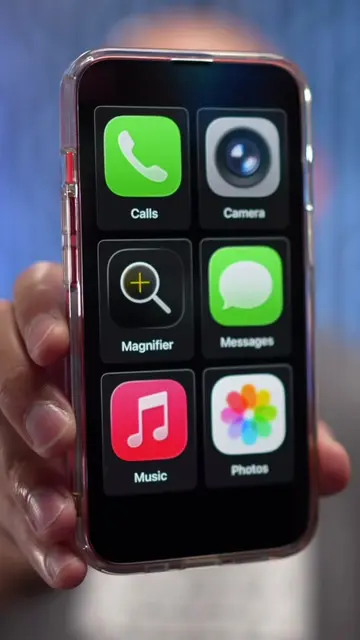
The creator demonstrates how to simplify an iPhone for a senior parent by enabling "Assistive Access." This feature allows for a customized interface with only essential apps like Calls, Contacts, Maps, Photos, and Camera, making the phone easier to navigate and preventing accidental shutdowns.
This setup is great for anyone who is not tech savvy. iPhone has a lot of accessibility features but I had no idea it could do this! #elderlycare #elderlyparents #iphonetips #iphonehacksyouneedtoknow
IF YOU'VE BEEN THE PERFECT PHONE FOR YOUR ELDERLY PARENT, STOP.
Introduction to the problem: setting up an iPhone for a senior parent.
Demonstration of the difficulty of standard iPhone use for seniors.
Introduction of "Assistive Access" as a solution.
Configuration of allowed apps and interface layout.
Customization of settings like wallpaper and notifications.
Final demonstration of the simplified interface and its benefits.
iPhone: acts - it is the device being set up and demonstrated for ease of use by a senior parent. Removing it would change what happens in the video. Apple: appears - it is the brand of the iPhone. Removing it would not change what happens in the video.
Outliers and viral hits: their videos on Overshot, all time.