Loading video…
All breakouts
11.0App DemoProblem Callout hookConsumer Apps
Hook
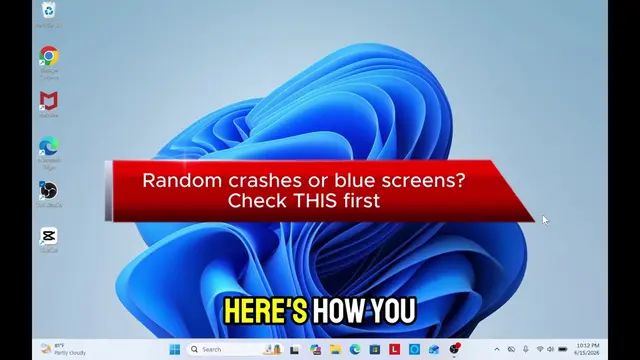
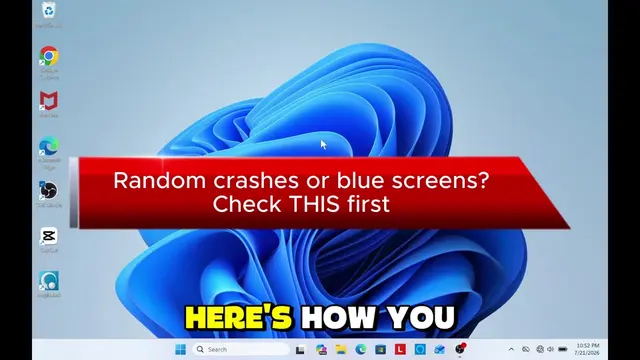
Random crashes or blue screens? Check THIS first
@it.techguru
14.1K followers · usually 3.9K views a post
Views
26.5K
Likes
678
Comments
5
Shares
236
Why it worked
The video addresses a common and frustrating PC problem (crashes/blue screens) with a clear, actionable solution that requires no external downloads. The use of built-in Windows tools makes it accessible to a wide audience.
Summary
This video demonstrates how to check for and identify missing drivers on a Windows PC using the command prompt. It shows two commands, `driverquery /v` and `driverquery /si`, to list installed and system drivers, helping users identify what needs to be installed.
Structure
- 1Introduce the problem of crashes and blue screens.
- 2Explain the solution: installing all drivers.
- 3Open Command Prompt as administrator.
- 4Use `driverquery /v` to list installed drivers.
- 5Use `driverquery /si` to see system drivers.
- 6Identify missing drivers for installation.
Product placement
Microsoft Windows: This is the operating system being used and demonstrated. Removing it would fundamentally change the video. It acts as the substrate for the demonstration. Microsoft Command Processor: This is the command-line interpreter used to run commands. Removing it would prevent the demonstration. It acts as a tool.
On-screen text
Random crashes or blue screens?
Check THIS first
HERE'S HOW YOU
INSTALL ALL DRIVERS
WITHOUT DOWNLOADING ANY
PROGRAMS
TYPE CMD IN
WINDOWS SEARCH MENU
AS ADMIN
TYPE DRIVERQUERY
DRIVERQUERY /V
THE DRIVERS THAT
ARE INSTALLED ON
YOUR PC
NOT INSTALLED FOR
NOW TYPE DRIVER
QUERY /SI
SEE
ARE INSTALLED AND
READY ON YOUR
PC
Original caption
Inatall all MS Windows drivers #creatorsearchinsights #pcfix #tech #techsupport #computerfix
More from @it.techguru
More breakout videos from this creator.