Loading video…
Sound

original sound - jarrellpeak
Jarrell Peak | Photographer · Original audio
0:00–:––
Playing this video’s own audio, so you’ll hear the creator over the sound.
The video provides a practical, step-by-step workflow for a common pain point in sports photography: managing a high volume of images. The use of clear on-screen text and concise explanations makes the process easy to follow and replicate.
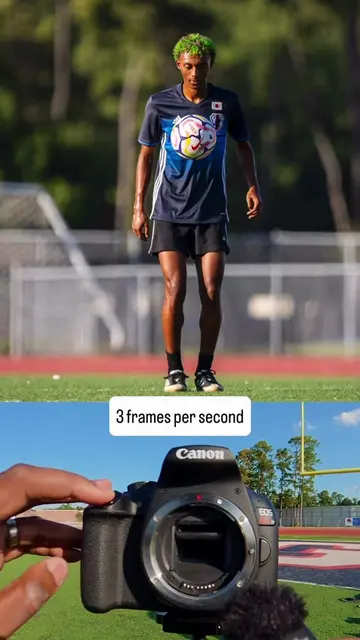
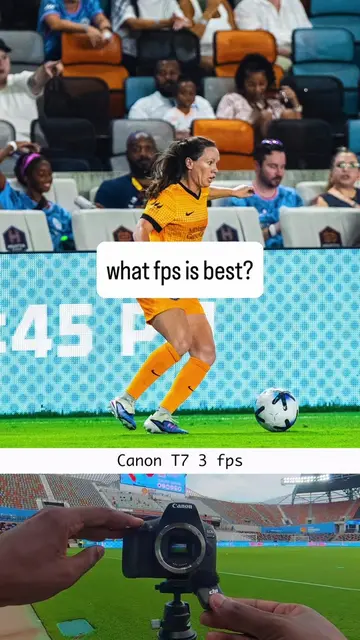
This video demonstrates a 5-step process for sports photographers to efficiently cull, edit, and export a large volume of images captured during a game. It covers shooting in burst mode, rating photos in sequences, transferring files during breaks, sorting with software like Photo Mechanic, and final editing in Lightroom.
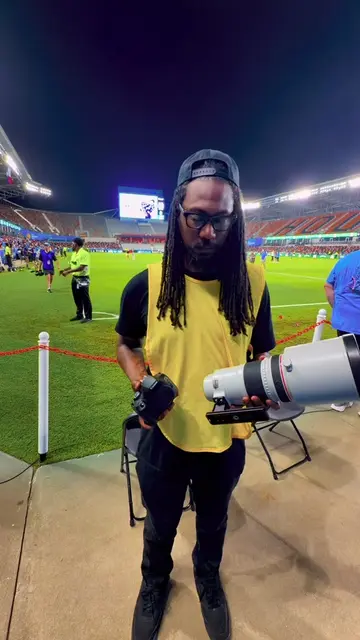
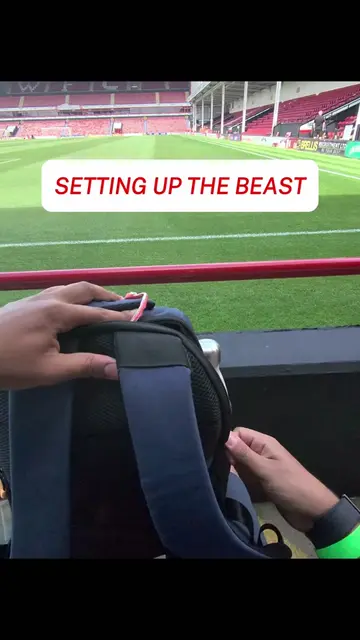
This is how you Select, Edit, and Export 3000+ images in Game. This is made possible by @progradedigital CfExpress Type B Card and usb 4.0 card reader. If you ever wondered what we’re doing on the sideline, here is a step by step. #sportsphotographer #sportsphotography #canon #Soccer
How to CULL EDIT & EXPORT 3000 Images in Game
Shoot in burst mode
Rate photos in sequences
Transfer files during game breaks
Sort images using software
Import, edit, and export in Lightroom
Canon (camera brand, appears, removing it would not change what happens in the video) ProGrade Digital (memory card brand, acts - it is used to transfer photos, removing it would change what happens in the video) MacBook (laptop brand, acts - it is used to edit photos, removing it would change what happens in the video) Photo Mechanic (software, acts - it is used to sort photos, removing it would change what happens in the video) Canon DDP (software, acts - it is used to sort photos, removing it would change what happens in the video) Lightroom (software, acts - it is used to edit photos, removing it would change what happens in the video)
Playing this video’s own audio, so you’ll hear the creator over the sound.
Promotes 2 products. Create free account to see more.
Outliers and viral hits: their videos on Overshot, all time.
Desktop photo workflow software for photographers culling and exporting images
All time.