Loading video…
Sound

original sound - muhammadzia1435
🎧 MS1435 🎵 · Original audio
0:00–:––
Playing this video’s own audio, so you’ll hear the creator over the sound.
The video works by demonstrating a practical use case for a popular mobile editing app (CapCut) on a widely recognized device (iPhone 7). The step-by-step editing process, even without spoken commentary, visually guides viewers through the app's features, making it informative and potentially inspiring them to try the app themselves.
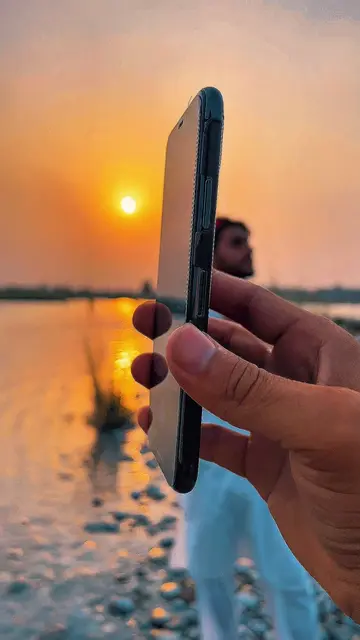
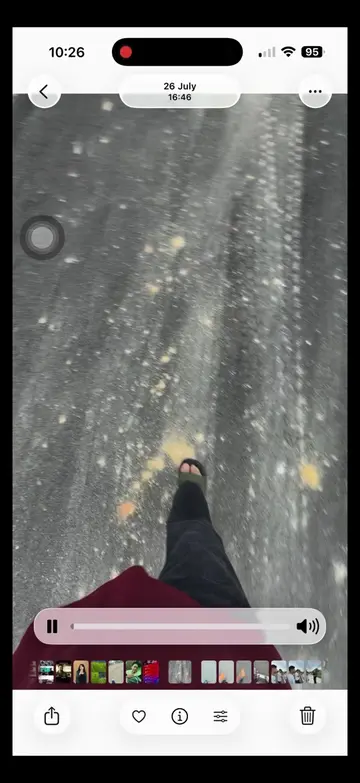
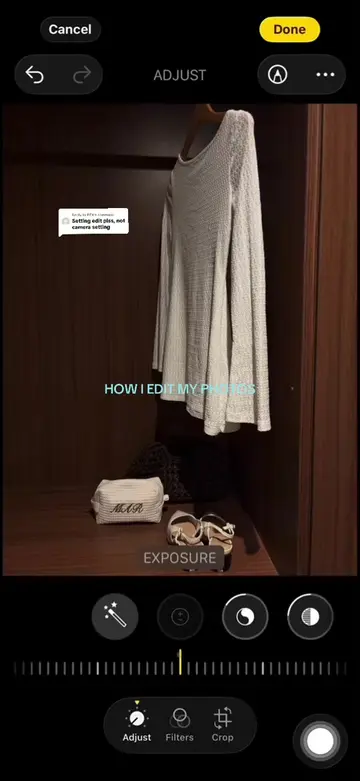
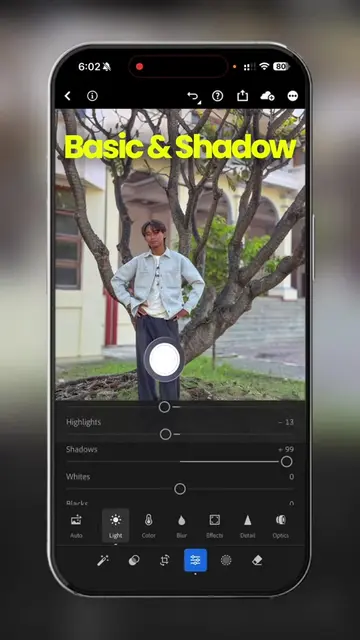
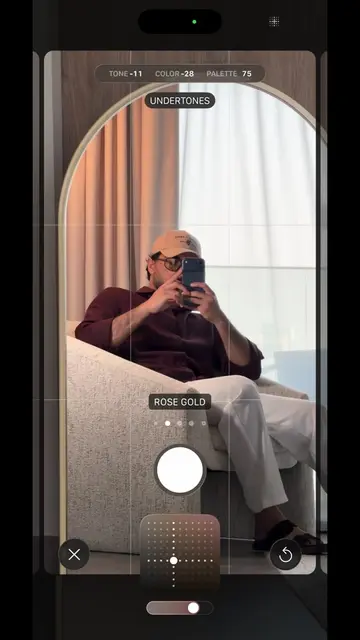
The video shows someone using an iPhone 7 to record and edit a video of another person. The editing process involves adjusting various parameters like exposure, highlights, shadows, contrast, brightness, black point, saturation, vibrancy, warmth, tint, sharpness, definition, and vignette within the CapCut app.
Iphone 7 video editing tutorial #fyp #viral_video #iphone7 #editingtips
00:00
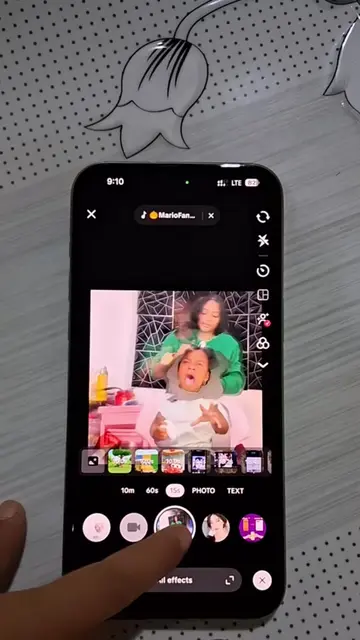
Recording a person with an iPhone 7
Opening the CapCut app
Adjusting video filters
Adjusting video exposure
Adjusting video highlights
Adjusting video shadows
Adjusting video contrast
Adjusting video brightness
Adjusting video black point
Adjusting video saturation
Adjusting video vibrancy
Adjusting video warmth
Adjusting video tint
Adjusting video sharpness
Adjusting video definition
Adjusting video vignette
iPhone 7: it is used to record and edit a video. Removing it would change what happens in the video. Apple: it is a logo on the iPhone 7. Removing it would not change what happens in the video. Capcut: it is an editing app. Removing it would change what happens in the video.
Playing this video’s own audio, so you’ll hear the creator over the sound.
Promotes 2 products. Create free account to see more.
Outliers and viral hits: their videos on Overshot, all time.
Video editing app for creators making social media videos
Views and creators: posted in the last 30 days (English videos). Videos: all time.