Loading video…
All breakouts
239App DemoDirect Question hookConsumer Apps
Hook
What's new in iOS 27?
@n202hack
3.7K followers · usually 8.0K views a post
Views
1.6M
Likes
63.1K
Comments
725
Shares
4.2K
Why it worked
The video taps into the strong interest in upcoming iOS updates and provides practical, visually appealing customization tips that users can apply to personalize their iPhones, driving engagement through aspirational content.
Summary
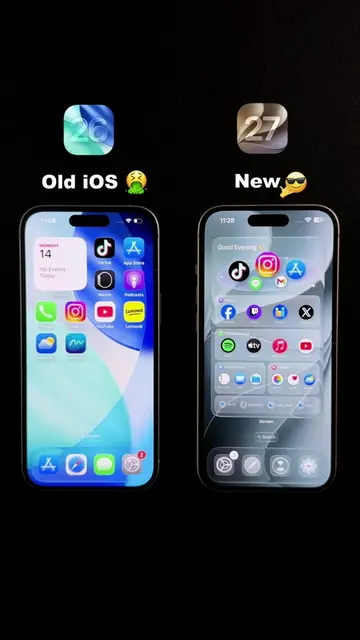
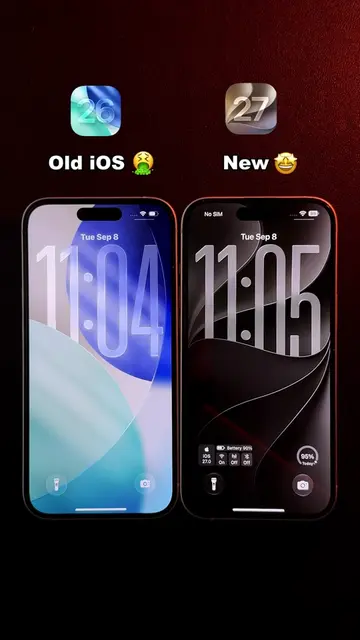
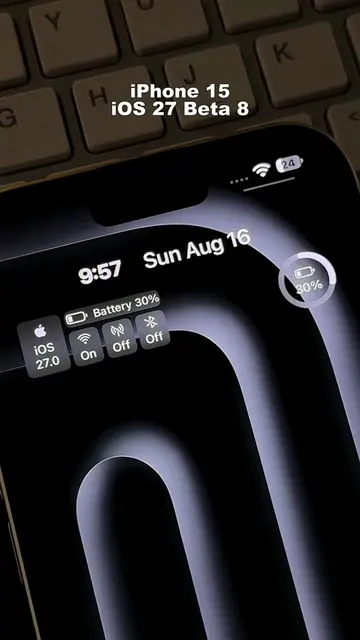
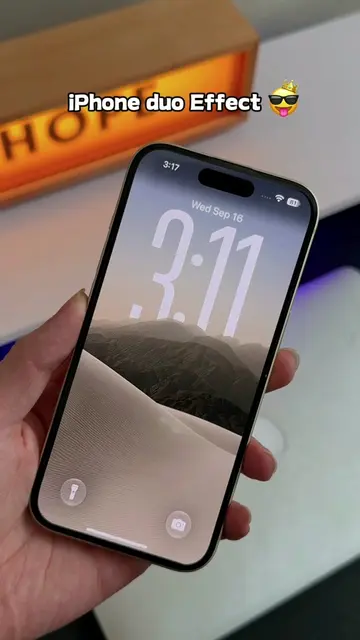
The video showcases new features and customization options for iOS 27, focusing on widgets and lock screen clock resizing. It demonstrates how to use the iScreen app to create and customize widgets, including a "Smarter Widget" and a "Weather Board."
Structure
- 1Introduction to iOS 27 features
- 2Resizing the lock screen clock
- 3Customizing Liquid Glass
- 4Demonstrating the "Smarter Widget"
- 5Tutorial on creating widgets with iScreen
- 6Showcasing the "Weather Board" widget
Product placement
iOS 27 (operating system): Appears as the subject of the video, but is not an actual product that acts. Removing it would change the topic. Apple (company): Appears as a logo on the phone, but does not act. Removing it would not change what happens. iScreen (app): Acts by being opened and used to create widgets. Removing it would change what happens. Weather Board (widget): Acts by displaying weather information. Removing it would change what happens. Flip Clock (widget): Acts by displaying time. Removing it would change what happens. Gemini (app): Appears on the home screen, but does not act. Removing it would not change what happens. Music (app): Appears on the home screen, but does not act. Removing it would not change what happens. Mail (app): Appears on the home screen, but does not act. Removing it would not change what happens. Pinterest (app): Appears on the home screen, but does not act. Removing it would not change what happens.
Original caption
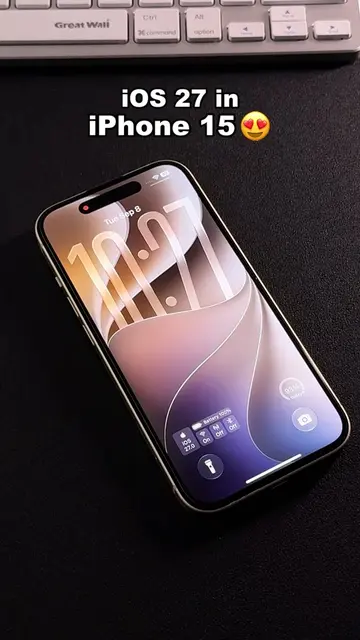
iOS 27 RC new features and changes are out now. Found a hidden smarter widget you’ll want to try — quick setup tutorial #ios27 #appleevent #newios #iphonetricks #widget
More from @n202hack
More breakout videos from this creator.