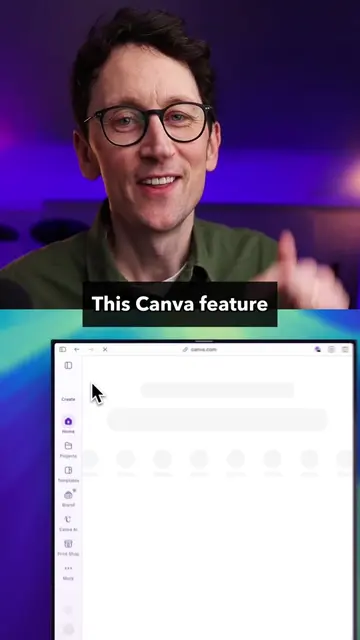
The video provides high-value, actionable utility by teaching users how to leverage specific, advanced features of a popular AI tool to save time, positioning the creator as a helpful expert.
Summary
The creator provides a comprehensive tutorial on how to use Claude, covering its web interface, desktop app features like Cowork and Code, and specific tools like skills, connectors, and writing styles. He explains how these features can automate repetitive tasks and improve productivity for various professional workflows.
Structure
1Introduction to Claude and its desktop app
2Explaining skills and connectors for automation
3Demonstrating custom writing styles
4Deep dive into Claude Cowork for file management
5Brief overview of Claude Code for developers
6Closing and call to action
Original caption
A simple guide to Claude. A clear and easy breakdown of Anthropic's AI, that has become so powerful and useful that tons of people are migrating to it. Let's look at Claude Chat, Cowork and Code, both on the web and in the desktop app, and what these frontier AI tools are most useful for. #claude #anthropic #AI #artificialintelligence #Tech #technology #LearnOnTikTok
More from @willfrancis24
Their other posts in the index, biggest breakout first.
Product placement
Claude (Anthropic) is the subject of the video, demonstrated through its web and desktop interfaces.
Call to action
Check that playlist down there and follow me to keep learning about AI.
On-screen text
Here's a really simple guide to Claude
New Google Drive connector
Download Claude
Skills and Connectors
Back at it, Will Francis
Social Media Performance
Q1 at a Glance
What Drove Engagement
What's Next
Customize
Connectors
What's up next, Will?
Transcript
Here's a really simple guide to Claude for anyone that's just started using it or thinking of doing. Send this to anyone you think needs a really simple explainer of the best things it does. So, Claude is an AI assistant much like ChatGPT or Google Gemini but power users are using it through the desktop app which is free to download and opens up its ability to do way more work for you. But let's stay on the web for now. So here it's basically just like ChatGPT. You prompt it, it gives you stuff back. You can upload files, ask it to search the web, but the two things that are gonna massively upgrade your experience here are skills and connectors. Skills are the easiest thing to get started with. They're being shared all over the internet but honestly you can just ask Claude to create one for you. Just ask it create a skill to do and then put the task and the rules for the task. Think like, on-brand PowerPoint decks, you can give it your colours, your fonts, some screenshots of some slides and then it will be able to build the instructions for you and reliably produce those every time. But also LinkedIn carousels, press releases, product descriptions, web pages, I don't know, whatever you do on a regular basis, a repetitive task - you probably need a skill for. Then I would add connectors. So go into Customize go to 'Connectors' and see if any of these are apps that you use and this gives Claude the ability to kind of reach into those apps and do stuff. So it could be that you connect Canva and it creates Canva designs or you connect your Gmail and Calendar and it organizes your inbox and adds complicated schedules into your calendar and all you did was just a simple prompt. One more feature is the writing styles. This is actually quite a unique feature of Claude where you can give it examples of your different writing styles like you could paste in an email and have an email style or paste in your LinkedIn post have a LinkedIn style you just switch between them as you're doing different writing tasks. But to show you the other side of Claude we do need to go into the desktop app where there are three tabs: Chat, Cowork and Code. Now, we've already covered Chat but if you work on documents, spreadsheets, presentations, visual assets, things like that, you're gonna love Cowork. So Cowork is a step on from Chat. Claude Cowork can take on much bigger jobs and it breaks them down into tasks and you can see that to-do list on the right hand side and then it works through that to-do list sometimes for minutes, sometimes for hours. But the real magic is that rather than uploading and downloading documents for it to work on, it just works directly in your folders on your computer, on your files, editing your files, creating new ones. So maybe you've got a folder full of bank statements and you're like "put all this into a spreadsheet", it will do that and it will put the spreadsheet in that folder that is no problem for Claude Cowork. Maybe you've got a load of screenshots that you want organized into a mood board or a load of random documents and spreadsheets you want turned into a presentation for your next client meeting, no problem, it can do that. OK, so then there's Claude Code and now that's a slightly more flexible and powerful version of what we've just talked about with Cowork, but unless you're a developer, I don't think you need Claude Code at all. There's more than enough power with Chat and Cowork. Anyway, I think that's more than enough for now. If you want more tips about Claude, check that playlist down there and follow me to keep learning about AI.