Loading video…
All breakouts
3.5App DemoHow-To hookConsumer Apps
Hook
HERE'S A STEP
@techmichaelofficial
11.0K followers · usually 1.2K views a post
Views
4.5K
Likes
62
Comments
8
Shares
12
Promoted product
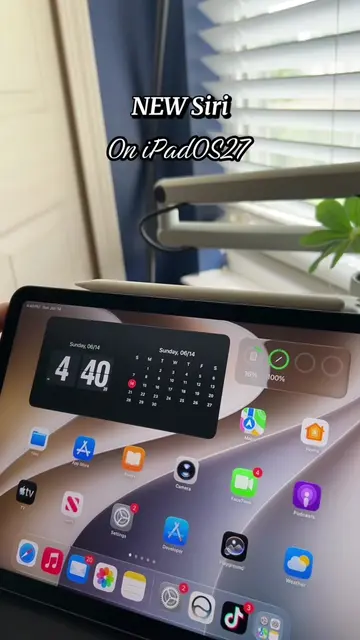
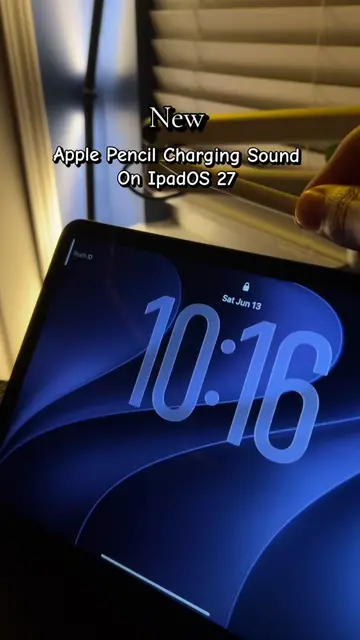
iPadOS 27 Developer Beta
There’s never been a better time to develop for Apple platforms.
Why it worked
The video provides a clear, concise, and actionable tutorial for accessing a desirable, albeit beta, software update. This appeals to users interested in early access and new features, making it highly shareable within the Apple enthusiast community.
Summary
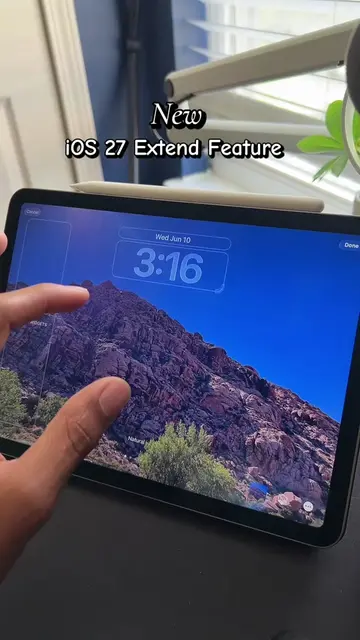
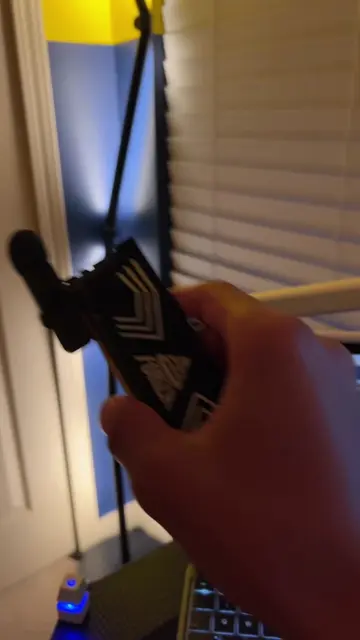
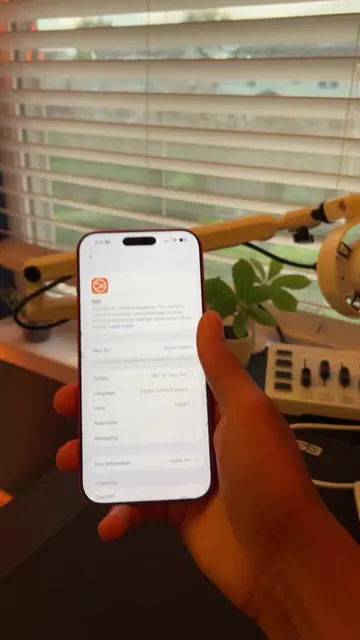
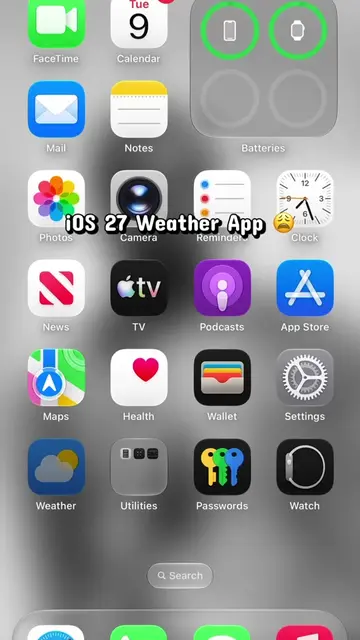
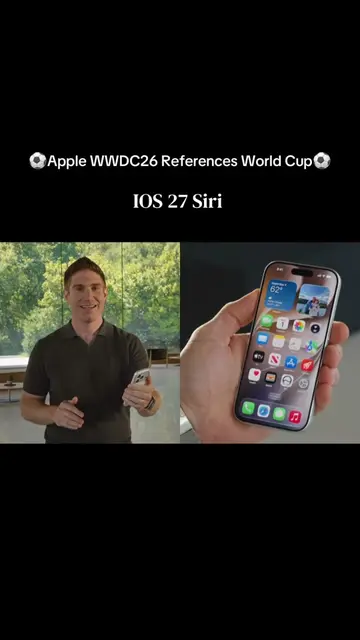
This video provides a step-by-step tutorial on how to install the iPadOS 27 Developer Beta on an Apple device. It guides viewers through navigating the Apple website, downloading the beta profile, and enabling it in the device's settings.
Structure
- 1Navigate to apple.com
- 2Find and click on WWDC26
- 3Scroll to the bottom and click 'Learn More'
- 4Go to developer.apple.com/downloads
- 5
Original caption
Replying to @𝙜𝙖𝙗𝙚! #ios27 #apple #iphone #Tech
More from @techmichaelofficial
More breakout videos from this creator.