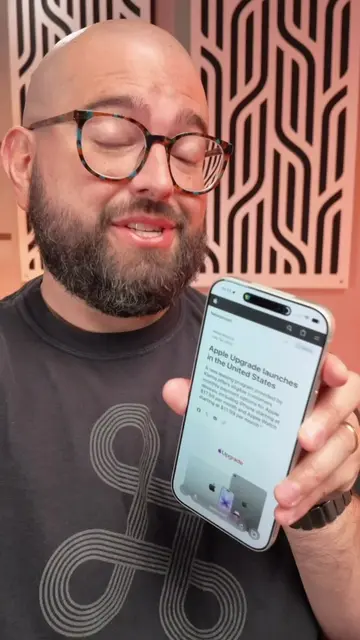
Loading video…
All breakouts
16.8Talking HeadDirect Question hookConsumer Apps
Hook
DO YOU OFTEN MISPLACE
@beardedteacher
68.3K followers · usually 7.9K views a post
Views
80.8K
Likes
3.3K
Comments
34
Shares
1.1K
Why it worked
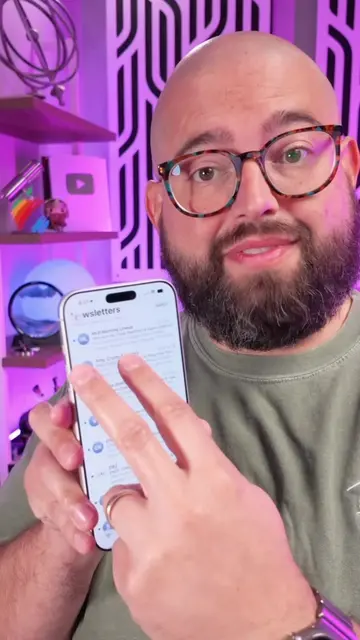
The video provides a practical and easily replicable solution to a common problem (losing a phone) using a built-in iOS feature. The step-by-step tutorial format, combined with clear on-screen text and spoken instructions, makes it accessible to a wide audience.
Summary
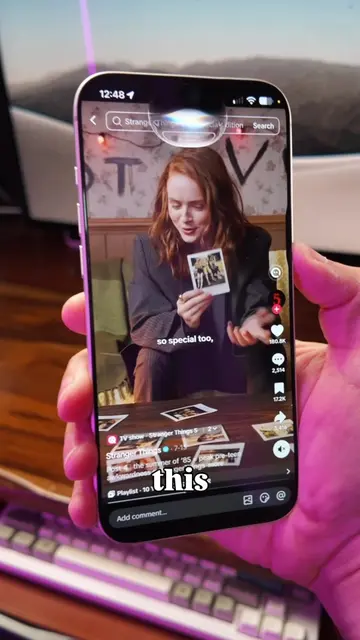
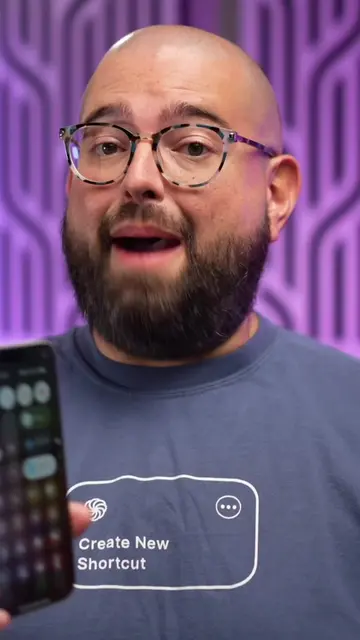
This video demonstrates how to set up an iPhone automation using the Shortcuts app. The automation triggers a specific song to play at full volume when a custom text message is received, helping to locate a misplaced phone.
Structure
- 1Introduce the problem of misplacing a phone
- 2Explain the solution: an iPhone automation
- 3Guide through setting up the automation in Shortcuts
- 4
Original caption
Lose your iPhone? Add this automation so you can text yourself from any number and immediately make your iPhone play music at full volume! #shortcuts #iphonetips #TechTips
More from @beardedteacher
More breakout videos from this creator.