Loading video…
All breakouts
 CapCutseen in 576 videos →
4.3App DemoStory Open hook
Hook
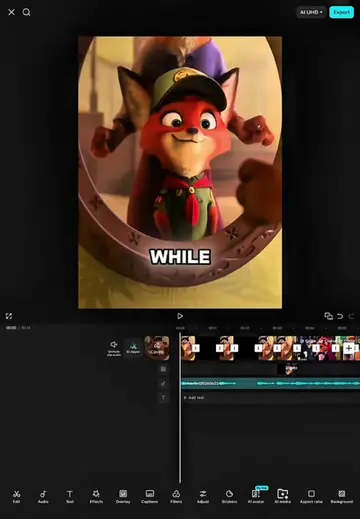
while editing
@hamproject016
114.3K followers · usually 21.3K views a post
Views
87.0K
Likes
2.2K
Comments
86
Shares
171
Selling · SaaS › Other SaaS
Why it worked
The video provides a clear, step-by-step tutorial for a popular editing style, using a well-known editing software (CapCut). The use of on-screen text and visual cues makes it easy to follow, even without sound.
Summary
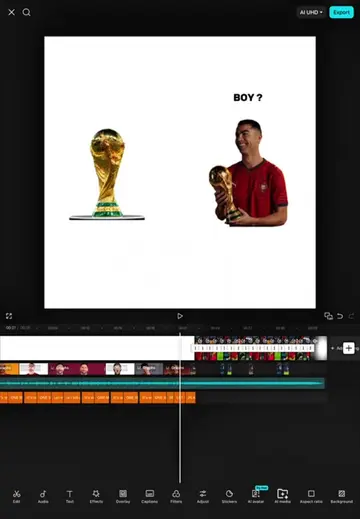
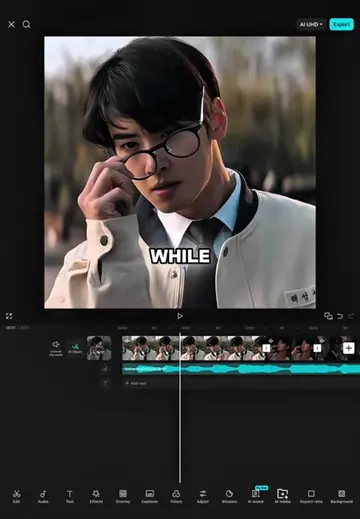
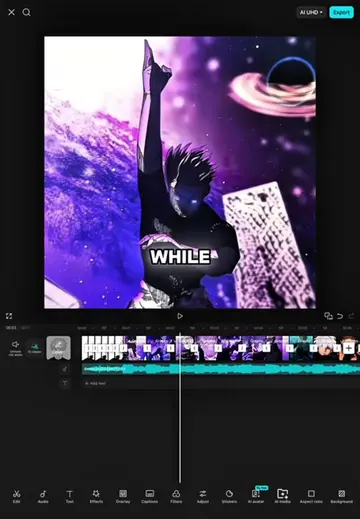
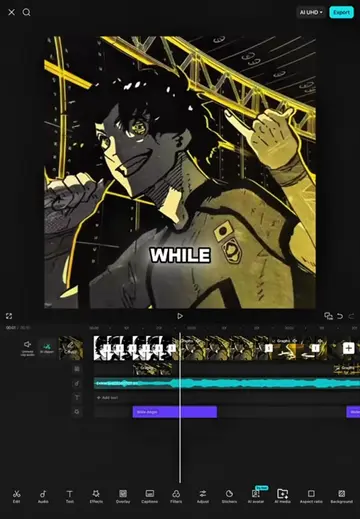
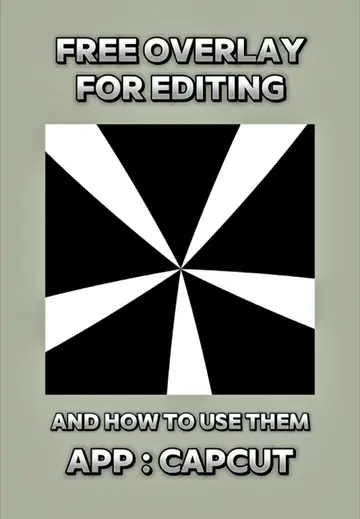
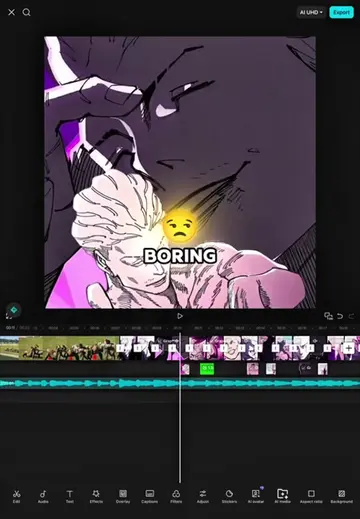
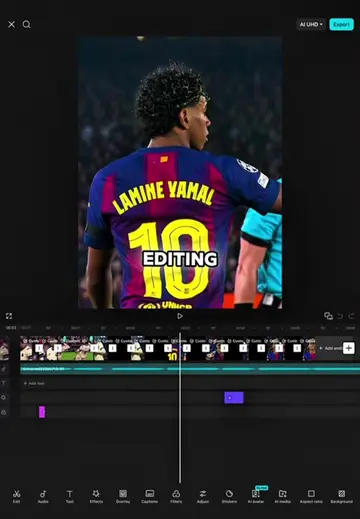
This video is a tutorial demonstrating how to create an anime-style edit using CapCut. It walks viewers through applying various transitions, effects, and overlays to video clips to achieve a dynamic visual style.
Structure
- 1Introduction and realization of boring edit
- 2Applying transitions to multiple clips
- 3Adding and adjusting shake effect
- 4Applying glitch and fade out effects
- 5Final review of the edit
Product placement
CapCut (ACTS - video editing software, interface operated, generates video result, removing it would change what happens in the video)
On-screen text
EDITING
REALIZED
FLAT
LOOKED
BACK WHEN YOU FAKE MAKE THAT
HEAD AT THE GAME
I DON'T PLAY THAT FACT
GOOD
TARGET
SO
THE
CLIP
GO
SELECT
CW
TRANSITION
SECONDS
4TH
TRANSITIONS
THE
SELECT
TRANSITION
AND
3
NEXT
VIDEO
TO
SELECT
AND
3
NEXT
THE
GO
SELECT
THE
AND
TWO
NEXT
THE
CLIP
EFFECTS
SHAKE
GO
SELECT
ALL
VIDEOS
AND
TRIM
THE
EFFECT
LIKE I DID
ADD
KEYFRAME
THE
30
80
ANOTHER
FRONT
INTENSITY
AND
0
TWO
NEXT
BOTH
THEM
CLIPS
PROCESS
VIDEO
EFFECTS
THE
ALL
THE
ADJUST
INTENSITY
TWENTY
POSITION
TO
FINISHED
THE
RESULTS
Original caption
Tutorial Edit Capcut ( Kinji Hakari Trend Edit ) #CapCut #capcutpioneer #capcuttutorial #tutorial #fyp
More from @hamproject016
Their other posts in the index, biggest breakout first.