Loading video…
All breakouts
475Text-HeavyOther hookSaaS
Hook
Notes
@ivee.jobss
38.7K followers · usually 854 views a post
Views
405.4K
Likes
17.2K
Comments
36
Shares
2.9K
Why it worked
The post offers highly specific, actionable prompts for a popular productivity tool, directly addressing common pain points in email management. The clear, step-by-step format and the inclusion of a practical tip make it easily digestible and shareable.
Summary
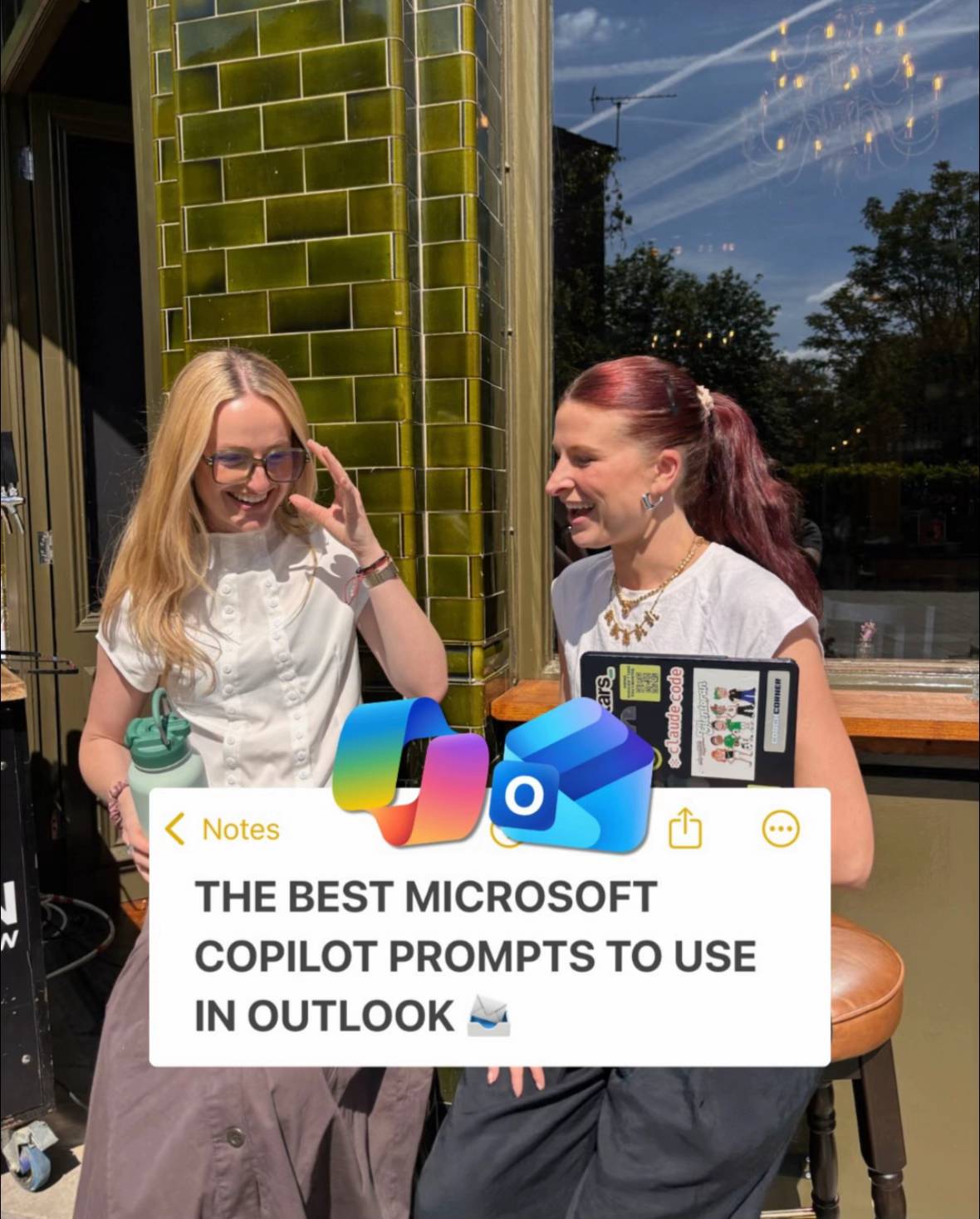
This post provides five practical prompts for using Microsoft Copilot within Outlook to manage emails more effectively. It covers tasks like prioritizing emails, finding hidden action items, drafting diplomatic responses, analyzing threads, and checking for bottlenecks.
Structure
- 1Introduction to Microsoft Copilot prompts for Outlook
- 2Prompt 1: Morning priority sweep
- 3Prompt 2: Hidden ask finder (CC'd emails)
- 4
Original caption
(Save this post and use the prompts) 1. The morning “priority sweep” “Scan my inbox for the last 24 hours. Identify the emails that require an action from me or a response, prioritising any from leadership or key external clients. Present them in a table with columns for: Sender, Short Summary (1 sentence), Urgency level (High/Medium/Low), and Suggested Action.” 2. The “hidden ask” finder (CC’d emails) It’s incredibly easy to miss an action item when you are only CC’d on a massive email thread. This prompt hunts down implicit expectations. “Search my mailbox for emails received this week where I am on the CC line. Exclude newsletters and automated notifications. From those threads, extract any clear or implied asks of me - such as phrases like ‘your input,’ ‘can you,’ or ‘please confirm.’ Return a bulleted list highlighting the sender, the specific task, and any mentioned deadlines.” 3. The “diplomatic pushback” drafter When writing a reply, you can click Draft with Copilot and feed it specific context about your relationship and boundaries to get a highly calibrated response. “Draft a reply to [Name] regarding the project timeline. Acknowledge their tight constraints and thank them for the push, but diplomatically explain that our team cannot meet the Friday deadline without sacrificing QA quality. Offer two alternative delivery dates next week (Tuesday or Thursday) and keep the tone professional, collaborative, and firm.” 4. The “catch me up” thread analyser Open the thread, activate Copilot, and use this to cut straight to the point. “Analyse this email thread. Provide a chronological timeline of the key decisions made so far, list any unresolved questions or disagreements, and explicitly state what the current expectation is for my involvement.” 5. The Friday bottleneck check “Review my sent and received emails from the past 5 business days. Identify any threads where someone is waiting on a deliverable or input from me and I haven’t responded yet. Also, flag any emails where I personally committed to a deadline happening next week.” #microsoft #mscopilot #microsoftai #microsoftcopilot #copilot
More from @ivee.jobss
More breakout videos from this creator.