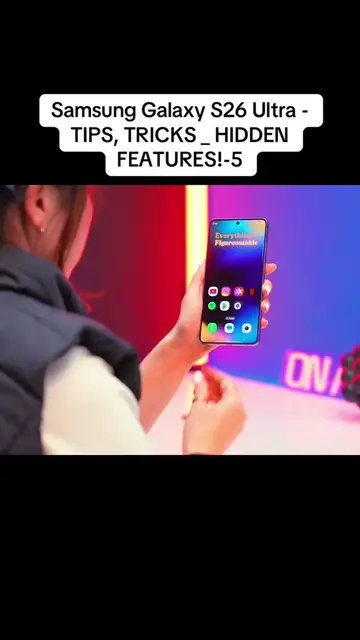
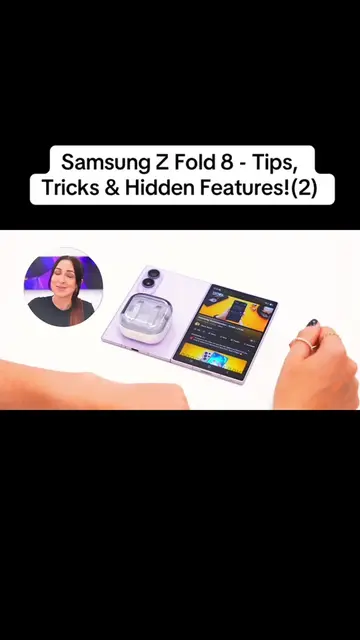
The video effectively demonstrates practical and visually appealing hidden features of a popular foldable phone, providing clear, step-by-step instructions that are easy to follow. The use of engaging visuals and a friendly, enthusiastic tone makes the content highly shareable and useful for potential buyers.
Summary
This video showcases several tips, tricks, and hidden features of the Samsung Z Fold 8. It demonstrates how to customize screen usage, create double wallpapers, use the document scanning feature, set up fingerprint unlock with edge lighting effects, and utilize wireless power share. The creator also highlights a "live effect" feature in the gallery that adds depth to photos.
Structure
1Introduction to Samsung Z Fold 8 features
2Customizing screen usage and wallpapers
3Document scanning and PDF creation
4Fingerprint unlock with edge lighting effects
5Gallery's 'live effect' for 3D photos
6Wireless power share functionality
Product placement
Samsung Z Fold 8: ACTS - it is a smartphone whose interface is operated, it generates visible results (e.g., displaying apps, photos, videos, documents), and its features are demonstrated. Removing it would change what happens in the video. Samsung: APPEARS - it is the brand name of the phone, but the video focuses on the specific model. Removing it would not change what happens in the video.
Original caption
Samsung Z Fold 8 - Tips, Tricks & Hidden Features!(1)
More from @user9453852791661
More breakout videos from this creator.
Call to action
Check out my website for free, link in the description
On-screen text
Samsung Z Fold 8 - Tips,
Tricks & Hidden Features!(1)
Z FOLD 8
CONTINUE APPS
ON COVER SCREEN
TIPS
TRICKS
LANDSCAPE
PORTRAITS
MODES
DOUBLE
WALLPAPER
FINGERPRINT
UNLOCK
EDGE LIGHTNING
PDF
SCANNING
Transcript
This is the Samsung Z Fold 8. It has a new screen size, upgraded cameras, fun customization, and hidden features along with a bunch of other fun tips, tricks like out of the box, there's four ways you can use the screen. So the first is the cover screen, this portrait mode which is great for scrolling. Landscape for quickly watching videos. And then when you unfold it, there's a bigger landscape screen for watching things like movies, and an even bigger portrait screen for reading. Sweet. But by default, you'll notice that if you close the main screen, the phone actually locks itself, which is kind of annoying. But if you go into settings, then display and scroll all the way down, you'll find something called continue apps on cover screen. Set that to always, because now no matter what you're doing on the main screen, when you close it, it'll automatically carry on, and when you open it back up again, it's so much better. Okay, now this is a really hidden trick you should try out, and it is so cool. To do it, you'll need a wallpaper like this where it's got two photos basically merged into one. Of course, it can be any two images you want, as long as they're merged like this. Then you tap the three dots, set as wallpaper and choose lock screen. Now, while you're in the landscape mode, you're going to adjust the image so the bottom landscape wallpaper is in the portrait rotation. Then rotate the phone and adjust the image so the portrait wallpaper is in the portrait rotation. Then press save. And now, whenever you rotate from landscape to portrait, bam! You have a double wallpaper. If you're wondering where you can get a bunch of double wallpapers like this for free, then check out my website because I got you covered. Link in the description. Okay, but that cool wallpaper trick is not even as hidden as these next few. Hidden tricks. Now, check out how cool this is. If you open the camera and whip a document in front of it, this scan button shows up. And if you hit it, not only will it snap a photo of that document, but it'll reframe it, remove any fingers or stains, and if you tap these three dots, you can instantly save it as a PDF. This has literally got to be the easiest way you could possibly scan a document. Wow. Then, not many people know this, but the Fold 8 actually has a fingerprint sensor under this button. And once you've added your fingerprint, you can actually set it up to do this sick effect. So to get yours to do this, open up settings and go inside modes and routines. Then tap routines and hit the plus icon. Select this first option, and if you scroll all the way down, you'll see unlock with fingerprint. Select whichever fingerprint you want to unlock with. Then, and under this section, you're going to go to effects and choose edge lighting effect. Pretty simple. Now all you do is customize that effect. I like mine colorful and bold. Then you're gonna hit done, save this routine, and bam! You've got a sick effect every time you unlock using your fingerprint. That's not just looks so cool. Okay, there's another hidden trick you should try out. And this one is inside the gallery. All you do is find a picture, swipe up on it, and right over here, you'll see this live effect button, which turns your photo into a 3D photo using this really cool depth effect. I don't know why Samsung has made this so hidden, because it's really cool. But this by far has got to be the coolest trick. Inside quick settings, if you turn on wireless power share, then open the fold like this and place it down. If you put a pair of earbuds or something that's charged on the side of it like this, you can unlock the cover screen and keep using your phone. So if you wanted to keep watching videos while charging your earbuds, you can. That's pretty neat. And that's all for this video. I hope you guys enjoyed these tips and tricks for the Samsung Z Fold 8. Let me know in the comments which one was your favorite. And don't forget to like and subscribe for more.