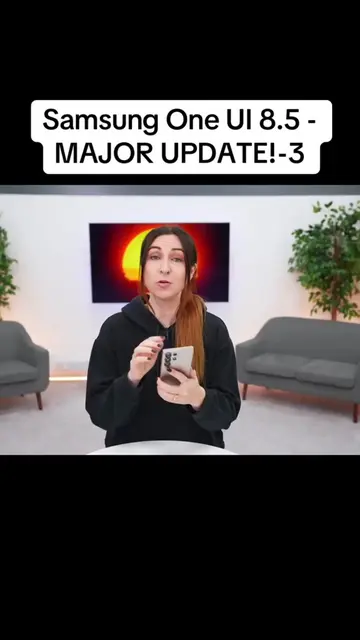
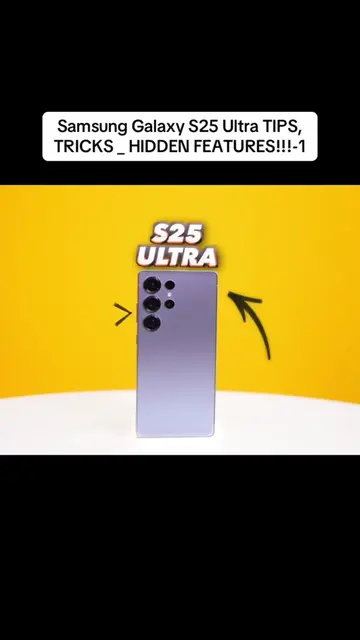
The video effectively demonstrates practical and useful new features of the Samsung One UI 9, presented in a clear and engaging manner. The inclusion of features like the driving report and enhanced privacy controls appeals to a broad audience looking for tangible benefits from their smartphone's operating system.
Summary
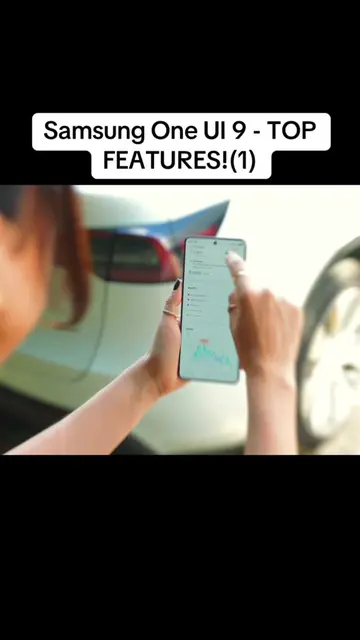
This video showcases new features in Samsung's One UI 9 operating system. It highlights a driving report feature that tracks car trips, improved multi-window functionality in the browser, enhanced text redaction in the Notes app, and better security and privacy controls including permission usage and management of unknown apps. The video also demonstrates the ability to open PDFs directly within the Files app and the addition of network speed indicators in the quick settings panel.
Structure
1Introduction to One UI 9 features
2Demonstration of the Driving Report feature
3
Original caption
Samsung One UI 9 - TOP FEATURES!(2)#xuhuongtiktok#fypシ#viralvideo
More from @user9453852791661
More breakout videos from this creator.
Showcasing browser multi-window capabilities
4Highlighting text redaction in Notes app
5Explaining enhanced security and privacy features
6Demonstrating PDF viewing within Files app
7Revealing network speed indicators
Product placement
Samsung One UI 9: This is the operating system for Samsung phones. It ACTS by providing features like driving reports, multi-window browsing, and permission management. Removing it would fundamentally change the video's topic. Samsung phones: These are the devices on which Samsung One UI 9 runs. They APPEAR as the platform for demonstrating the software. Removing them would change the video's topic.
On-screen text
Samsung One UI 9 - TOP FEATURES!(2)
Transcript
Now with One UI 9, if you connect your Samsung phone to your car's Bluetooth, you might notice this pop-up in your notifications. And if you go on a drive, your Samsung phone will now actually track that entire car ride. Okay, so let me explain. Inside your phone's settings, if you head to Connected devices, and scroll all the way to the bottom, you get this new option called Driving report. And at the end of each of your car trips, they'll show up in this trip history. And if you tap on it, you get a bunch of stats based on how you drove, like the speed graph that shows your literal speed for the whole ride, including how fast and your average speed was. What's crazyer is this even a map, and based on the colors of your map, you can see how many sharp turns you did, rapid acceleration, sudden decelerations, and every time you drove below 12.5 miles per hour. I mean, how interesting is that? What's also nuts is if you use your phone during the drive, it'll even show you for how long. Damn. Really cool, but I do just want to know how private this is because insurance companies, they got to love this feature. Okay, so three apps got some really cool updates. Browser, Notes, and Dex. Let's start with the browser because inside the tabs icon, then these three little dots, you'll now find manage windows. And if you just add a new window, then head to whatever website it is you want, like Amazon for example. When you now go to recent, check it out. You got two totally separate browser tabs at the same time. And you can do this with up to five different windows. It's basically like having your favorite websites right at your fingertips. Okay, then inside the Notes app, now when you open the drawing menu, then scroll to the left, you'll see this new icon right over here, that you can use to redact text. There's a couple of different pattern options you can pick from, there's solid colors too. And if you click on the tape button itself, this is where you can change all those settings and even the thickness. To see what is under each redaction, you can just tap on one, like this one said, Oh, for goodness sake. But basically, why this is so great is because if you ever share this redacted image with someone, they of course cannot see or read what those redacted details are. Neat. And what's new with Dex is once you've connected everything up, like your phone to a TV, you can now visually see all of your desktops right at the top and what apps are open in each of them. So what's nice is you can control more and it just feels a way more like a computer now. But One UI 9 also got way more secure. And he'll show why. Okay, check this out. When one of your apps is using your camera, microphone or location, in the top of the right hand in the notification bar, you'll see these active icons. Now these aren't new, but what is new is that you can now tap on the icon to directly see and stop the applications that are using those things. What's also really cool is if you click on 'See recent access', this pulls up a list of every app that has used or gained access to your microphone, camera, location or other sensitive info. And if you think something is going on, just click on apps, then the app you're using your location, tap location and say ask every time. Okay, back inside settings, there's also another really useful security and privacy setting under more security settings, called Manage unknown apps. And in here, you'll basically find every single app that you've downloaded from outside the Play Store, like different APKs for example. And so with this new menu, it just makes it way easier to uninstall these apps, which is such a useful update. But there's something new in files too. And I cannot believe we are only getting it now. So to read a PDF or text file inside the files app, you've always needed a separate viewer, like the Notes app or Acrobat. But that is not necessary anymore. You can now find and open PDF files directly inside the files app. Like I said, I cannot believe the text Samsung has done this long to get the feature, but I'm just glad it's here. Then also, remember that network speed indicator I mentioned? Well, to get it, all you do is open up Good Lock, then go into Quick Star, and over here, you'll see visibility of indicator icons. And then Network Speed. Turn that on and boom, it'll show you your Wi-Fi speed and even your mobile data speed. Man, that's why we love Samsung so much. Oh, and you can also do this to your quick settings panel. And if you want to see how, then check out this video over here. So to read a PDF or text file inside the files app, you've always needed a separate viewer, like the Notes app or Acrobat. But that is not necessary anymore. You can now find and open PDF files directly inside the files app. Like I said, I cannot believe the text Samsung has done this long to get the feature, but I'm just glad it's here. Then also, remember that network speed indicator I mentioned? Well, to get it, all you do is open up Good Lock, then go into Quick Star, and over here, you'll see visibility of indicator icons. And then Network Speed. Turn that on and boom, it'll show you your Wi-Fi speed and even your mobile data speed. Man, that's why we love Samsung so much. Oh, and you can also do this to your quick settings panel. And if you want to see how, then check out this video over here.