Loading video…
Sound

original sound - puccistudio
Luca Pucci | Tecnologia Dicas · Original audio
0:00–:––
Playing this video’s own audio, so you’ll hear the creator over the sound.
This video promotes it, but we haven’t matched it to a product page yet, so there are no product figures.
The video provides a practical, free solution to a common user desire (custom ringtones) using only built-in features, making it highly accessible and shareable. The step-by-step visual guide is easy to follow, and the use of a popular song (Linkin Park) adds to its appeal.
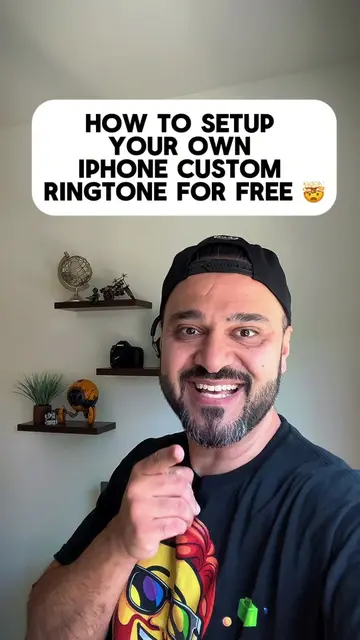
This video demonstrates how to convert any video or music into a custom iPhone ringtone using only native iPhone features. The process involves downloading a video, editing it to 30 seconds, saving it as an .m4a file, and then setting it as a ringtone through the iPhone's settings.
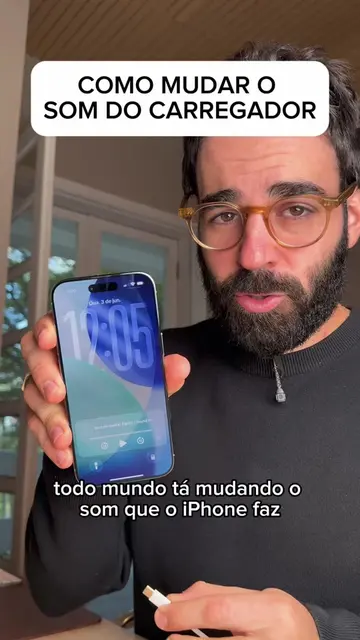
COMENTA: qual música, áudio ou meme você colocaria como toque do seu iPhone? Dá para transformar um vídeo que você tem no iPhone em um toque personalizado usando só funções nativas, sem precisar instalar outro aplicativo. PASSO A PASSO: 1. Escolha um vídeo do Instagram, YouTube ou outro lugar com o áudio que você quer usar. 2. Toque em Compartilhar > Baixar para salvar o vídeo na galeria. 3. Abra o vídeo no app Fotos. 4. Toque em Editar e corte o trecho para ficar com 30 segundos. 5. Escolha também exatamente onde a música deve começar. 6. Confirme a edição. 7. Toque em Compartilhar > Salvar em Arquivos. 8. Renomeie o arquivo para facilitar na hora de encontrar. 9. Abra o app Arquivos. 10. Toque nos três pontinhos > Opções de Visualização. 11. Ative Mostrar Todas as Extensões de Nome de Arquivo. 12. Localize o vídeo, que aparecerá com a extensão .mov. 13. Toque nele e selecione Renomear. 14. Troque .mov por .m4a. 15. Confirme em Manter .m4a. 16. Abra o arquivo novamente e toque em Compartilhar. 17. Selecione Usar como Toque. Pronto. O áudio já entra como um toque personalizado do seu iPhone e você pode salvar outros para trocar depois. Esse truque é ótimo para colocar como ringtone uma música, áudio engraçado, meme ou trecho de vídeo que você gosta. Salve para testar depois e compartilhe com quem ainda usa o toque padrão do iPhone.
Como fazer vídeo virar toque no iPhone de graça
Introduction: turning videos into ringtones for free
Download video from Instagram or YouTube
Edit video to 30 seconds and save as .m4a
Change file extension to .m4a
Set the audio file as a ringtone
Call to action: share your ringtone choice
iPhone: it is the device on which the video is made and the ringtone is set. Removing it would change what happens in the video. Instagram: it is a social media platform where videos can be found and downloaded. Removing it would change what happens in the video. YouTube: it is a video-sharing platform where videos can be found and downloaded. Removing it would change what happens in the video. Linkin Park: it is a band whose song is used as a ringtone. Removing it would change what happens in the video. iCloud Drive: it is a cloud storage service used to save the ringtone file. Removing it would change what happens in the video. Files app: it is an app used to manage files on the iPhone. Removing it would change what happens in the video.
Comenta aí qual que foi o som que você colocou de toque do seu iPhone
Playing this video’s own audio, so you’ll hear the creator over the sound.
Promotes 9 products. Create free account to see more.
Outliers and viral hits: their videos on Overshot, all time.