Loading video…
All breakouts
406App DemoOther hookSaaS
Hook
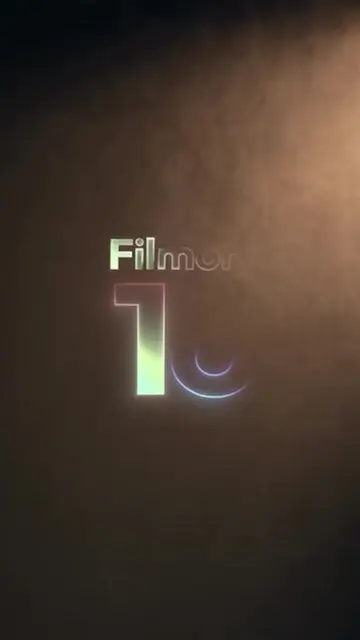
Filmora 16
@filmora.editor
66.7K followers · usually 1.6K views a post
Views
615.5K
Likes
734
Comments
4
Shares
15
Why it worked
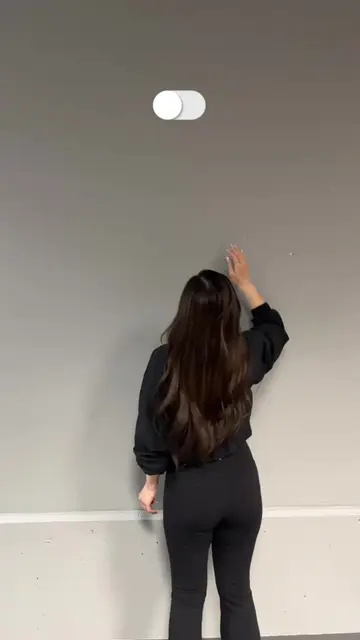
The video uses a clear, high-quality before-and-after demonstration of a specific, useful feature, making the software's value immediately obvious to editors.
Summary
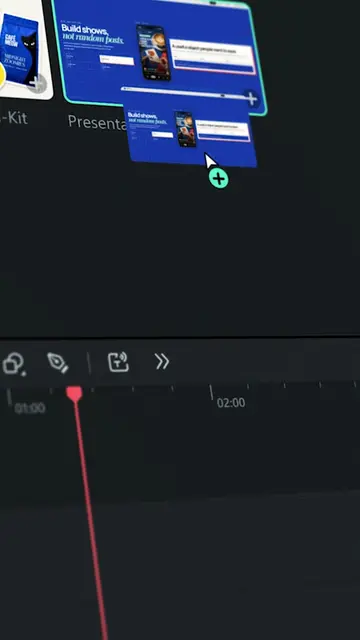
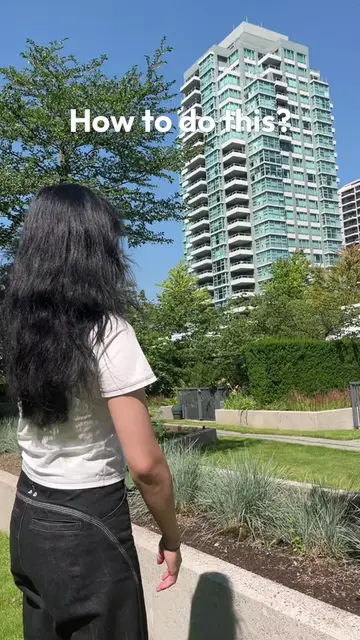
The video demonstrates the 'Color Mask' feature in Filmora 16, showing how to isolate and color-grade specific elements within a scene. It highlights the tool's ability to adjust color and focus for a more professional look.
Structure
- 1Title card for Filmora 16
- 2Introduction of the Color Mask feature
- 3Demonstration of selecting a character with AI mask
- 4Adjustment of color curves for the selected area
Original caption
Color Mask helps guide attention exactly where it matters🎨 Target specific areas and adjust their color for more focused, polished shots! Try this feature built into Filmora 🎬 #wondershare #filmora16 #madewithfilmora #filmoradesktop #colormask #colorgrading #videoedit #videoediting #cinematic #viral
More from @filmora.editor
More breakout videos from this creator.