Loading video…
All breakouts
51.0App DemoOther hookConsumer Apps
Hook
WhatsApp notification Color change
@sawag_queen_67
8.2K followers · usually 72.8K views a post
Views
2.7M
Likes
61.6K
Comments
541
Shares
2.8K
Promoted product
WhatsApp
Why it worked
The video provides a quick and clear visual tutorial for a customization feature within a widely used application, appealing to users looking to personalize their experience.
Summary
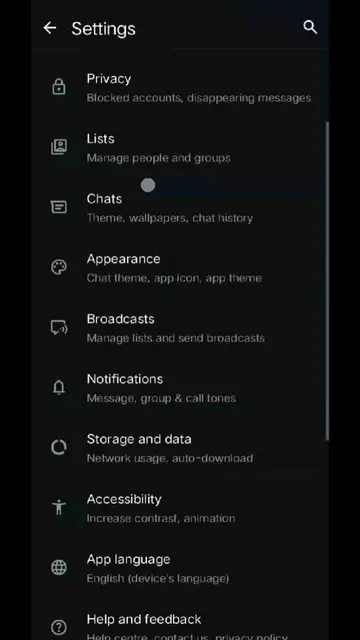
The video demonstrates how to change the notification light color within the WhatsApp application. It navigates through the settings menu to access notification options and select a new color for the light.
Structure
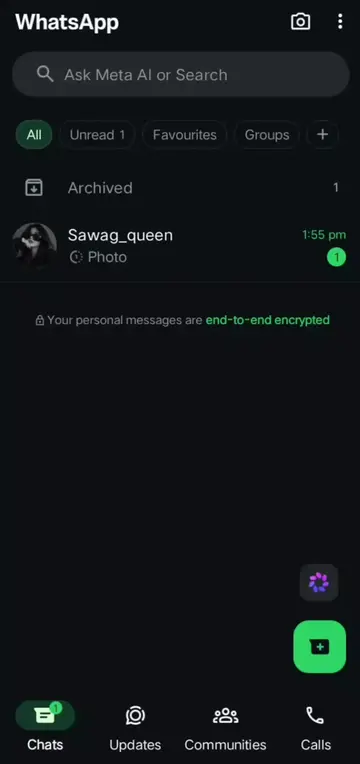
- 1Show WhatsApp interface
- 2Open settings menu
- 3Navigate to Notifications
- 4Select notification light color
- 5Choose a new color
Product placement
WhatsApp ACTS - it is the application interface being operated to change notification settings. Removing it would change what happens in the video.
On-screen text
WhatsApp notification
Color change
Settings
Chats
Appearance
Broadcasts
Notifications
Storage and data
Accessibility
App language
Help and feedback
Invite a friend
Notifications
Reminders
Get occasional reminders about messages, calls or status updates you haven't seen
Messages
Notification tone
Default (Encounter)
Vibrate
Default
Popup notification
Not available
Light
White
Use high priority notifications
Show previews of notifications at the top of the screen
Reaction notifications
Show notifications for reactions to messages you send
Groups
Notification tone
Default (Encounter)
Vibrate
Default
Light
White
Use high priority notifications
Show previews of notifications at the top of the screen
Reaction notifications
Show notifications for reactions to messages you send
Light
None
White
Red
Yellow
Green
Cyan
Blue
Purple
Cancel
OK
Original caption
It's amazing feature 🫠❤️ . . . . . . . . . . . #foryoupage❤️❤️ #plzzunfreezemyaccoun😭🙏😥fyp #growmyaccount✅♥️♥️♥️ #1millionlikes💥❤️ #veiwproblem🥀
More from @sawag_queen_67
More breakout videos from this creator.