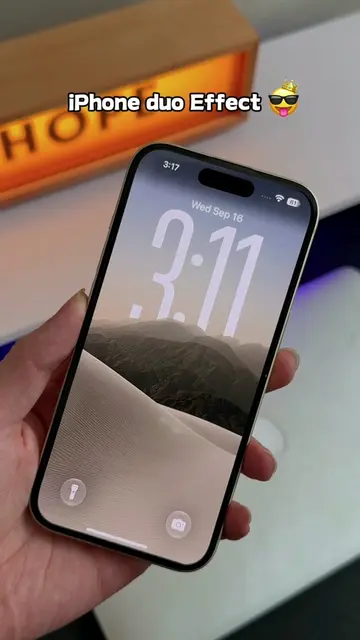
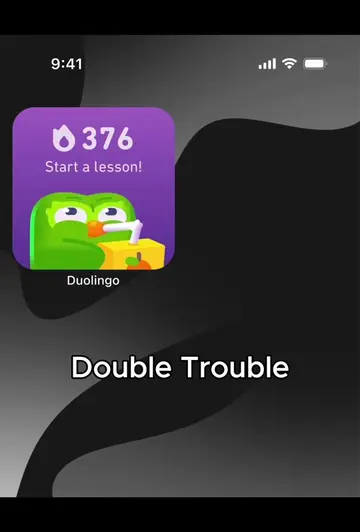
Loading video…
Sound

original sound - download_widgetable
download_widgetable · Original audio
0:00–:––
Playing this video’s own audio, so you’ll hear the creator over the sound.
The video directly addresses user comments asking for a tutorial, providing a clear, step-by-step guide on how to use a popular feature. The "completely free" call to action lowers the barrier to entry and encourages immediate adoption.
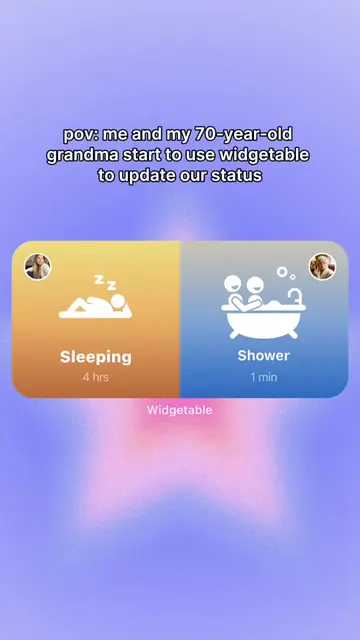
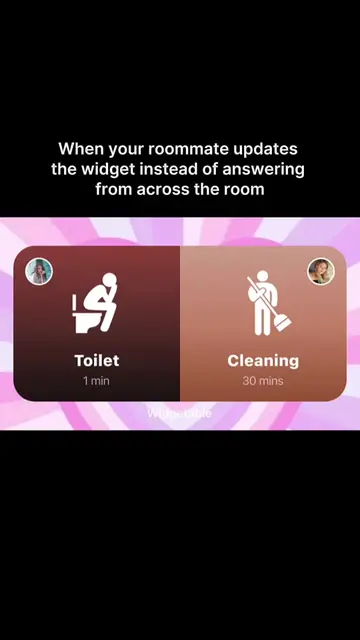
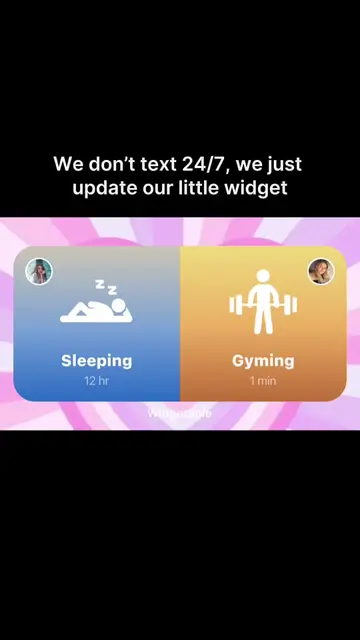
This video provides a step-by-step tutorial on how to use the Widgetable app to create a status widget that can be shared with friends. It demonstrates how to open the app, select the 'Status' widget, install it on the home screen, and choose an emoji status.
Free to use!!! Here's the tutorial for yall. It's your sign to try this status widget with your friends now.
How do we get that
Introduction to the app and user requests for a tutorial
Step 1: Open Widgetable
Step 2: Select the 'Status' widget
Step 3: Add the widget to the home screen
Step 4: Choose an emoji status
Final display of the widget and call to action
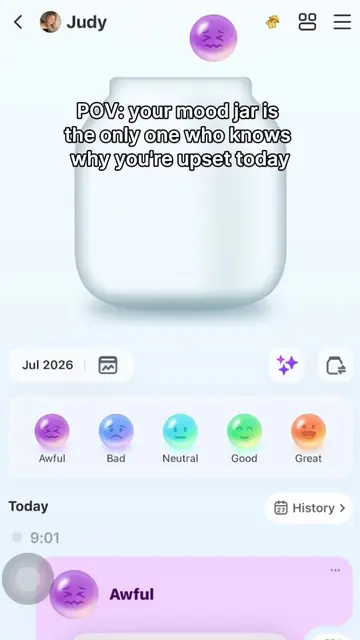
The video demonstrates the use of the Widgetable app, specifically its status widget feature, showing how to install and customize it on the iPhone home screen.
Go try it now, it's completely free!
Playing this video’s own audio, so you’ll hear the creator over the sound.
Promotes 2 products. Create free account to see more.
Outliers and viral hits: their videos on Overshot, all time.
Social phone app for sharing status widgets and activities with friends
All time.