Loading video…
All breakouts
 229 videos128 creators
4.7Text-HeavyHow-To hookCreator Economy
Hook
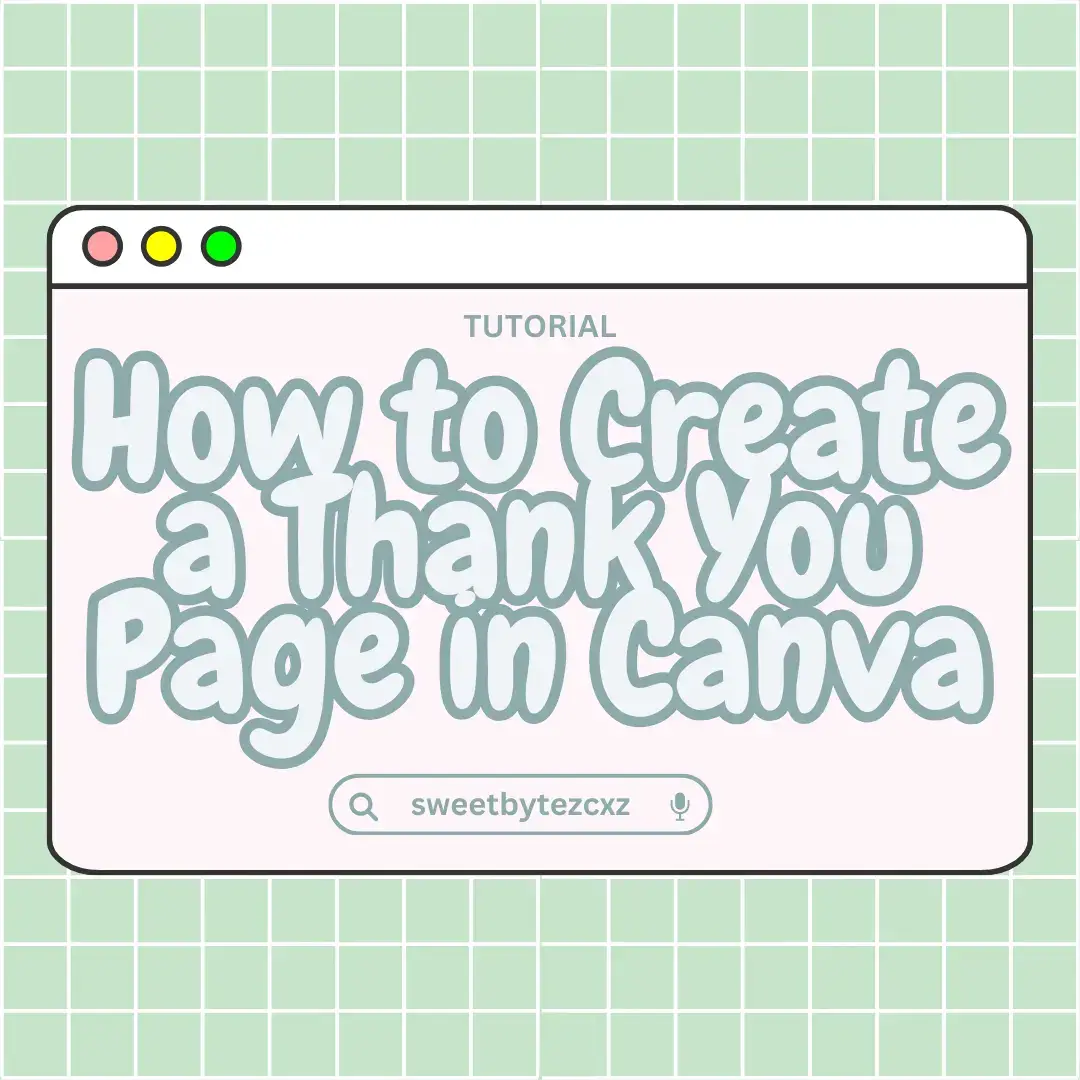
TUTORIAL How to Create a Thank You Page in Canva
@faithfullynica
2.5K followers · usually 5.2K views a post
Views
23.2K
Likes
175
Comments
2
Shares
15
SoundTikTok sound · same
Promoted product
Canvacanva.com
Why it worked
The post provides a clear, step-by-step tutorial on a practical design task using a popular tool, making it valuable for creators looking to enhance customer experience.
Summary
This tutorial demonstrates how to create a thank you page for customers using Canva. It guides viewers through setting up a canvas, designing a personalized message, and adding links to their creations.
Structure
- 1Introduce tutorial and Canva
- 2Set up canvas size
- 3Design thank you message
- 4Add links to designs
- 5
Original caption
Tutorial part 2 Follow for more! #canva #foryou #digitalmarketing #raketph🚀 #digitalproduct #foryoupage❤️❤️ #fyppppppppppppppppppppppp #digitalproduct #canvatutorial #busybook #digitalproductsforbeginners #canvasart #digitalproductsforbeginners #childrensbook #digitalproductsforbeginners
More from @faithfullynica
More breakout videos from this creator.