Loading video…
Sound

Not Responsible - Slowed
krush
0:00–:––
Playing this video’s own audio, so you’ll hear the creator over the sound.
- Videos using it
- 2
- Creators
- 2
- Views on those videos
- 664.7K
The video effectively showcases a practical application of AI in a creative workflow, addressing a common pain point for designers by offering automated analysis and feedback. The clear demonstration and a direct call to action for further information likely drove engagement.
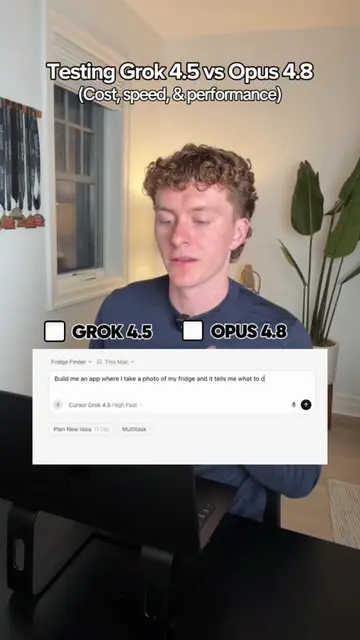
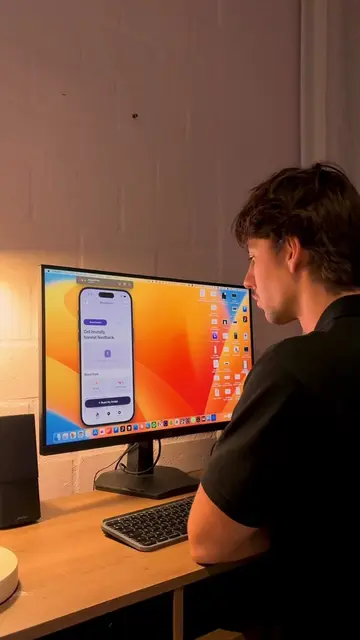
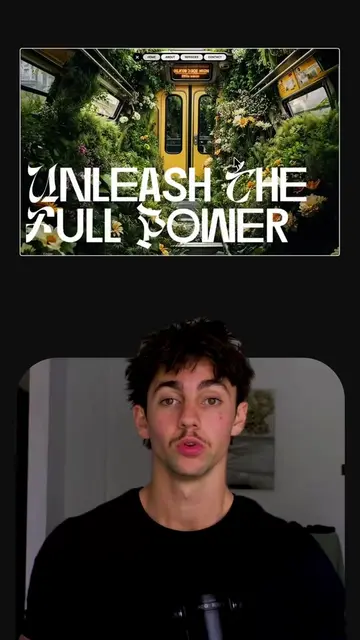
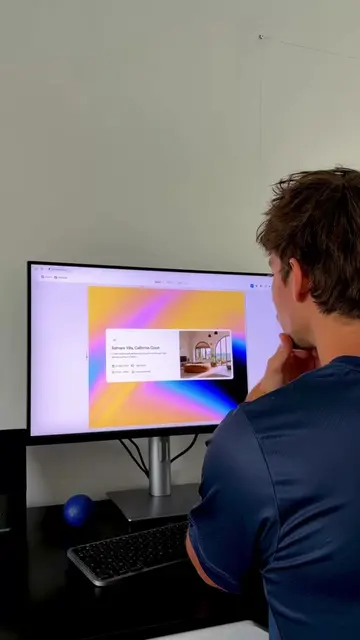
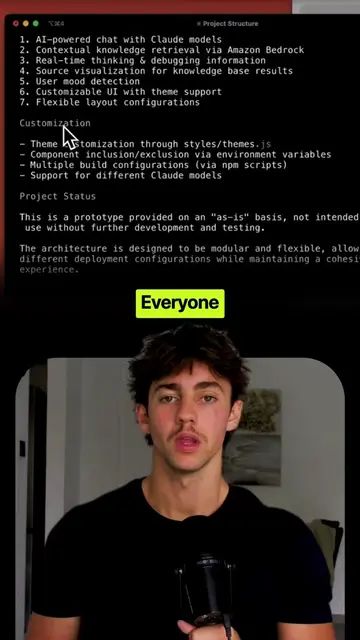
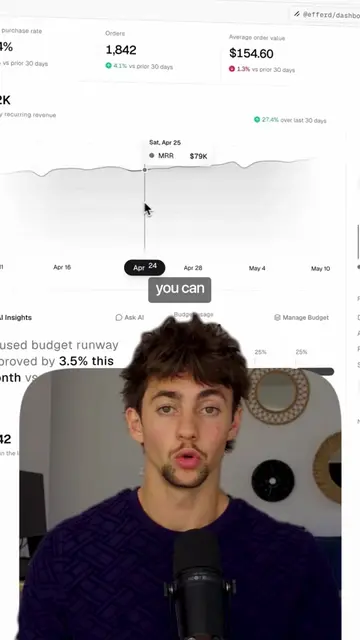
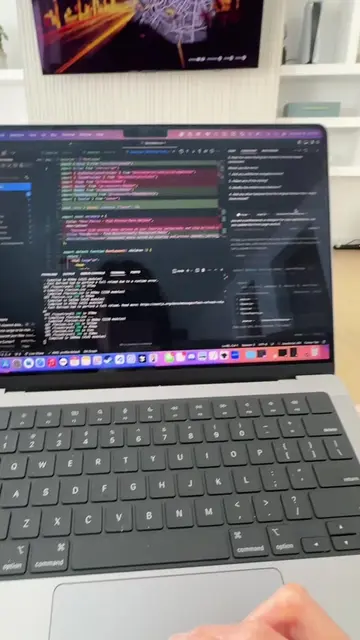
This video demonstrates how to use Cursor, an AI coding assistant, to analyze Figma designs. It shows how to set up custom agents for UX and copy optimization, and how to generate detailed design feedback by pasting a Figma link.
Comment “CURSOR” and I’ll send you all the agents I use AI doesn’t replace designers, it works with you 🤝 With tools like Cursor, you can turn AI into a real design partner instead of just a chatbot. Install the Figma MCP, create your own custom agents (UX, copy, conversion), and let AI analyze your designs directly from your Figma files. The best part? You can switch between top models to get the kind of reasoning your design problem actually needs. That’s how you get smarter feedback, faster. #cursor #aidesign #uxdesign #figma #designworkflow
How to
Introduction to Cursor as an AI design partner
Installing the Figma MCP integration
Creating custom agents (UX, copy)
Generating design analysis using a Figma link
Switching between AI models for optimal results
Call to action to comment for instructions
Cursor: ACTS - it is an AI coding assistant that integrates with Figma to analyze designs and provide feedback. Removing it would change the video's core function. Figma: APPEARS - it is the design tool being integrated with Cursor. Removing it would not change what Cursor does, but would change the context of the demo. Removing it would change what happens in the video.
Comment “CURSOR” and i'll send you all the instructions I use for my agents
Playing this video’s own audio, so you’ll hear the creator over the sound.
Promotes 12 products. Create free account to see more.
Outliers and viral hits: their videos on Overshot, all time.
AI coding editor for developers building and editing software
All time.