Loading video…
All breakouts
6.3App DemoOther hookAI Tools
Hook
VS Code just made diagrams WAY easier 🤯
@vscode
607.5K followers · usually 10.4K views a post
Views
56.6K
Likes
3.3K
Comments
33
Shares
205
Why it worked
The video leverages the "native mention" strategy by showcasing a new, convenient feature within a widely used developer tool (VS Code). The clear demonstration of creating diagrams directly in Markdown, combined with the utility of the feature for developers, likely drove engagement and shares within the target audience.
Summary
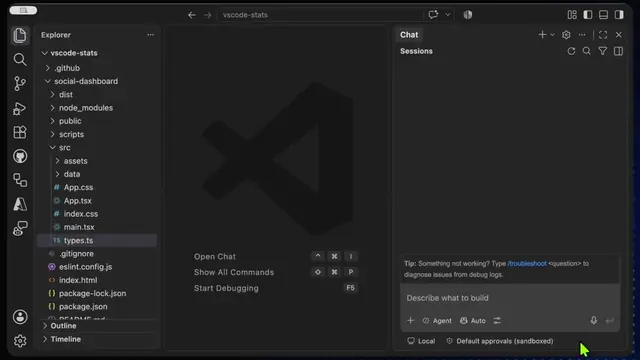
This video demonstrates how Visual Studio Code now has built-in support for creating Mermaid diagrams directly within Markdown files, notebooks, and chats. The demonstration shows the process of writing Mermaid code and seeing the diagram preview update in real-time.
Structure
- 1Introduction to Mermaid diagram support in VS Code
- 2Demonstration of creating a flowchart using Mermaid syntax
Original caption
VS Code just made diagrams WAY easier 🤯 Create Mermaid diagrams directly in Markdown, notebooks, and chat. No extra extension needed. #vscode #coding #programming #developer #softwareengineer
More from @vscode
More breakout videos from this creator.