Loading video…
All breakouts
5.7App DemoHow-To hookEducation
Hook
OPTIMIZE VOUR WINDOWS PC ON GAMING
@rtctutorials
337.1K followers · usually 11.1K views a post
Views
59.8K
Likes
2.8K
Comments
34
Shares
273
Why it worked
The video provides a clear, step-by-step tutorial on a technical topic relevant to a large audience (PC gamers). The concise instructions and visual demonstration make it easy to follow and implement, increasing its shareability and utility.
Summary
This video demonstrates how to optimize a Windows PC for gaming by disabling background app activity. It guides users through the Group Policy Editor to access and modify settings related to app privacy and background processes.
Structure
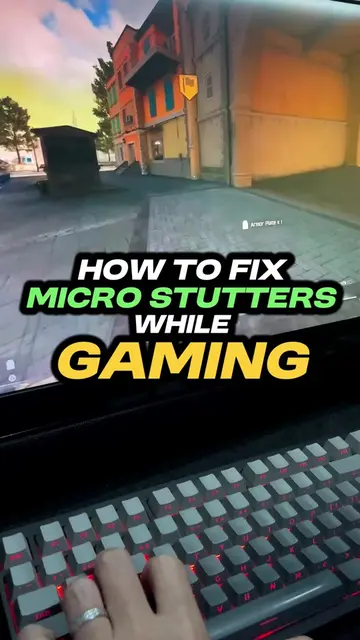
- 1Intro screen with title
- 2Open Run dialog
- 3Navigate to Group Policy Editor
- 4Access Windows Components > App Privacy
- 5Disable background app activity
- 6Apply changes
Product placement
RTC TUTORIALS (channel logo, appears, does not change video)
Windows (operating system, acts, enables video functionality)
On-screen text
OPTIMIZE
VOUR WINDOWS
PC ON GAMING
RTC TUTORIALS
Run
Type the name of a program, folder, document, resource, and Windows will open it for you.
Open:
gpedit.msc
OK
Cancel
Name
Computer Configuration
User Configuration
Name
Software Settings
Windows Settings
Administrative Templates
Setting
Control Panel
Desktop
Network
Printers
Server
Start Menu and Taskbar
System
Windows Components
All Settings
Setting
ActiveX Installer Service
Add features to Windows 10
App and Device Inventory
App Package Deployment
App Privacy
App runtime
Application Compatibility
AutoPlay Policies
Biometrics
BitLocker Drive Encryption
Camera
Chat
Cloud Content
Connect
Credential User Interface
Data Collection and Preview Builds
Delivery Optimization
Desktop App Installer
Let Windows apps access motion
Let apps access notifications
Let apps enumerate Passkeys
Let Windows apps make phone calls
Let Windows apps control radios
Let Windows apps make use of Text and image gen
Let Windows apps access Tasks
Let Windows apps access trusted devices
Let Windows apps activate with voice
Let Windows apps activate with voice while the system
Let Windows apps access diagnostic information about
Let Windows apps run in the background
Let Windows apps communicate with unpaired devices
Let Windows apps run in the background
Not Configured
Enabled
Disabled
Supported on:
At least Windows S
Options:
Default for all apps:
User is in control
Put user in control of these specific apps (use Package Family Names):
Force allow these specific apps (use Package Family Names):
Force deny these specific apps (use Package Family Names):
OK
Cancel
Apply
29 setting(s)
RTC TUTORIALS
Original caption
Optimize your Windows PC on gaming #pcgaming #optimizepc #TechTips #gaming
More from @rtctutorials
More breakout videos from this creator.