Loading video…
All breakouts
 229 videos128 creators
5.6Text-HeavyHow-To hookCreator Economy
Hook
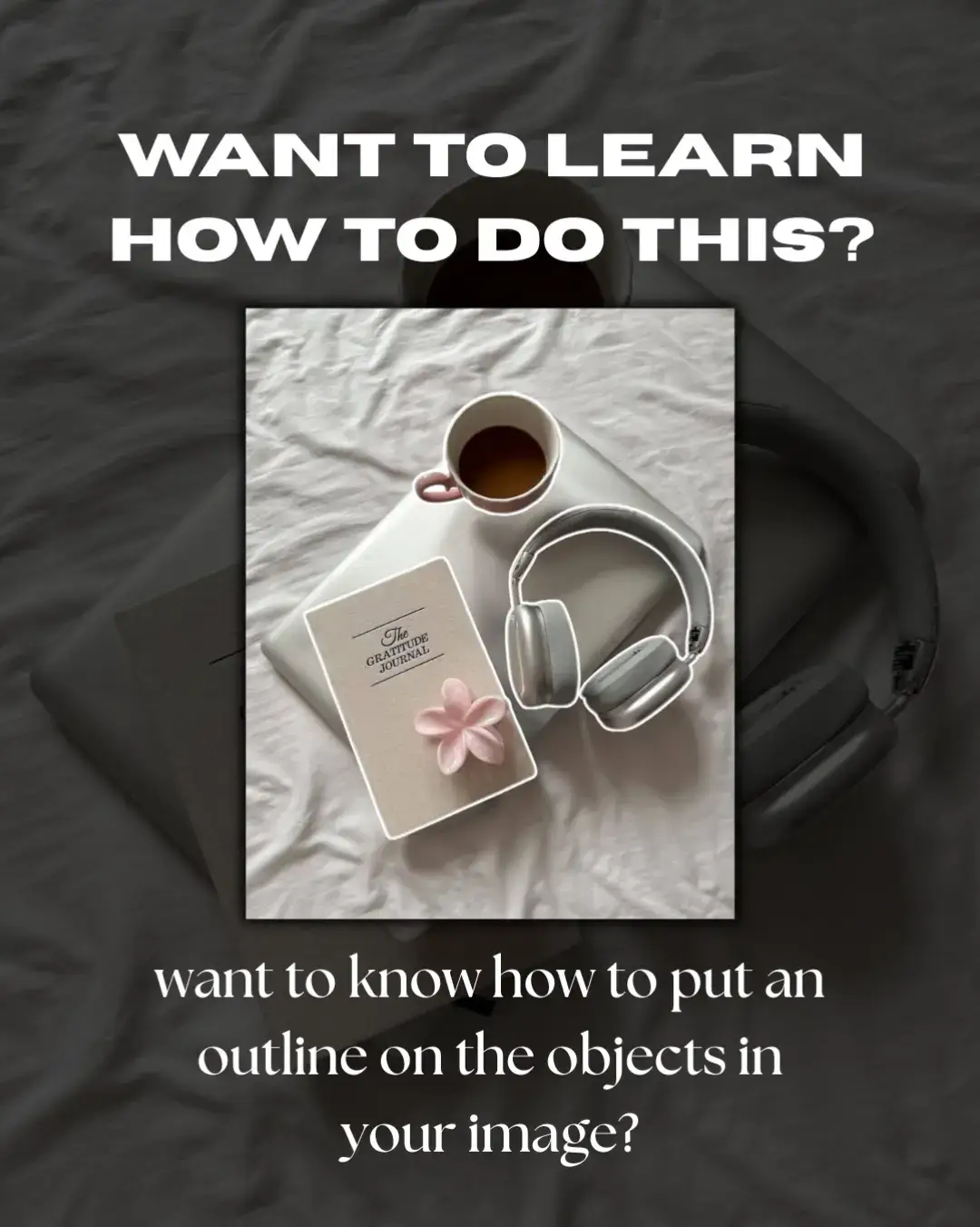
WANT TO LEARN HOW TO DO THIS?
@bellacreatesph_
1.9K followers · usually 1.2K views a post
Views
6.3K
Likes
130
Comments
4
Shares
7
Promoted product
Canvacanva.com
Why it worked
The video provides a clear, step-by-step tutorial for a visually appealing editing effect that is easily achievable within a popular design tool. It addresses a specific user need and offers a practical solution, with a note about premium features that might encourage upgrades or further exploration.
Summary
This tutorial demonstrates how to add an outline to objects within an image using Canva. It guides the user through selecting the image, accessing editing tools, utilizing the 'Magic Grab' feature to select objects, and applying an 'Outline' effect from the 'Shadows' menu.
Structure
- 1Introduction to the desired effect
- 2Instructions to follow easy steps
- 3Step 1: Select the image
- 4
Original caption
To know how to simply put these outlines on the object inside your images just follow these easy steps! #canva #canvadesign #canvatutorial #canvafonts #fyp #digitalmarketing #digitalproduct #canvaquicktips #canvaelementoutline #up #happy
More from @bellacreatesph_
More breakout videos from this creator.