Loading video…
All breakouts
24.0App DemoHow-To hookConsumer Apps
Hook
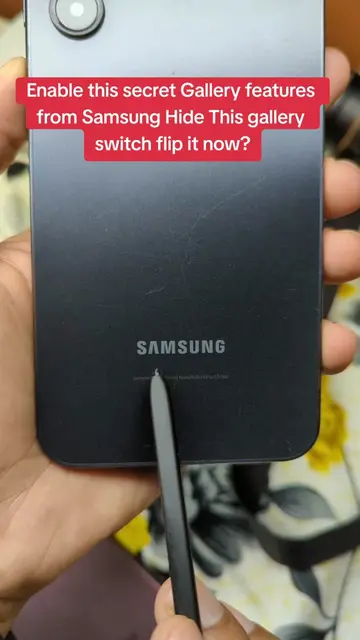
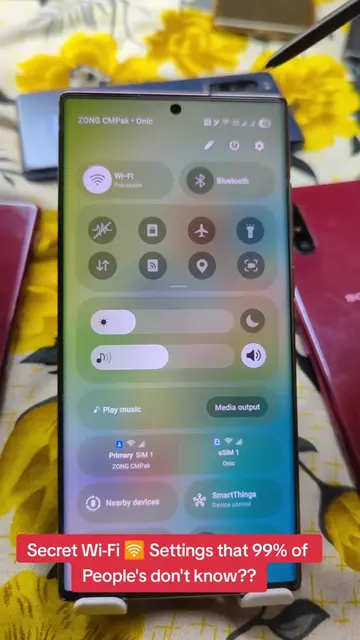
Enable this secret Gallery features from Samsung Hide This gallery switch flip it now?
@herrytech8
725.0K followers · usually 77.4K views a post
Views
2.0M
Likes
61.6K
Comments
535
Shares
21.8K
Promoted product
Gallery
The Gallery app on your Galaxy device lets you view and organize your pictures and videos.
Why it worked
The video taps into the desire for 'secret' or 'hidden' features, appealing to users' curiosity and desire for customization. By providing a clear, step-by-step guide to unlock advanced functionality in a commonly used app, it offers tangible value and a sense of discovery.
Summary
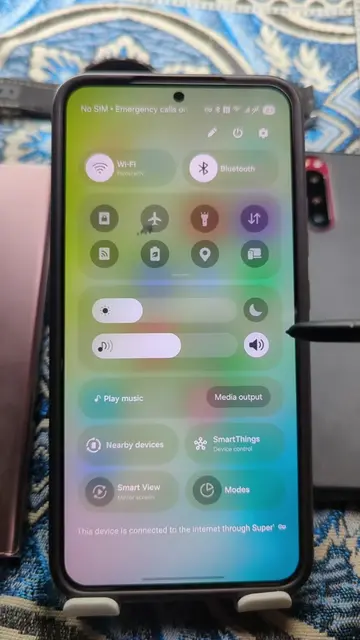
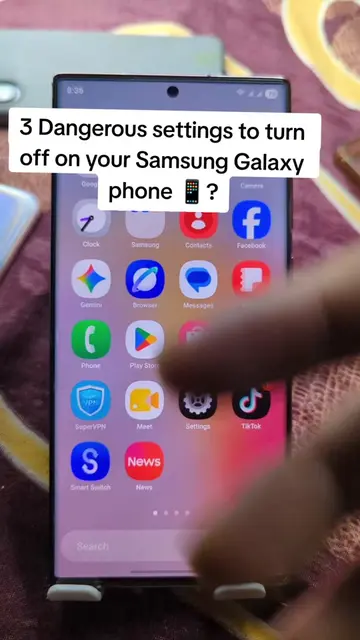
This video demonstrates how to unlock hidden features within the Samsung Gallery app by accessing 'Gallery Labs'. It guides viewers through disabling background data usage, restricting battery usage, and turning off 'Appear on top' permissions before revealing the 'Gallery Labs' option by repeatedly tapping the version number. Finally, it shows some of the advanced options available within Gallery Labs, such as saving photos as PDFs.
Structure
- 1Introduce hidden Gallery feature
- 2Adjust app settings (mobile data, battery, appear on top)
- 3Access Gallery Labs by tapping version number
- 4
Original caption
Enable this secret Gallery features from Samsung Hide This gallery switch flip it now? #gallery #samsung #SamsungTips #PhoneTricks #settings
More from @herrytech8
More breakout videos from this creator.