Loading video…
All breakouts
21.6App DemoBefore / After hookAI Tools
Hook
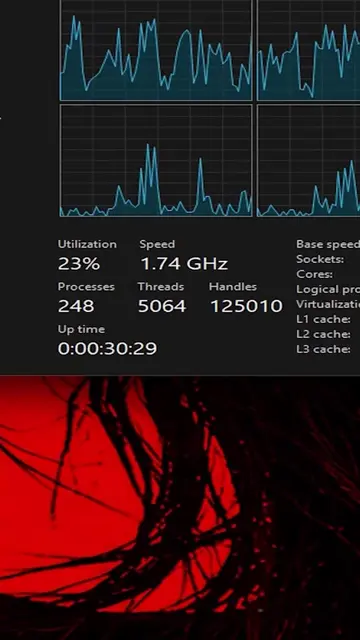
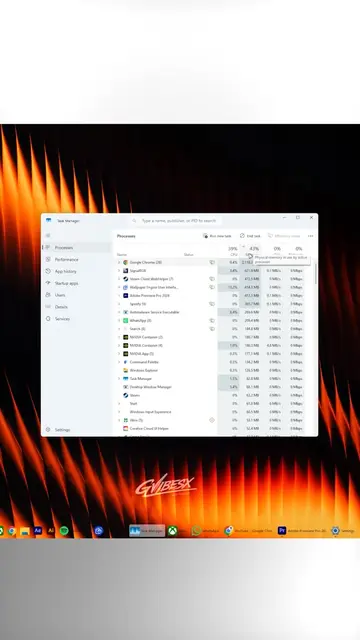
I'm going to show you how to take your background CPU usage from this to this.
@techow
397.8K followers · usually 45.2K views a post
Views
736.5K
Likes
30.8K
Comments
315
Shares
6.5K
Why it worked
The video provides a high-value, actionable technical solution to a common pain point (slow PC performance) using a free, effective tool, which encourages high engagement and saves.
Summary
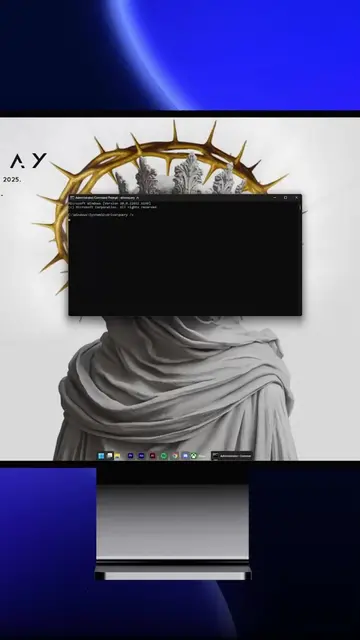
The creator demonstrates how to use the Chris Titus Tech Windows utility to disable background processes and significantly reduce CPU usage. The video shows a step-by-step process of running a command in the terminal to access the tool's interface and apply performance tweaks.
Structure
- 1State the problem and show the before/after CPU usage
- 2Open Windows Terminal as Administrator
- 3Enter the command to launch the utility
- 4Select and apply performance tweaks
Original caption
How To Optimize windows 11 to reduce background CPU usage effectively #pctips #pctricks #windows11 #techtok
More from @techow
More breakout videos from this creator.